
Designs larger than your hoop
When a design won't fit your hoop: make it fit, take a larger hoop, or sew it in parts, lined up with registration marks and a printed template.
Updated October 31, 2026
A design that reaches past the hoop's sewing field is named under Problems — "Design extends 12 mm beyond the hoop", say — and marked on the canvas. A machine refuses such a file, or stops at the edge. Try these in order: make the design fit, take a larger hoop, and only then sew it in parts.
Make it fit
Fit, on that problem, shrinks the design and centres it in the hoop until every stitch, the outline's too, fits with 1 mm to spare. To choose the size yourself, select everything (Ctrl+A) and type a smaller W or H — 80% works too; with the chain between them closed, the other side follows.
What you drew in NextStitch is stitched anew at its new size, so its density stays right. Two things don't shrink as freely: lettering sews well only down to its font's smallest size, and Problems says when a text goes below it; a machine file's stitches only move closer together, and more than 10 % smaller is flagged — turn them into shapes first, and they are stitched anew at the new size (Change a machine file).
A design that is wider than the hoop but would fit across it can use the hoop turned: switch on Turn the hoop 90° in File ▸ Properties…, below the frame (A hoop turned 90°).
Take a larger hoop
Use the … mm hoop, on the same problem, switches to the smallest of your machine's hoops that takes every stitch and moves the design to its centre. You can also click the hoop's size in the status bar and pick another of your machine's hoops, or choose Smallest that fits at the top of the frames in File ▸ Properties…. Hoops you own that the list doesn't know go under My machines in your account.
Some machines sew less than their largest hoop holds; NextStitch knows that field and warns when the design reaches past it.
Sew it in parts
When no hoop is large enough, sew the design in several hoopings, one part at a time. NextStitch has no command for this yet, so you split it by hand:
Plan the parts. Each part, with 10 mm all round for its registration marks, must fit the hoop: in a 100 × 100 mm hoop, a part may be up to 80 × 80 mm. Select a part to read its size in W and H. Put the seams where the design breaks anyway — between letters, between motifs, along an outline.
Cut what crosses a seam. With the Knife (
K), draw along the seam across the shapes it divides. Set Cut width in the tool bar below 0 —-1, say — so the pieces overlap by that much: if a hooping lands a little off, no fabric shows along the seam. Running and satin lines drawn as a centre line are cut too; a satin column made of two rails is not, so let the seam pass beside it (Cutting shapes with the knife).Make each part one click. Group each part's objects (
Ctrl+G), or give each part a layer of its own in Layers, so that you select a whole part at once.Print the template. File ▸ Print / PDF… with Scale ▸ Actual size draws the whole design at 1:1, on as many sheets as it needs; tape them together where the blue marks in the overlaps meet, and measure the 50 mm bar to check the printer's scale (Print a worksheet). Lay the template on the fabric where the design goes.
Export each part. Select the part and open File ▸ Export ▸ Machine file…. Switch on Only the selected objects and Sew registration marks, and switch Keep the position in the hoop off, so the file is centred on the part (Only part of the design). Give each file a name that says which part it is.
Hoop for the part. The machine puts the middle of the part — halfway between its outermost stitches across and down — at the middle of the hoop. Find that point on the template, mark it on the fabric, and hoop with the hoop's own plastic template centred on the mark.
Check, then sew. The file sews five crosses first, in a thread of their own, and the machine stops: one in the middle of the part, and one 5 mm beyond each of its sides. Check them against the template: the outer crosses must lie just outside the part's edges as the template draws them, the middle one on your mark. If they don't, hoop again before the part is sewn. Sew the crosses in a thread you can pick out afterwards.
Go on with the next part. From the second part on, line the template up with what is sewn already, and repeat steps 6 and 7.
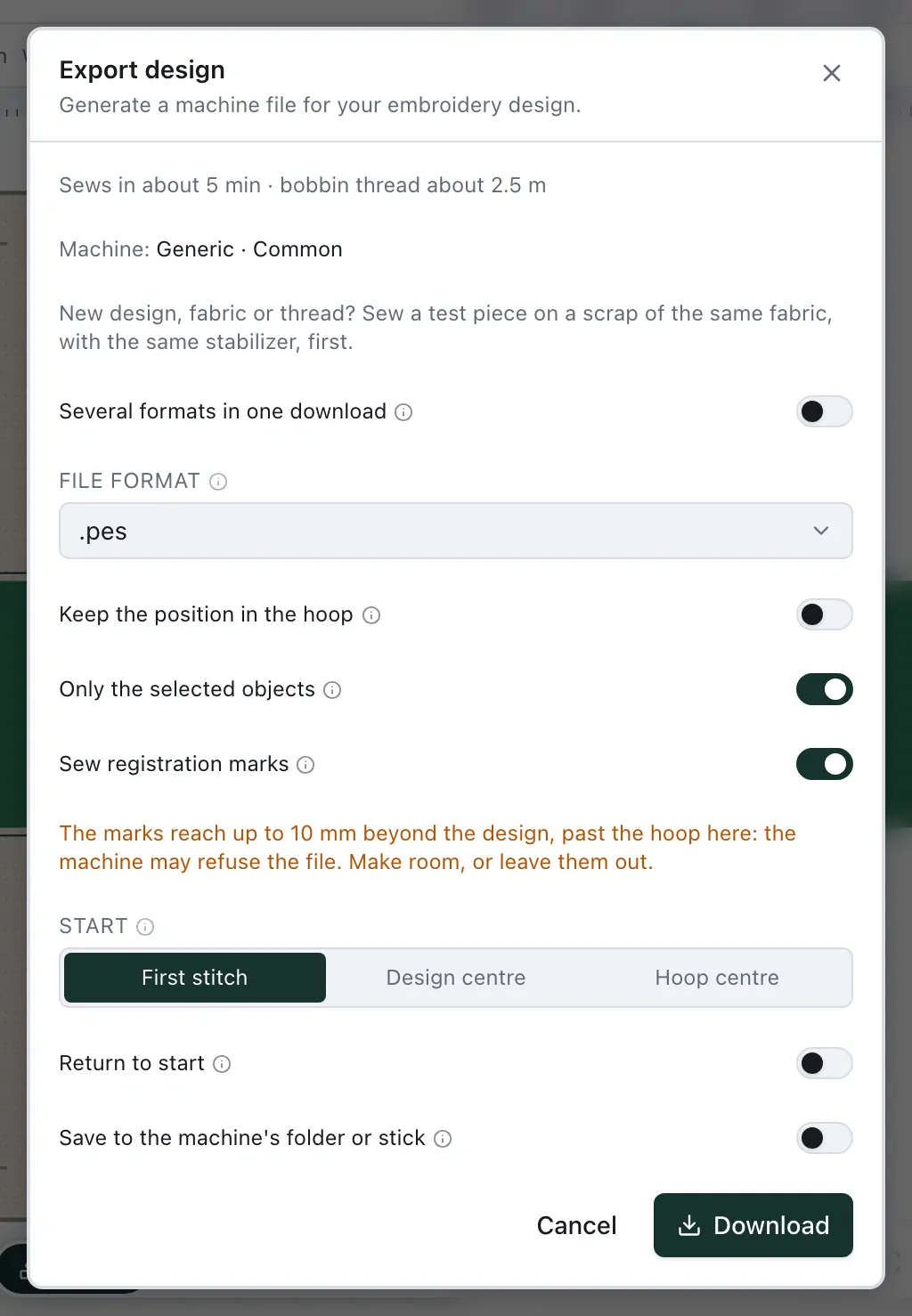
Problems still says the design is larger than the hoop — it is, and the export lists it before each file is made: choose Export anyway, since each file holds only its part. The note under Sew registration marks that they reach past the hoop measures the whole design too; what counts is step 1.
Each part is sewn in its own order and with its own colour changes, so a thread that runs through several parts is changed in each. A fill cut at a seam keeps its angle in every piece, so its rows run on in the same direction.