
Machine files
Open PES, DST, JEF and more, or a shop’s zip, sewn as digitised; keep them in My Files and convert them for your machine on your phone.
Updated November 1, 2026
Open a machine file — PES, DST, JEF and about 40 more — or insert one into a design. Its stitches are kept as they were digitised: move and recolour them freely, but resizing one by more than 10 % is flagged, because a digitised design’s density doesn’t follow its size. To touch one up, take its stitches apart and move or delete single stitches; to restyle one, turn its stitches into shapes.
Open a file
File ▸ Open from file… opens a machine file as a new design, made for your machine — the one you picked last, else your account’s default. It goes on the smallest of that machine’s hoops that holds it, centred, and the notice says which hoop. A PES keeps the name it was given in PE-DESIGN; any other file is named after the file.
Pick several files at once and they open together as one design, each on a layer of its own, where they lie to one another — the parts of a split design stay in step.
A file that keeps no thread colours, such as a DST, opens with a colour of its own for every colour block, however many it has, so each block is a thread of its own in the thread list. Where a file names its threads, their colours are used.
Trims, stops and colours
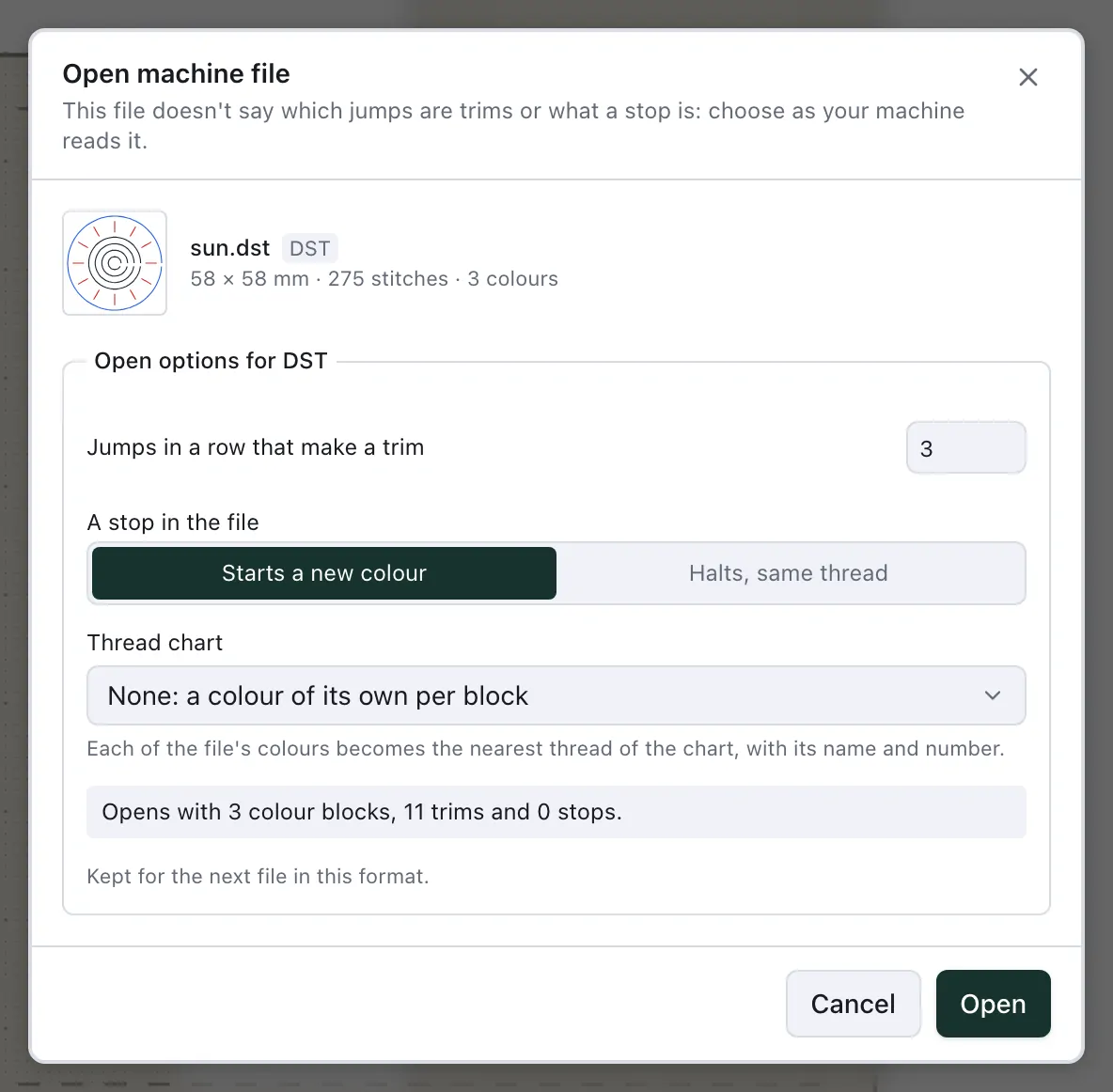
DST, EXP, U01 and TBF leave some things to the reader. A DST has no trim command — a trim is written as a run of jumps — and one code stands for both a colour change and a stop. Opening one of these asks how to read it:
Jumps in a row that make a trim: how many jumps your machine counts before it cuts. It starts at what your machine writes — My machines ▸ Files ▸ A trim is written as — else at 3.
A stop in the file: Starts a new colour, as most files mean it, or Halts, same thread, for a one-colour file whose stops are pauses, such as appliqué.
Thread chart: each of the file’s colours becomes the nearest thread of a thread line or of one of your own collections, with its name and number.
The line below the choices says what the file opens with — its colour blocks, trims and stops — and changes as you choose. Your choice is kept for the next file in that format. A JEF asks only how long a move makes a trim, 3 mm to begin with; its colours come from the file.
Larger than the hoop
If none of your machine’s hoops holds the file, it opens on the largest, and the notice says so. Where shrinking it by at most 10 % is enough — as much as a digitised design takes without its stitches crowding — the notice offers Fit to hoop (scale to … %) with the percentage it needs; past that, only a larger hoop of your machine, Use the … mm hoop, where there is one. Problems offers the same for as long as the design runs beyond its hoop, and so does a file inserted into a design.
Designs in a zip
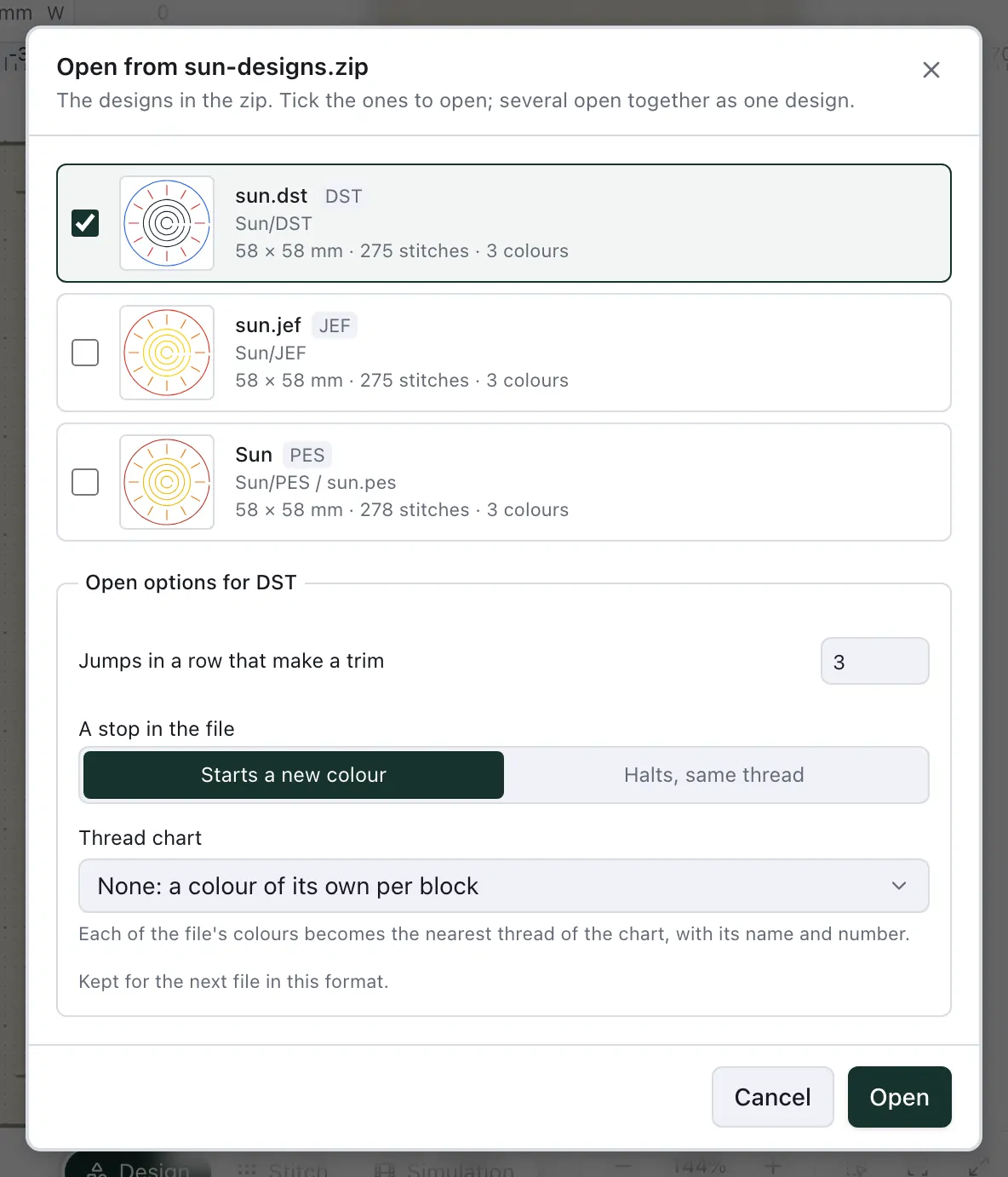
Open a shop’s zip as it came: File ▸ Open from file… and choose the zip. NextStitch lists the designs in it, each with a picture, its size, stitches and colours, and the folder it is in; the PDF and the pictures beside them are left out. The design in your machine’s format is ticked — tick more to open them together. Choose the zip under Insert ▸ Machine file to add its designs to the one you have open.
Browse a folder on your computer
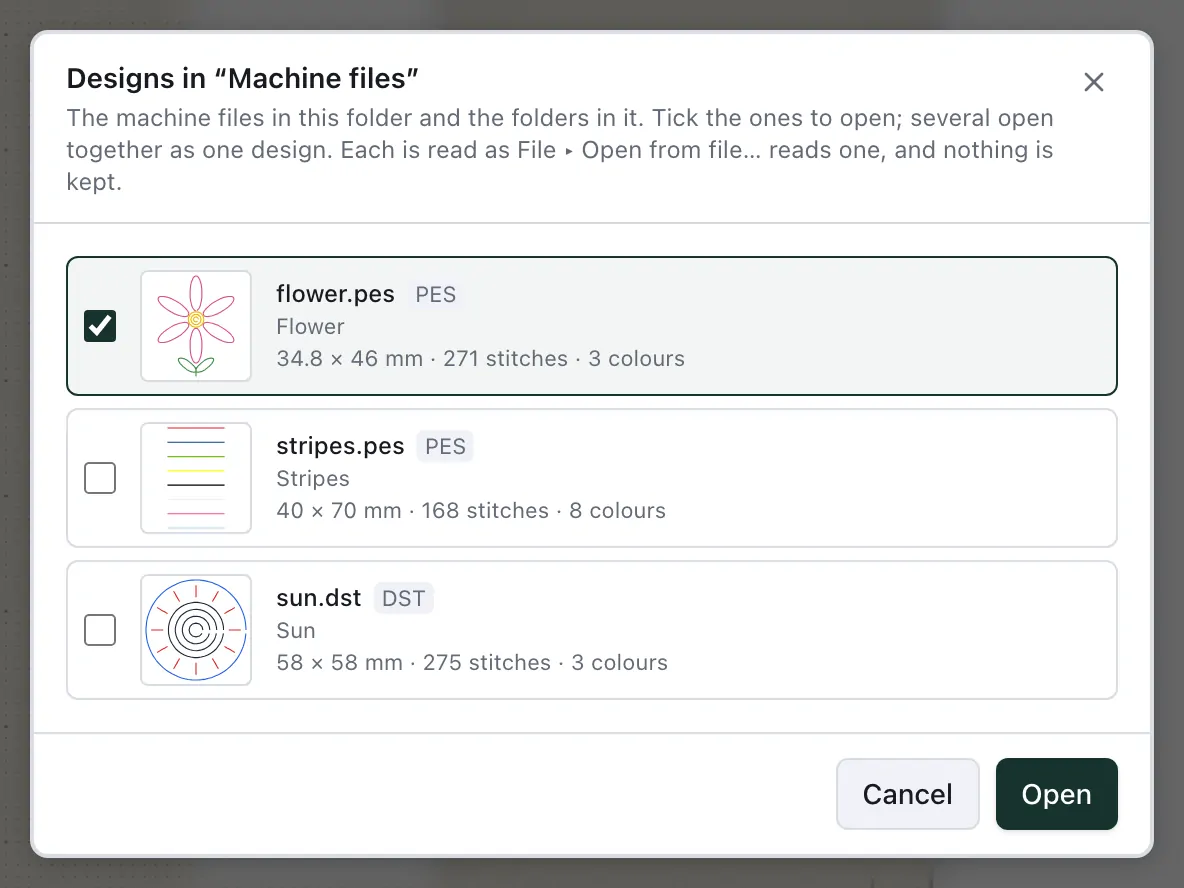
In Chrome and Edge, File ▸ Open from a folder… opens a folder of designs on your computer as it is: choose the folder, and NextStitch lists the machine files in it and in the folders inside it — a shop's design often keeps each format in a folder of its own — each with its picture, size, stitches and colours, the list filling as they are read. While any are in the formats your machine reads, only those are shown; untick Only … for the others. Tick the ones you want and they open as picked files do, a DST asking its open options in the same list; Insert ▸ Machine file ▸ From a folder… adds them to the design you have open, at the hoop's centre. The folder is only read, and nothing is kept. Other browsers and the desktop app open files with Open from file….
Insert into a design
Insert ▸ Machine file adds a file to the design you have open, on a layer of its own. At the hoop centre… puts it in the middle of the hoop; At the design’s last stitch… starts its first stitch where your design’s stitching ends, where the Simulation stops — that is how the second half of a split design joins the first.
Drag a file onto the editor
Drag a machine file or a zip from your file manager anywhere onto the editor to open it; hold Alt (⌥ on a Mac) as you drop it to insert it into the design instead. An SVG dropped there is imported, a picture opens Vectorise bitmap, and a project opens. In the desktop app, a double-click on an embroidery file in the Finder or Explorer opens it in NextStitch.
Keep them in My Files
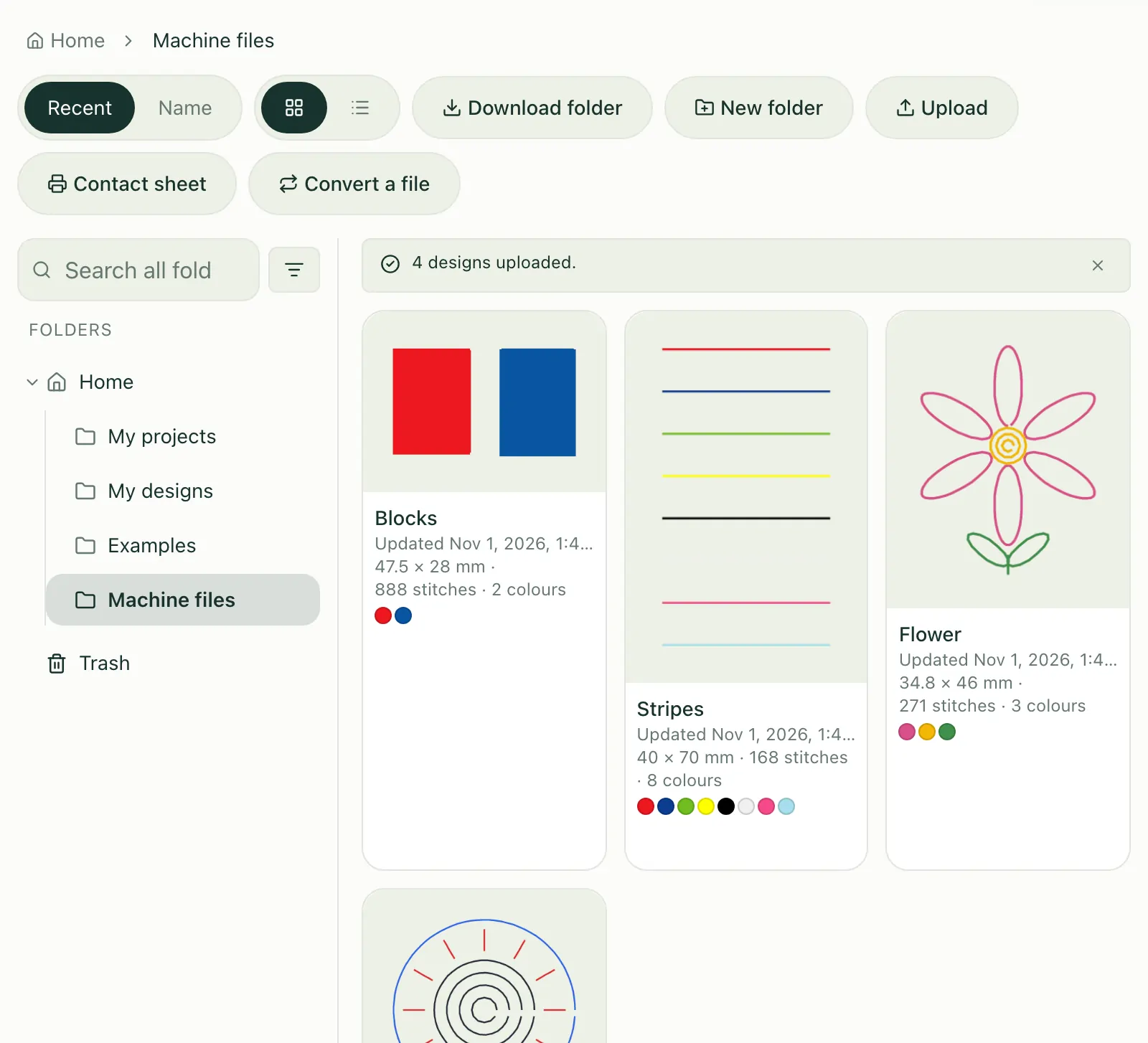
Machine files no longer need a folder on your computer: upload them to your account and they are there, with a picture, wherever you sign in. In My Files open the folder they belong in and choose Upload, or drag files, a whole folder or a zip onto the folder's contents; the editor's File ▸ Open / Manage… ▸ Account has the same button. A folder you drop arrives as a folder of the same name, its subfolders too.
Each file becomes a design of its own, named after the file, as File ▸ Open from file… would open it: on your machine's smallest hoop that holds it, its stitches exactly as they were digitised, with its size, stitches, colours and sewing time on its card. A DST, EXP, U01, TBF or JEF is read with the open options you last chose for its format — else what your machine writes, else 3 jumps for a trim — and nothing is asked. Only the converted design is kept, not the file, so that choice is final; download the design as a machine file whenever you need one.
A zip shows its designs as it does on opening, every one ticked: untick what you don’t want, and each one you upload becomes a design of its own. Where two files share a name, as a shop’s zip has one design in several formats, each is named with its format: Sun (DST), Sun (PES). Uploads count towards your storage like any design, and a design of more than 25 MB is refused by name; pictures and PDFs beside the designs are left out. To write several out for your machine at once, tick them in My Files: Projects and files.
Convert a file on your phone
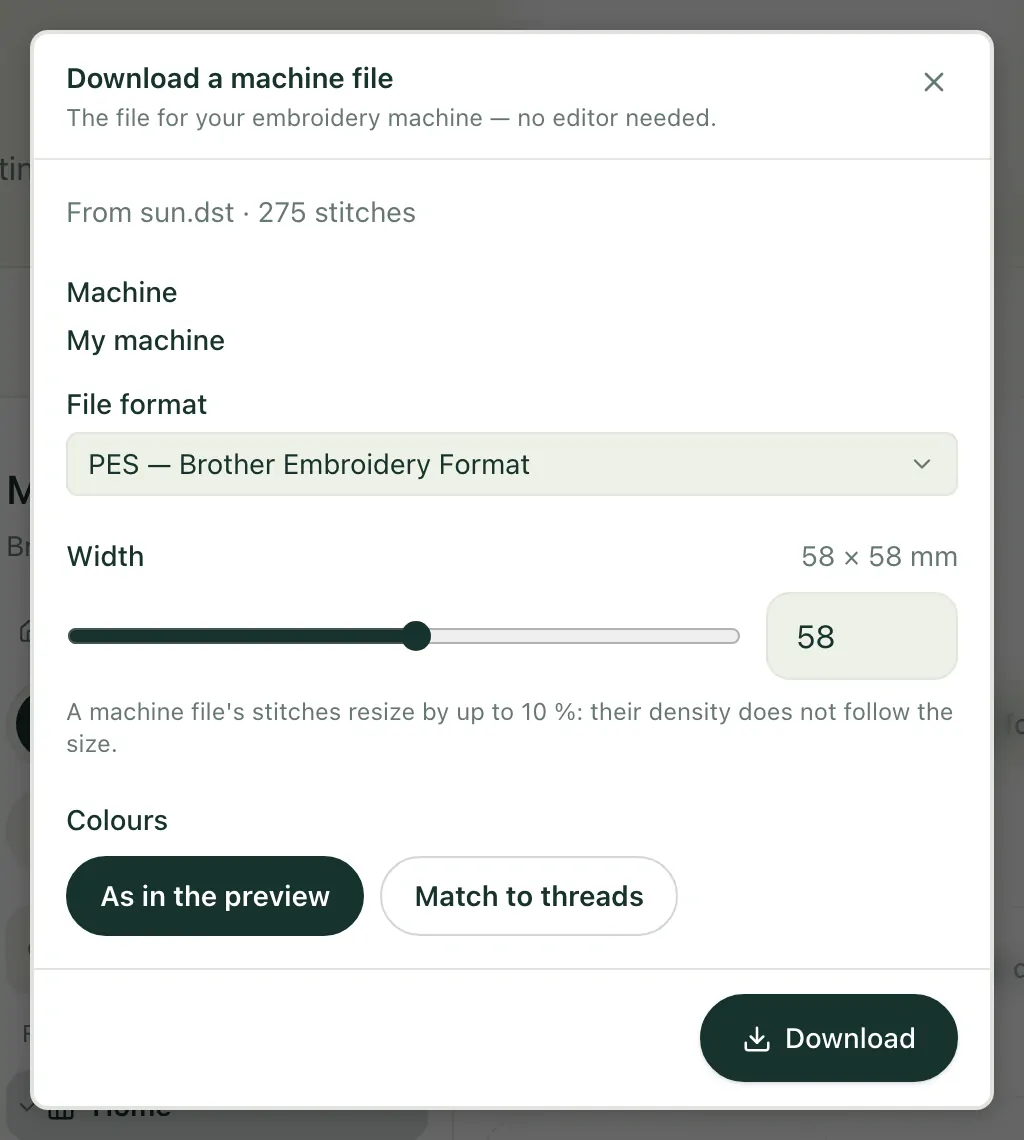
On a phone, or wherever you don’t want the editor, Convert a file in My Files and on Designs turns a machine file of your own into one for your machine. Choose the file and it opens in the same panel as Stitch now: pick one of your machines and its format, make it up to 10 % larger or smaller — a digitised design’s density doesn’t follow its size, so it goes no further — and keep its colours or match them to your threads. Where the format leaves trims to the reader, the machine you pick decides: what it writes under My machines ▸ Files. The download counts as one export, like every machine file.
Touch up a machine file
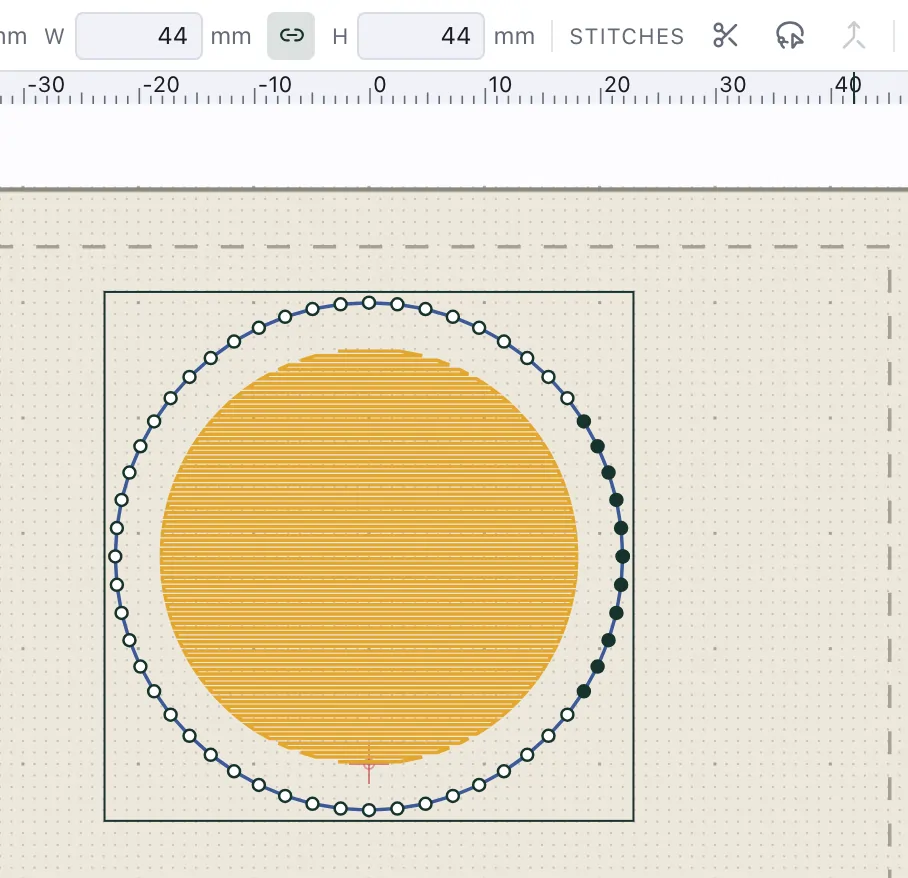
A machine file opens as one object per colour block. To change a few of its stitches — take out a detail you don't want, pull a stray stitch back into line, move a word — take the stitches apart and edit them as nodes:
Object ▸ Break apart (
Ctrl+Shift+K,⌘⇧Kon a Mac) makes every run of a block an object of its own, in the order they are sewn — a run is the stitches sewn between two jumps. Delete the ones you don't want, move them or give them another thread.Double-click the stitches — inside the file's group, once more — to see their needle points as dots. Drag a dot to move that stitch, double-click between two dots to add one, and press
Deleteto take the selected ones out. Shift-click adds a dot to the selection; a drag on the empty canvas draws a lasso, and every dot inside it is selected.The bar above the canvas has what can be done with the selected stitches, and so does the right-click menu. Split into objects after the selected stitches cuts the object after each of them, as Brother's Split at Point does; Split the selected stitches off makes them an object of their own, PE-DESIGN's Split Stitches lasso. With the last stitch of one run and the first of the next selected, Connect across the jump (
Shift+J) makes the jump between them a stitch, and Object ▸ Combine (Ctrl+K,⌘K) joins stitch objects of one thread into one again.
The trims and stops stay with their runs whatever you do: a trim stays after the stitch it followed, and a run you delete whole hands its trim or stop to the run before it. Between two objects, though, your design's own trims apply — every jump longer than Trim jumps longer than (mm) in File ▸ Properties ▸ Production is cut — so Break apart can add a trim the file didn't have, and the line below the canvas says how many. Editing stitches keeps the size the file is measured by, so it is never flagged as resized; a block you resized before stays flagged. When the dots lie too close to pick one, past 2,500 in view, they are hidden and a note says to zoom in; the lasso still selects them.
Change a machine file
A machine file's stitches are sewn as they were digitised, so their stitch type, density or underlay can't be changed, and they don't grow or shrink well. To restyle a machine file, turn its stitches back into shapes: select them — click the design, and the whole file is selected — and choose Object ▸ Convert ▸ Stitches to shapes….
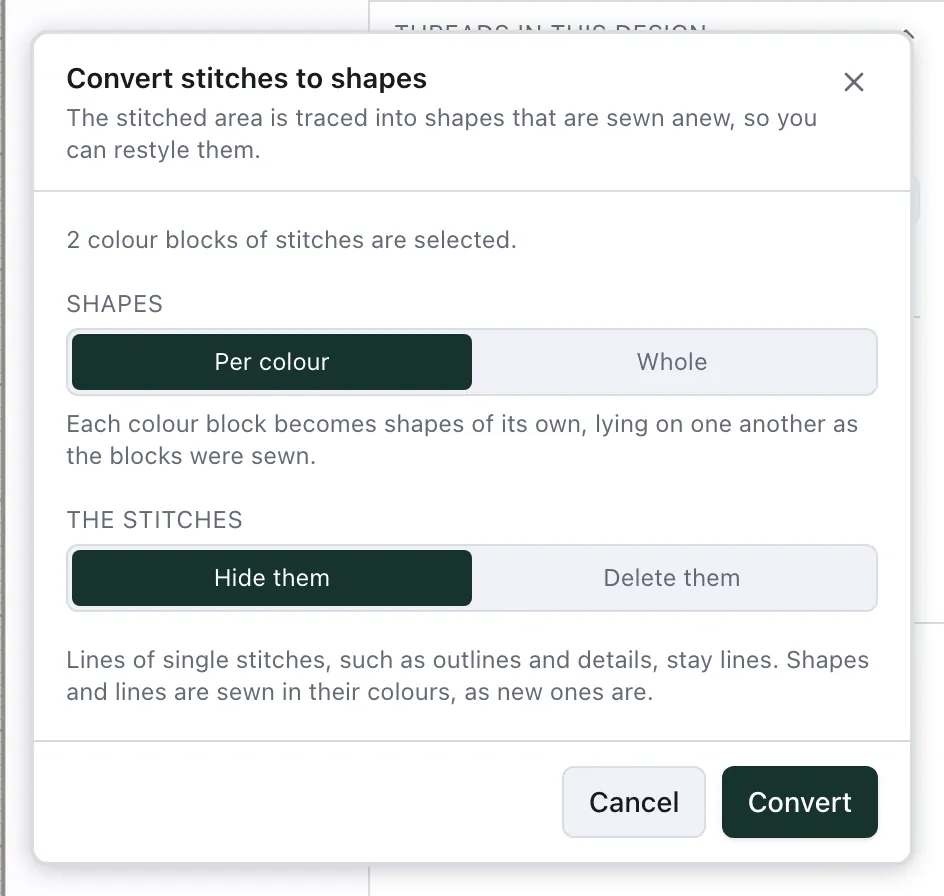
NextStitch traces the area the stitches cover — the gaps between a fill's rows or a satin's stitches closed — into shapes, in the colours of the stitches. Lines of single stitches, such as outlines and details, stay lines. The shapes and lines are sewn anew, as new ones you draw are, so you can now change their stitch type, density and underlay, resize them, edit their nodes and cut or combine them.
Per colour: each colour block becomes shapes of its own, lying on one another as the blocks were sewn — where the file sewed one colour under the next, the shapes overlap too.
Whole: the design as it looks. Each place takes the colour sewn last there, so no two shapes overlap; they meet edge to edge, each reaching 0.2 mm under its neighbour so no fabric shows between them.
The stitches are hidden or deleted in the same step: hidden, they stay in Layers to compare with, and are not sewn. One undo brings everything back.
The new stitching is NextStitch's own, not the file's: the shapes are what the stitches cover, not the objects the design was digitised from, so check the stitch types before you sew it out. Small details come out rounder, and a design larger than 128 mm is traced at less than 0.1 mm per pixel. The other way round, Object ▸ Convert ▸ To stitches freezes shapes you drew as stitches (Converting text, shapes and stitches).
A PES with pattern stitches
PE-DESIGN keeps programmable fills, motif stitches and feather patterns in a PES both as patterns and as the stitches they make. NextStitch reads the stitches: the design sews as in the file, but its patterns can’t be changed as patterns. Such a file also keeps its thread list behind the patterns, so its colours come from the file’s built-in palette and are approximate — the notice says so. Set them to your threads with Match all colours to this palette in the Palette, or thread by thread.
What a Brother reads in a PES
A Brother sews from the PEC part of a PES file; a PEC file is that part alone. It has no trim command: a jump marked as a cut is where a machine with a thread cutter cuts. NextStitch writes every jump marked that way for now, so a Brother with a cutter may also cut where the design travels on without a trim — the Export dialog says when a design has such a travel, and Export your first file has more.
Each colour of a PEC is one of Brother's 64 machine colours, the one nearest to your thread: that is the colour the machine's screen shows. The last three, 62 to 64, are Brother's appliqué steps, not colours, and NextStitch never gives a thread one of them. Match your threads to Brother Embroidery to sew with the colours the machine names — see Match your threads.
Files NextStitch can’t read
A digitising program’s own file holds objects rather than stitches and isn’t read: PE-DESIGN’s .phx, Husqvarna Viking’s and Pfaff’s .vip, Singer’s .csd, Wilcom’s .emb and Bernina’s .art. Export PES or DST from the program it was made in, or ask the shop for your machine’s format. Artwork in .ai, .cdr, .wmf or .emf isn’t imported either: save it as SVG in your drawing program, with text converted to paths (Bring in artwork from Illustrator, CorelDRAW or Inkscape). When you open one of these, NextStitch names it and says which way round to take.
Coming from another embroidery program with designs of your own? Coming from other embroidery software says what its words are called here.