
Projects and files
My Files keeps your designs in folders: find them, tick several at once, write them out for your machine, print a contact sheet, get earlier versions back.
Updated November 1, 2026
Everything you save to your account is in My Files: on the account page under My files, and in the editor under File ▸ Open / Manage… ▸ Account. Both show the same folders and do the same things; the page has more room, the dialog keeps your design open beside it.
My Files and its folders
Every account starts with three folders at Home: My projects, where a first save lands, My designs, where the designs you customise and the catalogue designs you keep go, and Examples, with a few designs to try. They stay where they are; make as many folders of your own as you like with New folder, and nest them.
Open a folder with a click, go back up with the path above the list, or use the folder tree beside it. Drag a design or a folder onto another folder — a card, a row, a step of the path or a folder in the tree — to move it there; Move to… on a design does the same from the keyboard. Cards shows each design's picture large, Details lists them as a table, and the order is the most recent first or by name. Download folder gives you a folder, with the folders in it, as a zip of project files.
The storage meter beside the title says how much of your account's room your designs take, the trash included.
Save to your account or to this device
File ▸ Save asks the first time where a design goes. Account, the default, keeps it in the folder you choose — My projects unless you pick another — and you open it from any device you sign in on. This device downloads it as a project file (.nextstitch.json) at every save, which File ▸ Open from file… opens again; this browser keeps a copy too, for Open recent. Save As… makes a copy under a new name, in the same folder unless you choose another.
Find a design
Type part of a name into the search box above the folders: it finds matching designs in every folder, in any order of the words and whatever their accents, and says under each where it lies — a click on that folder opens it. Clear the search, or open a folder, to see the folder again.
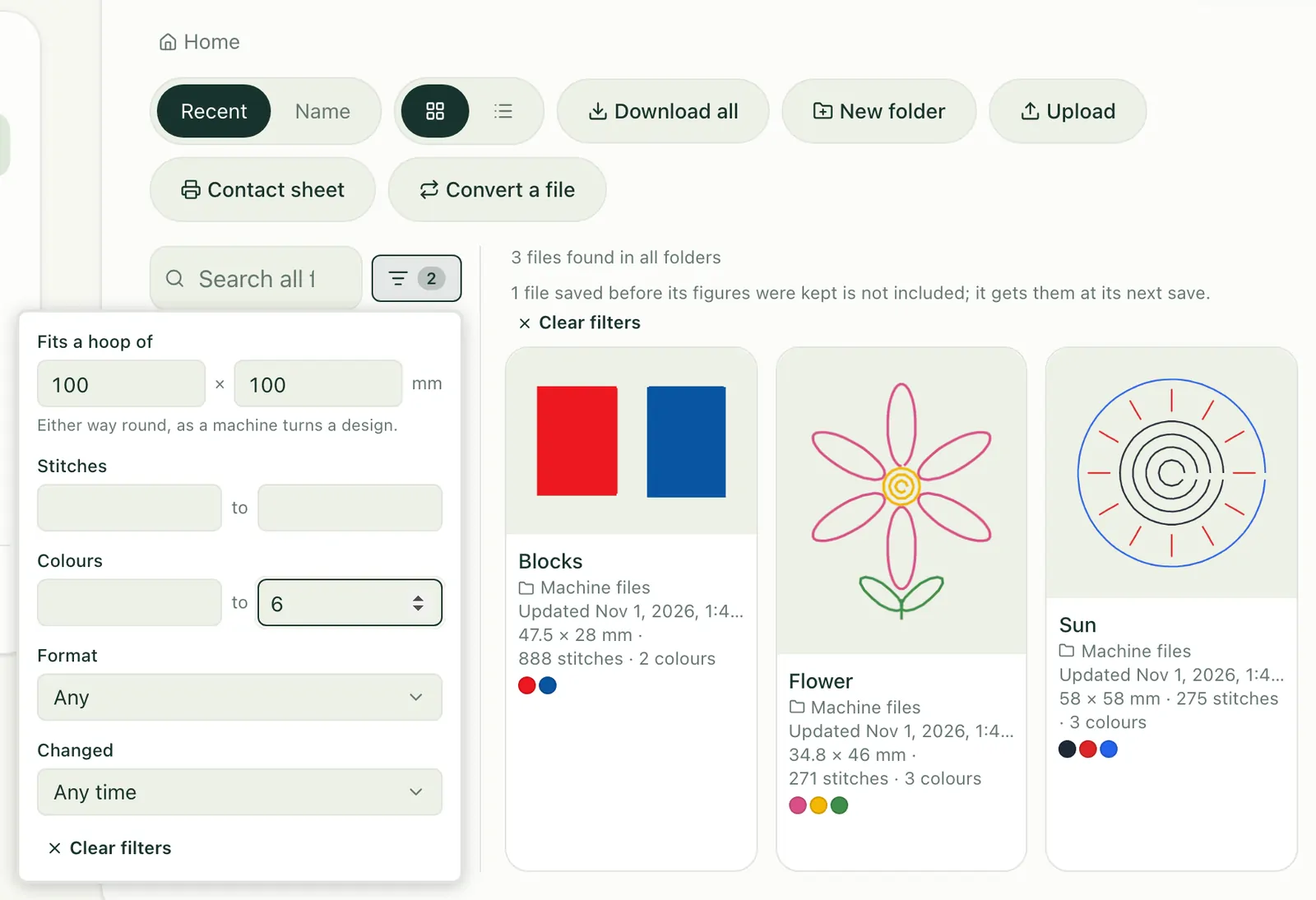
Filter, beside the search, finds designs by what they sew: those that fit a hoop (either way round, as a machine turns a design), stitches and colours from … to, the format they came from or made in NextStitch, and when they last changed. It looks in every folder, as the search does; a design saved before its figures were kept is counted apart until its next save. Clear filters brings the folder back.
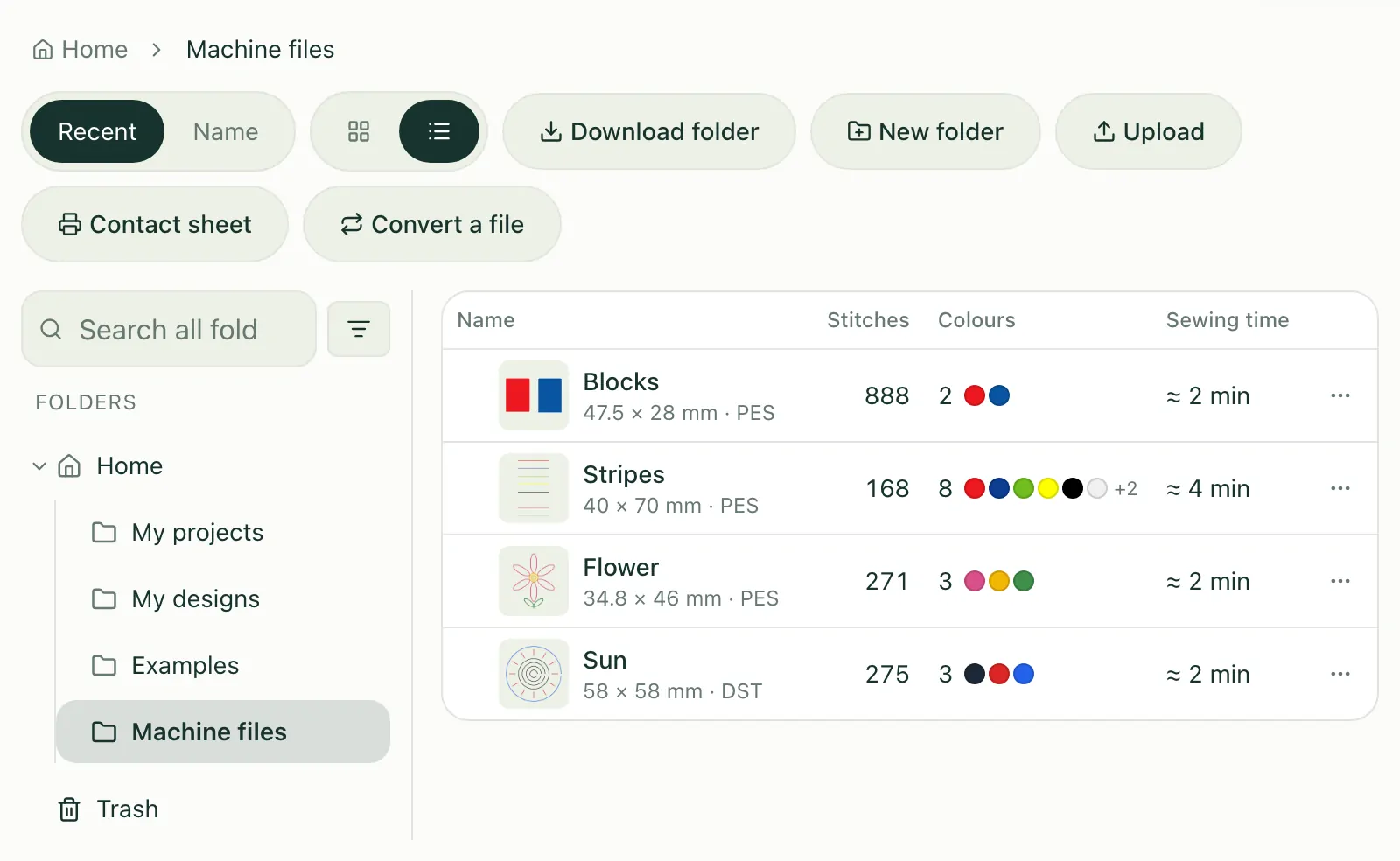
Details, beside the sort, lists the designs as a table: their stitches, their threads in the order they are sewn, and the sewing time at your machine's speed, with the size and the format each came from under its name — as of its last save. Choose a column's name to sort by it, the smallest first.
Bring in machine files
Machine files belong in My Files too. Open the folder they go in and choose Upload, or drag files, a whole folder or a zip onto the list: each file becomes a design of its own, with its picture and figures, as File ▸ Open from file… would open it, and a folder arrives as a folder. Machine files says how they are read.
Several at once
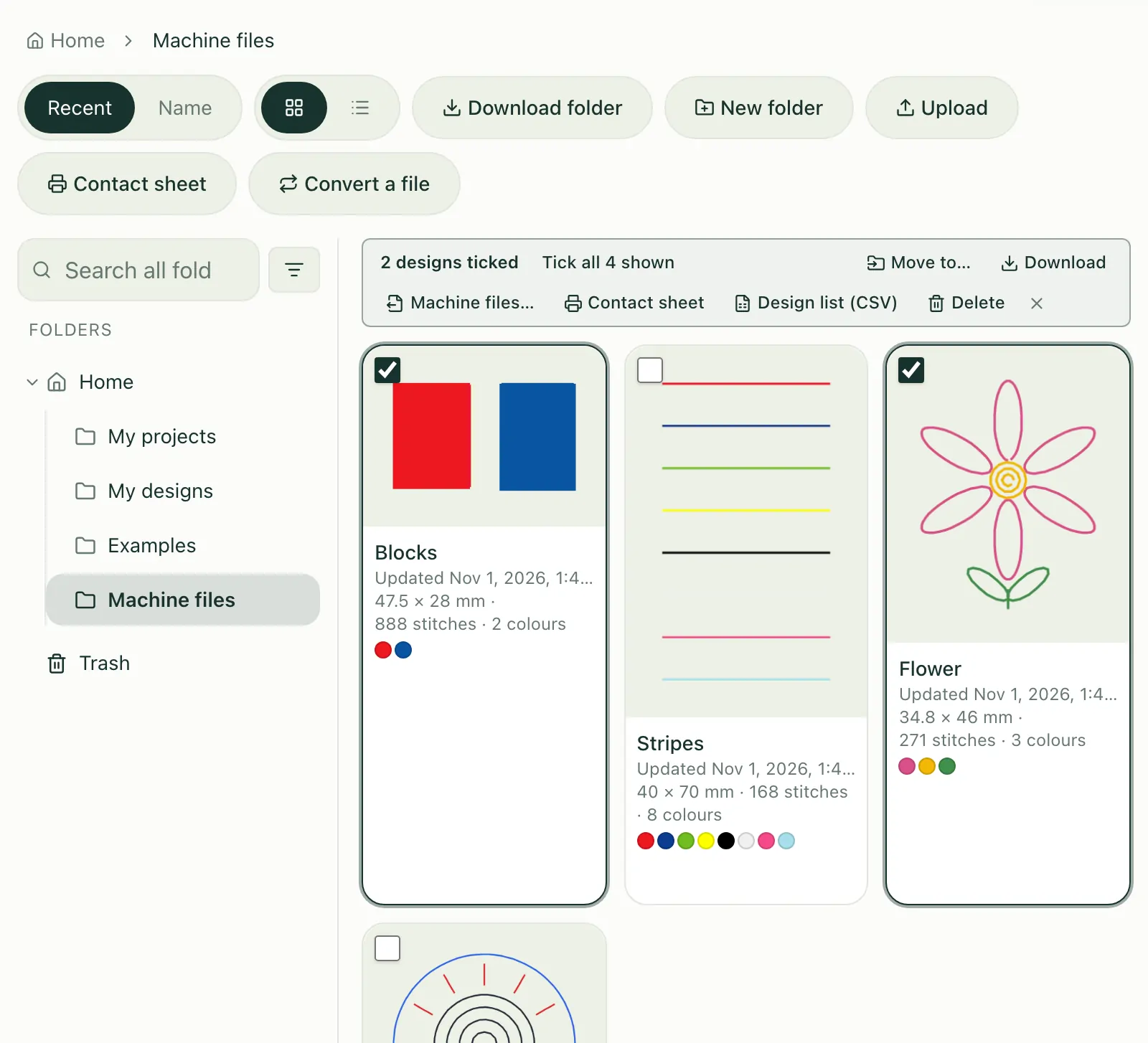
Point at a design and a box appears in its corner; tick it, and every design shows its box, so ticking the rest is one click each. On a phone or a tablet the boxes are always there. A bar above the list says how many are ticked and what they can do together:
Move to… moves them all into one folder — or drag one of them and the others come along.
Download gives you one zip of their project files, in the order you ticked them.
Machine files… writes them out for your machine, below.
Contact sheet and Design list (CSV) print or list them, below (on the account page).
Delete puts them all in the trash, with one Undo.
Tick all … shown ticks everything in the folder, or everything a search or a filter found; the cross unticks them. Opening another folder, searching or filtering unticks them too, so nothing you can't see is moved or deleted with what you can.
Write them out as machine files
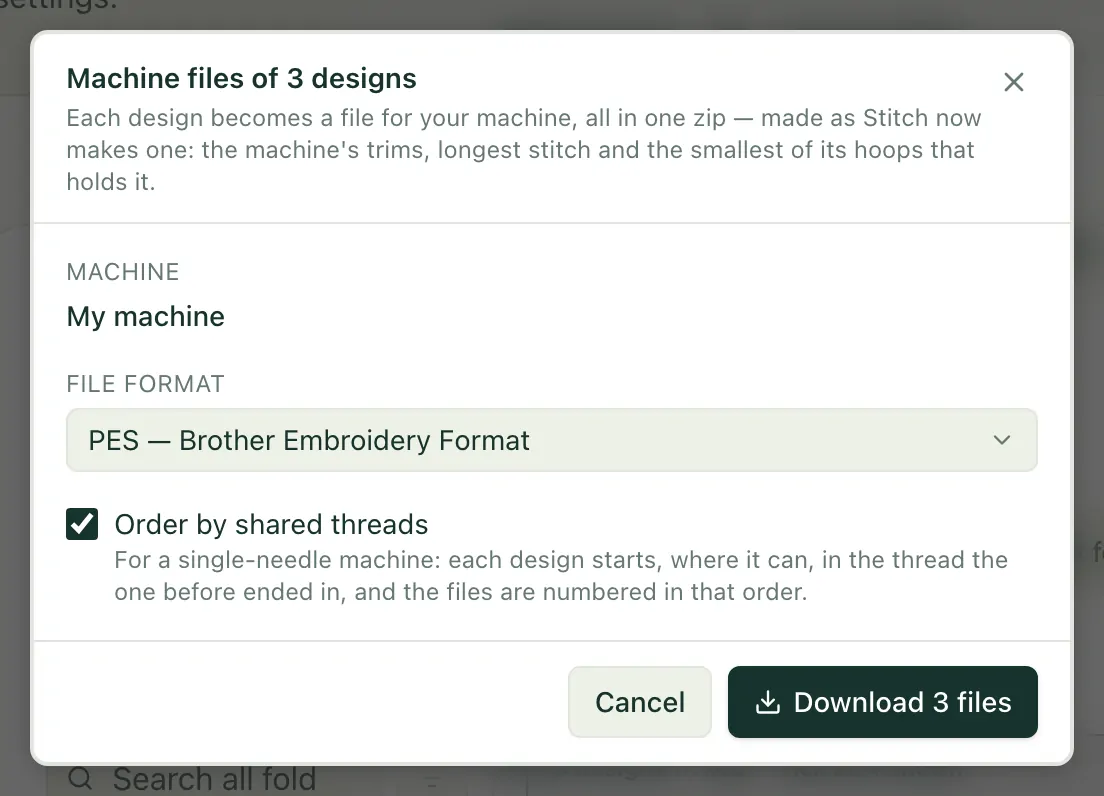
Machine files… in that bar turns the designs you ticked into files for your machine, one per design, in one zip. Pick one of your machines from My machines and its format; each design is made as Stitch now makes one — your machine's trims and longest stitch, on the smallest of its hoops that holds it. A design that fits none of its hoops is left out, and the dialog names it. Up to 100 designs go in one zip, and the zip counts as one export.
On a single-needle machine every change of thread between two designs is a rethreading by hand. Order by shared threads puts the designs in an order where each starts, as far as they allow, in the thread the one before it ended in, and numbers the files 01 …, 02 … so your machine lists them that way. After the download the dialog lists the files in their order with their threads, and how many thread changes are left between them.
A contact sheet and a design list
On the account page, Contact sheet above the list prints the designs shown — the folder's, or what a search or a filter found — or the ones you ticked: twenty to a sheet of A4 or Letter, each with its picture, name, size, stitches, threads as swatches, sewing time and format. Print… waits until every picture is in, then hands the sheets to your browser's print dialog, which prints them or saves a PDF.

Design list (CSV) downloads the same designs as a spreadsheet: name, folder, width and height, stitches, colours, sewing time, threads and format, one row each, in your language's numbers.
Open recent
File ▸ Open recent lists the ten designs you changed last — the ones kept in this browser and, when you are signed in, the ones in your account, which say Account. So a design you saved on another computer is one click away; opened from there, it saves back to your account.
Earlier versions
Every save to your account keeps the version it replaces: the last 20 of each design, for 30 days, outside your storage. Choose Earlier versions… on a design in My Files, or File ▸ Earlier versions… in the editor. Restore puts one back — the version it replaces is kept too — and Open as a copy opens it as a new design without changing the one in My Files.
The trash
Delete moves a design, or a folder with what is in it, to the Trash at Home, and Undo puts it back at once. In the trash, designs are grouped by the folder they came from, each saying when it goes for good: after 30 days. Restore puts a design back where it was, recreating its folder if needed; Delete forever and Empty trash ask first, because they can't be undone. Designs in the trash still count towards your storage.
Properties
File ▸ Properties… belongs to the design that is open, not to the file: its machine and hoop, the frame size, its fabric and stabiliser, how it is produced — trims, ties, the longest and smallest stitch — and how new shapes are stitched. What you choose there is also where your next new design starts. Fabric and stabiliser and Travel, trims and ties explain those settings.