
Match your threads
Choose the thread line you sew with and snap every colour in your design to its nearest real thread in one click.
Updated October 21, 2026
A colour on screen is not yet a thread you own. Every shape takes its thread from the design's palette on the right, and the palette ties the two together: match it to a real thread line, and the exported file names real thread numbers.
- 1
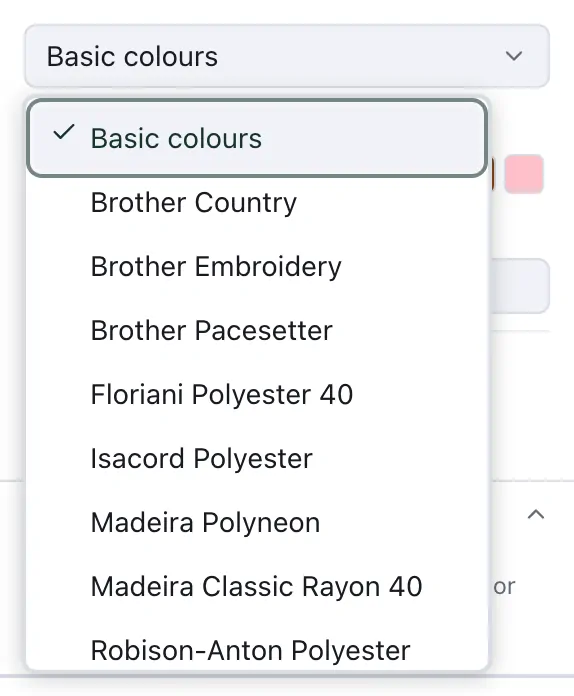
Choose your thread line. Open the list at the top of the palette: next to Basic colours are the thread lines of Brother, Floriani, Isacord, Madeira, Robison-Anton and more. Signed in, your own collections from My threads are listed too.
- 2
Match all colours to this palette. Every colour in your design becomes the nearest thread of that line, so what you see is what you can buy and sew. Undo brings the old colours back.
From then on, a click on a swatch gives the selected shape that thread; when it has an outline, Fill or Outline above the swatches says which of the two gets it. After the Pro trial, the manufacturers' thread lines come with Pro, while Basic colours and your own collections stay. My threads under the palette takes you to your own thread collections, and a machine's thread list (.col, .edr, .inf) is read and written under File ▸ Import thread list… and File ▸ Export thread list.