Trace a picture
Turn a PNG, JPG or TIFF logo into shapes you can stitch — filled, in satin or in cross stitch: the tracer runs on your device and you choose the colours.
Updated October 31, 2026
Insert ▸ Import bitmap… traces a picture into shapes, one for each area of colour. The tracing runs on your device. It reads PNG, JPG, TIFF, BMP, GIF and WebP; you can also drop the file on the dialog, or paste a copied picture with Ctrl+V (⌘V on a Mac).
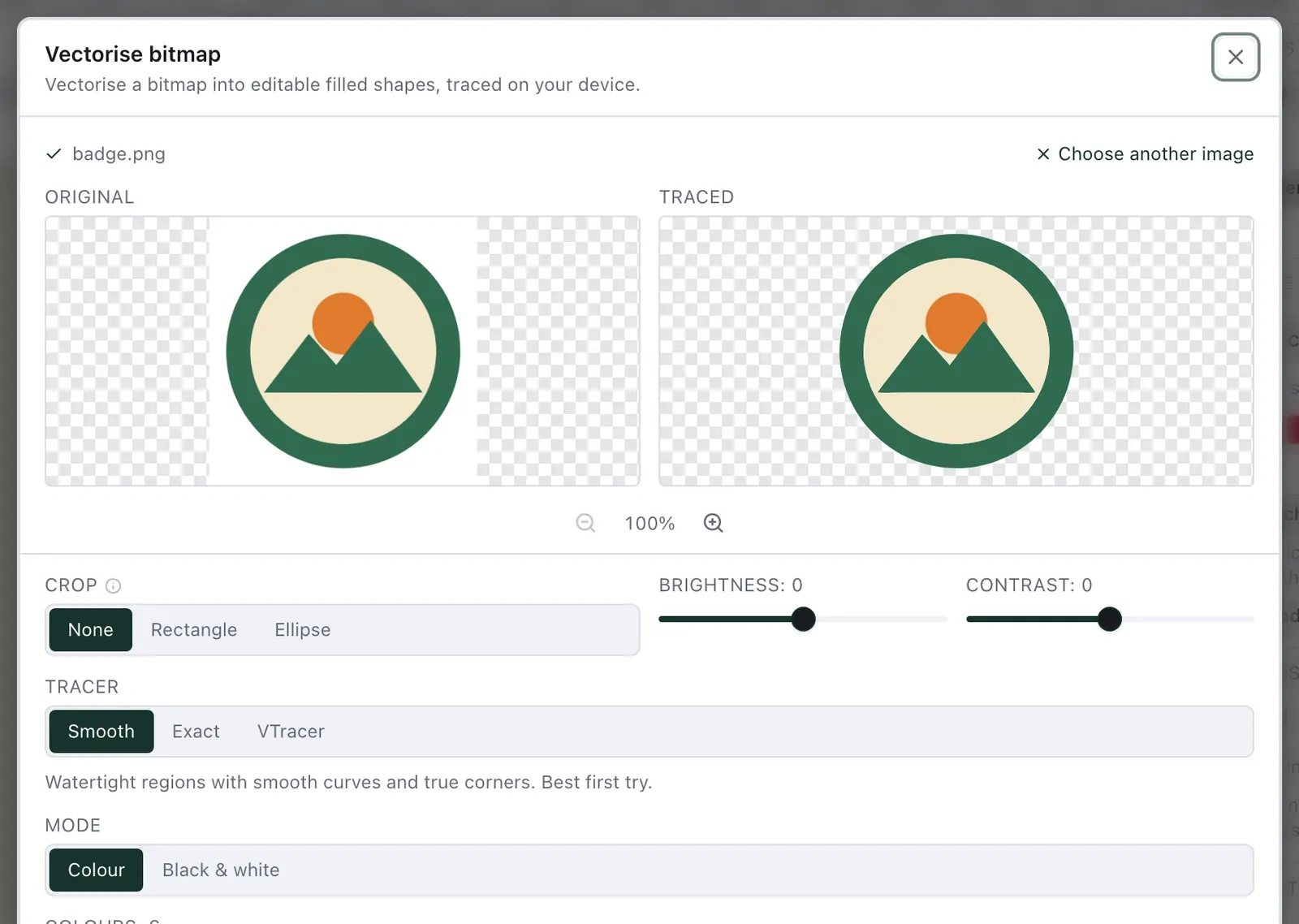
Tracer — Smooth is the best first try: watertight areas with smooth curves and true corners. Exact follows the pixels more closely.
Mode — Colour, or Black & white for line art.
Colours — how many thread colours to keep, from 2 to 16. The line above Import says how many colours the picture holds and how many are kept. It counts the colours a trace at 16 keeps, so the soft grey edge of a black line is no colour of its own. A picture with more than six starts at its own count. Fewer is often better: every colour is a thread change.
Remove white background — on at first, so the paper does not become a shape.
Stitch as — Fill, Cross stitch (see below) or Smart (see outlines in satin).
Design width — how wide the traced design is in the hoop, in millimetres. A transparent or white margin around the picture does not count.
Afterwards, look at the areas in the Stitch view — and if the artwork you start from is an SVG with stacked shapes, see remove overlaps.
Pictures that trace well
Clean, flat artwork traces best: a logo, clip art or a drawing with clear areas of colour. The dialog says so above its settings when a picture is likely to disappoint. It never stops you importing.
Small for this width — fewer than 4 of the picture's own pixels for each millimetre of the design. Every pixel's edge becomes a step the stitches follow. Use a larger picture, or make the design no wider than the width the note names.
See-through — more than about 5 % of the picture is a shadow, a glow or a faded colour. Only what is more than half opaque is traced, so a soft shadow comes out as a blob. Put the picture on a plain background first, or crop that part away. The soft edge every shape has does not count.
Looks like a photo — few areas of flat colour. A photo comes out as many small shapes; try Black & white, fewer colours or more contrast.
A TIFF from a scanner is read on your device: uncompressed, LZW or Deflate, in colour or grey. A TIFF in CMYK, with a palette or in tiles cannot be read — save it as PNG.
Crop and tone
Crop traces only part of the picture. Choose Rectangle or Ellipse and a frame appears over the original: drag inside it to move it, drag a corner to resize it, or drag outside it to draw a new one. The crop is taken from the picture at its full resolution, so a small part of a large picture keeps its detail. An ellipse leaves the corners of its frame out — handy for a round badge. None traces the whole picture again.
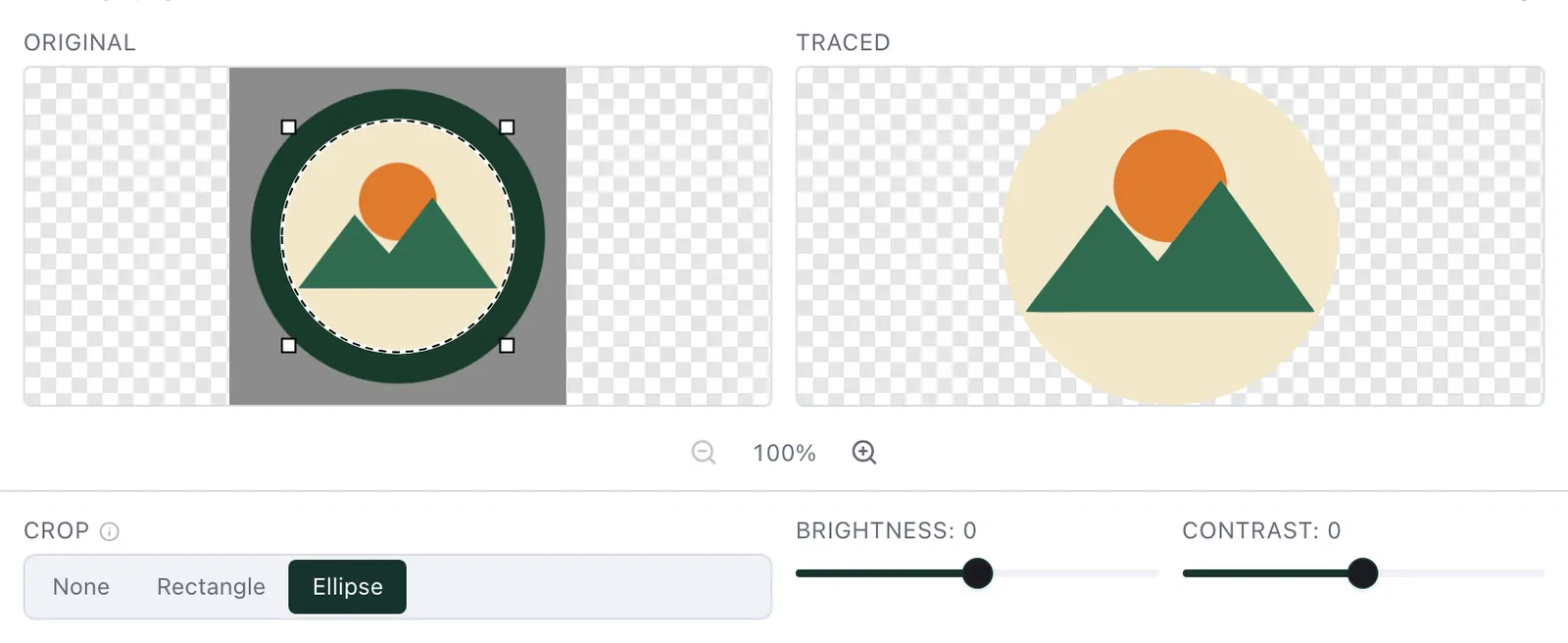
Brightness and Contrast lighten a dark photo or scan, or separate colours that sit too close, without another app. The original shows the change, and the picture is traced again.
Outlines in satin
A logo's dark outline and its lettering sew best as satin, not as a filled blob. Each traced colour has a Stitch as of its own, and the dialog chooses for you:
Under Fill, a dark colour whose shapes are all thin strokes — at most 7 mm wide at the design width — goes in as Satin (area). The line under Stitch as says how many colours that is. Every other colour is a fill.
Smart puts every colour in Satin (area). Each shape is then sewn by its width: satin along its thin parts, a fill where a part is wider than 7 mm, a running stitch along hairlines. See Satin (area) for lettering and logos.
Under Advanced, each colour's Stitch as changes it: Fill, Satin (area), Centre-line run (a triple run along the middle of each stroke), Cross stitch or Left out, which is the same as making it the Background.
With Smart, Problems lists "Satin (area) partly filled" for the shapes with parts wider than 7 mm: that is expected, and tells you which parts are filled.
Advanced
Open Advanced under the settings for more control. The pictures stay in view while you work.
Merge similar colours — colours closer than this become one: the shades of a brown become one brown.
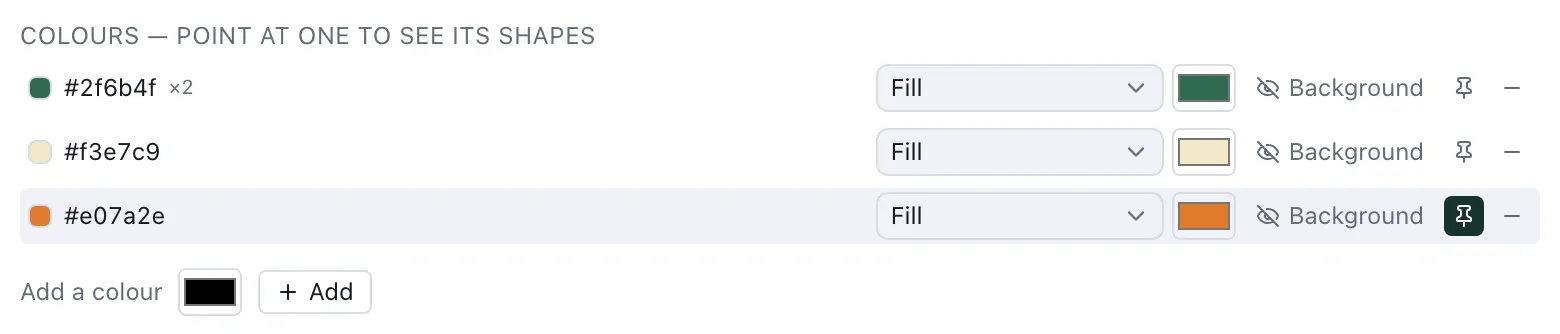
Colours — point at a colour to see its shapes in the traced picture. Choose its Stitch as, recolour it, or make it the Background: it is left unstitched, whatever its colour — a blue sky behind a logo as well as white paper.
Keep (the pin) — the colour stays however low you set Colours.
Remove (the minus) — the picture is traced again without the colour, and its areas take the nearest colour kept. It is listed under Removed with a button to bring it back.
Add a colour — a colour the trace missed, on top of the Colours count: pick it, then Add. Show differences lists the colours the trace lost, each with Add.
Shapes — click a shape in the traced picture to select it; Shift-click adds more. Recolour it, leave it unstitched, or Remove it: the shape around or beside it closes over it. Restore brings every removed shape back.
Show differences — the picture greyed, with red where the traced colours differ from it.
Your changes stay when you move a slider: the picture is traced again and they carry over.
Cross stitch
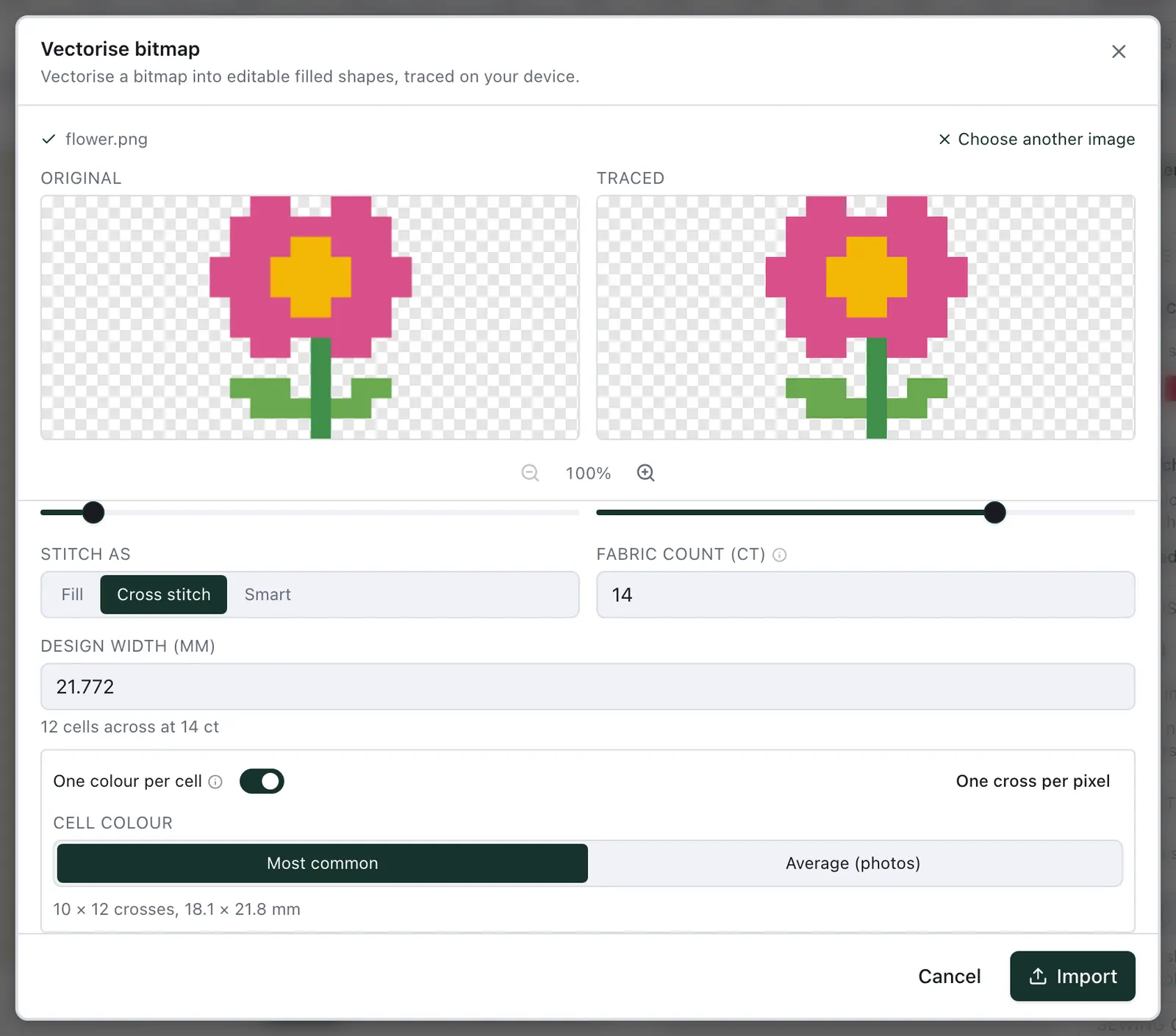
Choose Stitch as ▸ Cross stitch to get counted cross stitch instead of fills. Give the fabric count in ct, cells to the inch as Aida is sold: 14 ct, the common one, unless you change it. Each cross is then 25.4 mm divided by the count — 1.81 mm at 14 ct — and the dialog shows how many cells the design width spans. A single colour can be cross stitch too: choose it under Advanced.
The crosses of every colour lie on one grid, with half and quarter stitches where an edge cuts a cell. If the design has a thread line (see match your threads), each colour becomes its nearest thread of that line.
Switch on One colour per cell to sew the picture the way a counted chart is drawn: the grid of the fabric count is laid over the picture, each cell takes one colour — under Cell colour, Most common, the colour most of its pixels have, or Average (photos) — and is sewn as a whole cross, with no partial stitches. Each colour becomes one object. The dialog shows how many crosses that makes and how large. One cross per pixel sets the width so that every pixel of the picture is one cross — pixel art saved larger is counted in its own pixels — and says when the hoop takes fewer at this fabric count. The cells are read from the picture's own pixels, at its full size. Cross stitch explains the settings each cross-stitch object has.