
Stitch types
Fill covers an area, satin gives a smooth raised edge, running draws a single light line — and textured fills give an area its own look.
Updated October 31, 2026
Choose a stitch type per element. Fill covers an area, satin gives a smooth raised edge for lettering and borders, and running creates a single light line. Contour, circular, guided and meander fills, cross stitch and ripple give an area its own texture; cross stitch also sews a row of crosses along a line (Cross stitch). Running, bean and manual stitches shows what each setting of a line does to its stitches.
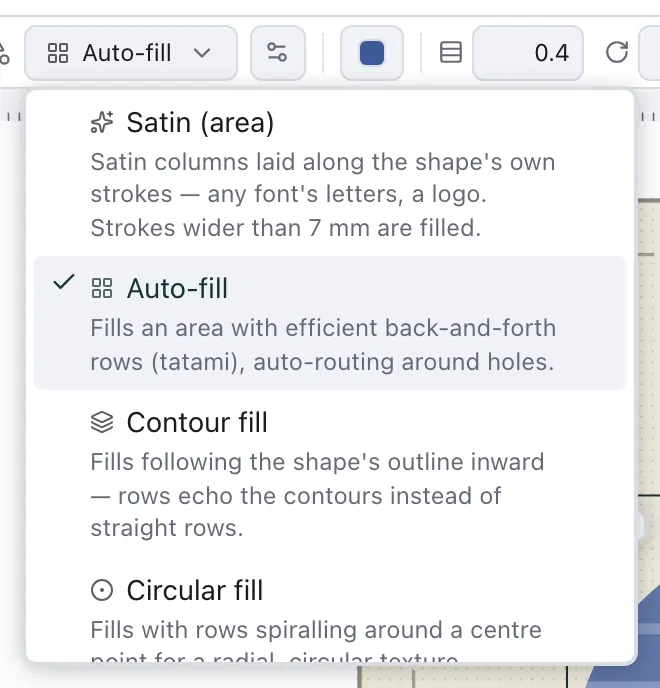
Select an element, switch to the Stitch view and pick its type under Type in the bar above the canvas. The list offers the types that fit the shape first; the rest are greyed out at the end under Doesn't fit the selection, each with the reason. The change shows straight away:
Each type's settings are in Stitch settings in the right rail, the expert ones under Advanced: open it once and it stays open as you select other shapes, until you close it again. Lengths there are in millimetres and take any unit you type (0,4 or 1/64 in); ArrowUp and ArrowDown change a value a step, with Shift ten steps.
To make the selection — or, with nothing selected, the whole design — lighter or denser in one step, choose Object ▸ Density…: a percentage each for fills, satins and running stitches. Over 100 % sews denser, under 100 % lighter, by the fills' row spacing, the satins' spacing and the running stitches' length, each within what its field takes. The preview follows as you type, and one undo takes it all back.
Satin
A satin column is a line with a width. Draw the line along the column's middle with the Pen / Path and choose Satin column as its type: it is sewn 3 mm wide, and Width in the bar makes it wider or narrower. A satin drawn with two rails — its two edges — works too: choose Satin column in the Pen's bar and click along one edge, then the other (Draw lines and curves). For a closed shape, choose Satin (area), which lays satin along the shape's own strokes, as in letters or a logo, and fills strokes wider than 7 mm; there Satin column is greyed out with the hint “For a satin border: Outline ▸ Satin”, because a satin border round a shape is its Outline set to Satin.
Besides Width, the bar sets Spacing (smaller is denser), Method and, once pull compensation is no longer Automatic, Pull, which widens the stitches so the column keeps its width when the thread pulls the fabric in; Underlay switches on the layer sewn beneath. The gear beside Type and Stitch settings in the right rail hold the rest, such as a taper at either end. Satin column settings shows what each of them does to the stitches.
A satin you make spaces its stitches by its width: a narrow column more open, a wide one closer, as each needs, so small letters don't pile up into hard ridges and wide satins don't look thin. Spacing follows width in Stitch settings switches it on and off, and Density sets it from 75 % (denser, for caps and heavy fabrics) to 115 % (more open, for light knits); while it is on, the bar shows Density in place of Spacing. A satin from a design saved before keeps its fixed spacing until you switch it on, and a blanket, S-stitch or zig-zag satin always sews a fixed one. A satin Outline has the same switch.
A satin column turns its corners as you choose under Corners: Miter runs the stitches out into a sharp corner, with Limit tips cutting very sharp ones (under 60°) flat; Bevel cuts every corner flat; Round fans the stitches round it. Satin columns you make are mitred; those in earlier designs stay round until you choose.
Per side, beside Pull compensation when Automatic is off, sets the pull of each side on its own: Side 1 and Side 2, in the order of the column's rails. Under Underlay ▸ Custom, each layer's Advanced sets where it lies: the edge walk's and zigzag's Inset from the edge, which can reach up to 1 mm outside the column where columns join; End inset, how far the layer stops short of the column's ends, or runs past them when negative (empty keeps the ends it always had); and, on a satin column, One pass, which sews the zigzag once instead of there and back. Satin (area) and an appliqué's cover always sew their zigzag there and back, so they don't offer it.
Satin stitches longer than 7 mm loop and snag, so a satin you make splits them into shorter ones (Max stitch length in Stitch settings). A satin that still sews longer ones — from an older design or an import — is named under Problems, and Split at 7 mm there splits it.
Fill and underlay
A fill sews rows back and forth across the area. Under them you can switch on an underlay: a sparser layer at another angle, sewn first, that holds the fabric flat so the rows on top lie evenly. Fabric that stretches or has a pile needs a stronger underlay. Pull compensation lengthens the rows against the fabric's pull, and Overlap lets the area reach under its neighbours, so fills that meet leave no gap: Fill and underlay explains both. Fill settings shows what each fill setting does to the stitches, and Underlay and pull compensation the underlay layers of fills and satins and their pull compensation.
The textured fills each have a reference of their own: Contour and spiral fills for contour and circular fills, Guided, meander and ripple fills for the other three.