
Scrub through the stitches
Watch your design sew before it reaches the machine: scrub and step through it, pause at each colour, spot jumps, ties and long stitches, set the thread’s look.
Updated October 31, 2026
Simulation shows your design the way the machine will sew it, stitch by stitch.
- 1
Open Simulation. Switch the view under the canvas to Simulation. It opens beside the editor; the maximise button gives the stitches the whole space.
- 2
Drag through the stitches. The bar under the preview runs from the first stitch to the last. Drag its handle back and the design unsews; the field beside Play shows which stitch you are at — type another number there and press
Enterto go to it. - 3
Play it back. Play sews on from wherever the handle is, and Speed sets how fast. The coloured band above the bar shows which thread sews when.

- 4
Look for jumps. The jump-stitch button in the preview's toolbar draws the jumps as thin lines between the parts they connect. Like the toolbar's other switches, it stays as you leave it, after a reload too. View ▸ Jump stitches is the same switch, and draws them on the Stitch view as well.
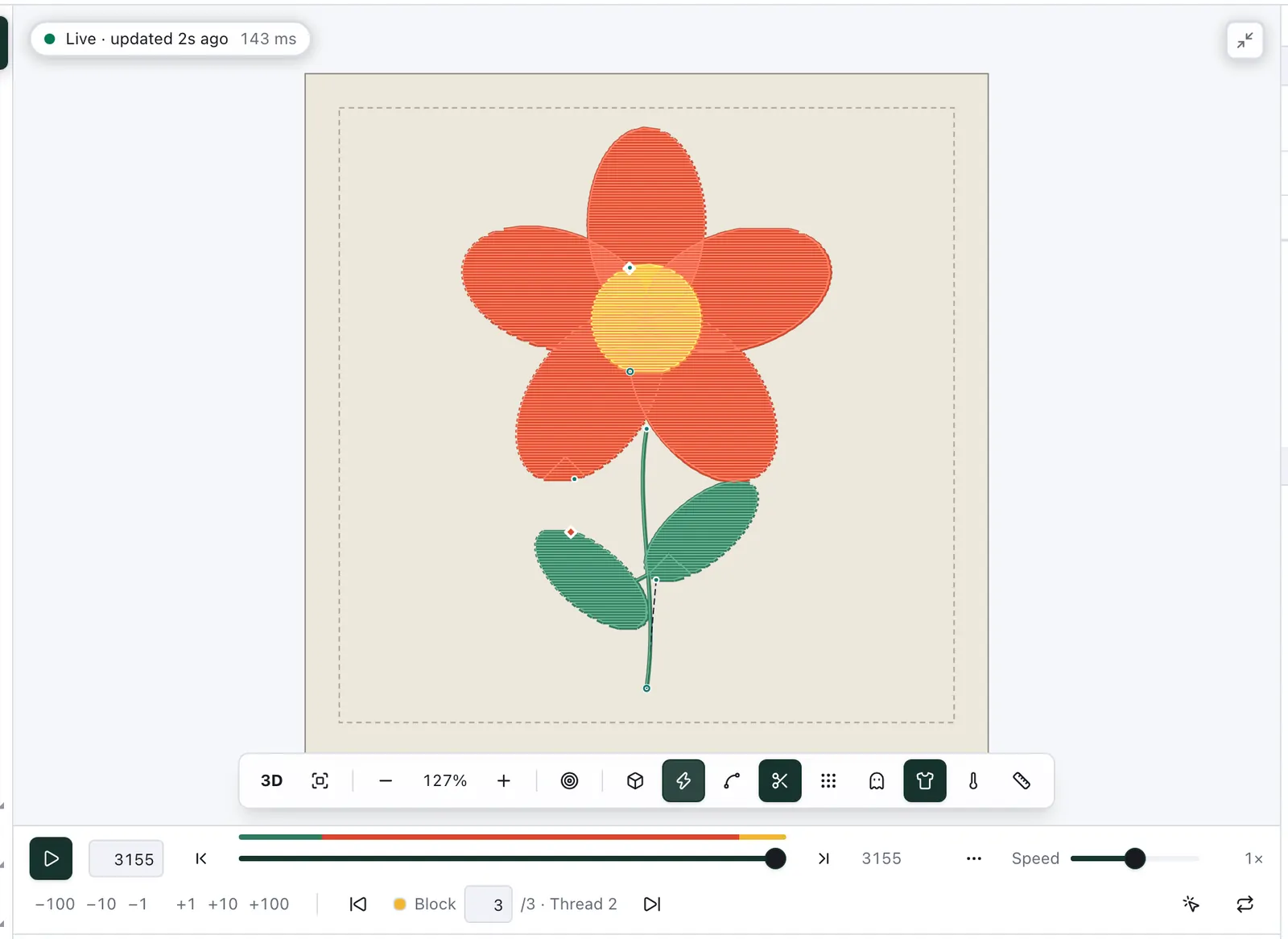
Play, pause points and replay
Play sews straight through to the end unless you ask it to stop. The ⋯ button near the end of the bar holds the player's options:
Pause at ▸ Colour changes, Stops and Trims: playing stops just after each one — where you rethread, place an appliqué piece or snip — and Play sews on from there. A trim and the colour change after it stop it once.
Follow the needle: when you have zoomed in, the preview pans the needle back to the middle each time it leaves the middle. It never zooms, and while the whole hoop fits across the preview it stays still.
Replay: sews the object the needle is in once more, from its first stitch to its last, and stops there; the replay button in the bar does the same. Its outline comes with it when it is sewn straight after; an outline sewn later, after other objects, replays on its own.
Play the selection: shows only the selected objects, as View ▸ Show only selection does, and plays them from their first stitch.
Set A and Set B: mark a stretch of the sew-out at the handle. Play then starts at A and stops at B every time, until you choose Clear A–B; Replay sets the two marks for you. A line under the slider shows the stretch, and a change to the design clears it.
The pause points and Follow the needle are off until you turn them on, and stay as you leave them in this browser.
Step to a stitch or a colour
When the preview is wide enough, the buttons beside the slider go to the first and the last stitch, and a second row steps by −100, −10, −1, +1, +10 and +100 stitches. The same row names the colour block the needle is in: type a block number there and press Enter to go to where that colour begins, or step block by block with the arrows on either side. The two buttons at its end select the object being sewn and replay it. On the slider itself the keys step too — Shift by 100, Page Up and Page Down by colour block, Ctrl (⌘) by machine command, Alt (⌥) by object (Keyboard shortcuts).
Machine commands and ties
The scissors button in the preview's toolbar, Machine commands, marks where the machine does something other than sew: a red ring with a cross for a trim, an amber square for a stop, a diamond in the next thread's colour for a colour change. It marks the ties as well: a small teal dot where the thread is tied in — at the start, after a jump or a cut — and a small teal ring where it is tied off before one (Ties). The marks lie over the stitches and hide none of them. View ▸ Machine commands is the same switch, and shows the marks on the Stitch view too, where you drag a fill's start and end (Where fills start and end).
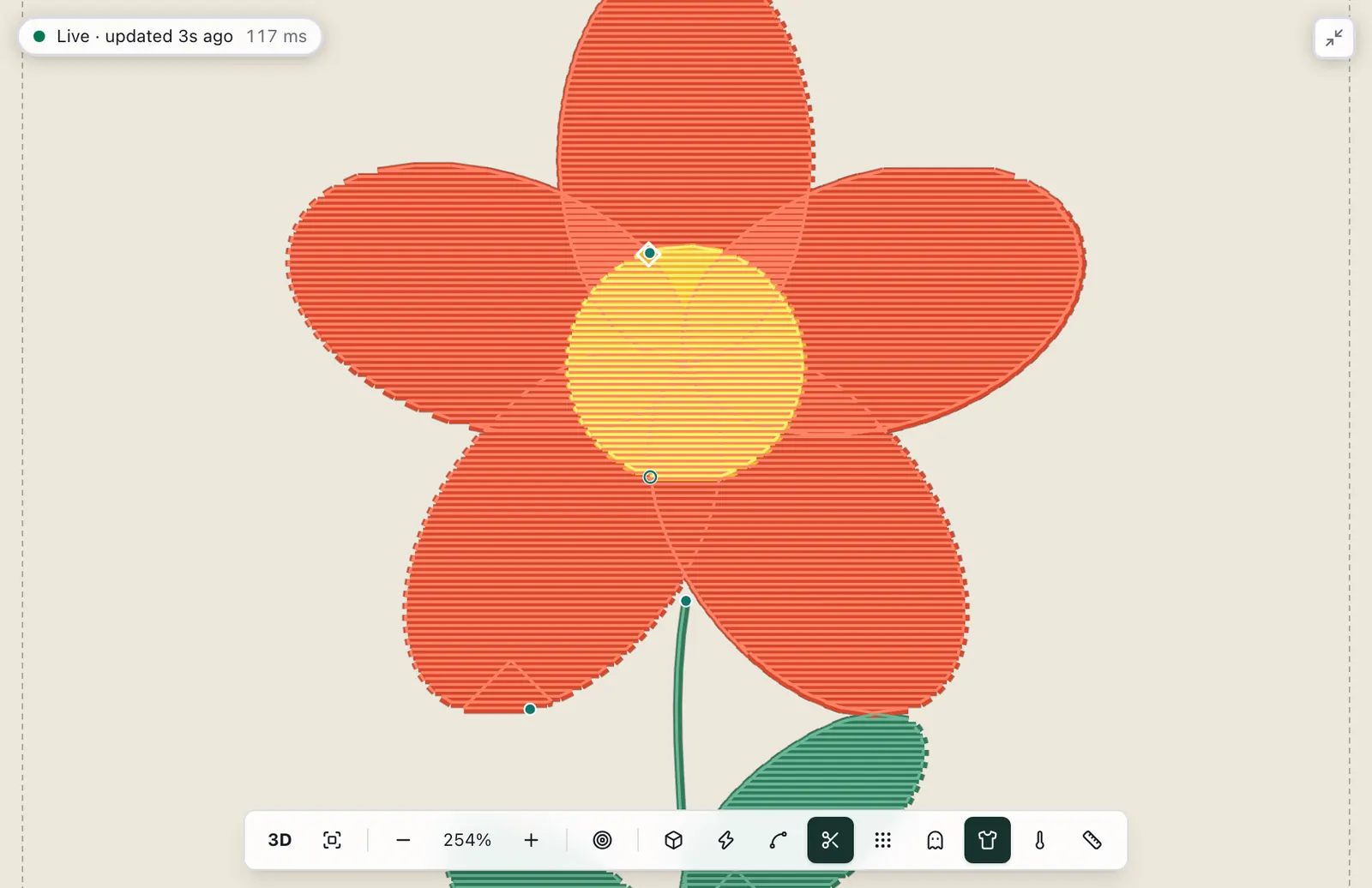
The ghost button, Stitches not sewn yet, draws what is still to sew faintly under what is sewn, so you keep the whole design in view while you scrub.
Stitch lengths
The ruler button colours every stitch by its length instead of its thread, and a legend counts the stitches in each colour:
blue, under 0.5 mm: very short stitches pile up and break the thread. A fill's turns at the row ends and the ties are short on purpose and stay green.
green, 0.5 to 7 mm: the stitches a machine sews best.
orange, over 7 mm: long enough to loop and snag — where a satin is split.
red, over the longest stitch the file keeps: the design's Longest stitch (mm) in File ▸ Properties or the export format's, whichever is shorter (12.1 mm for DST). The stitches NextStitch makes are split at it; a machine file's are sewn as they are.
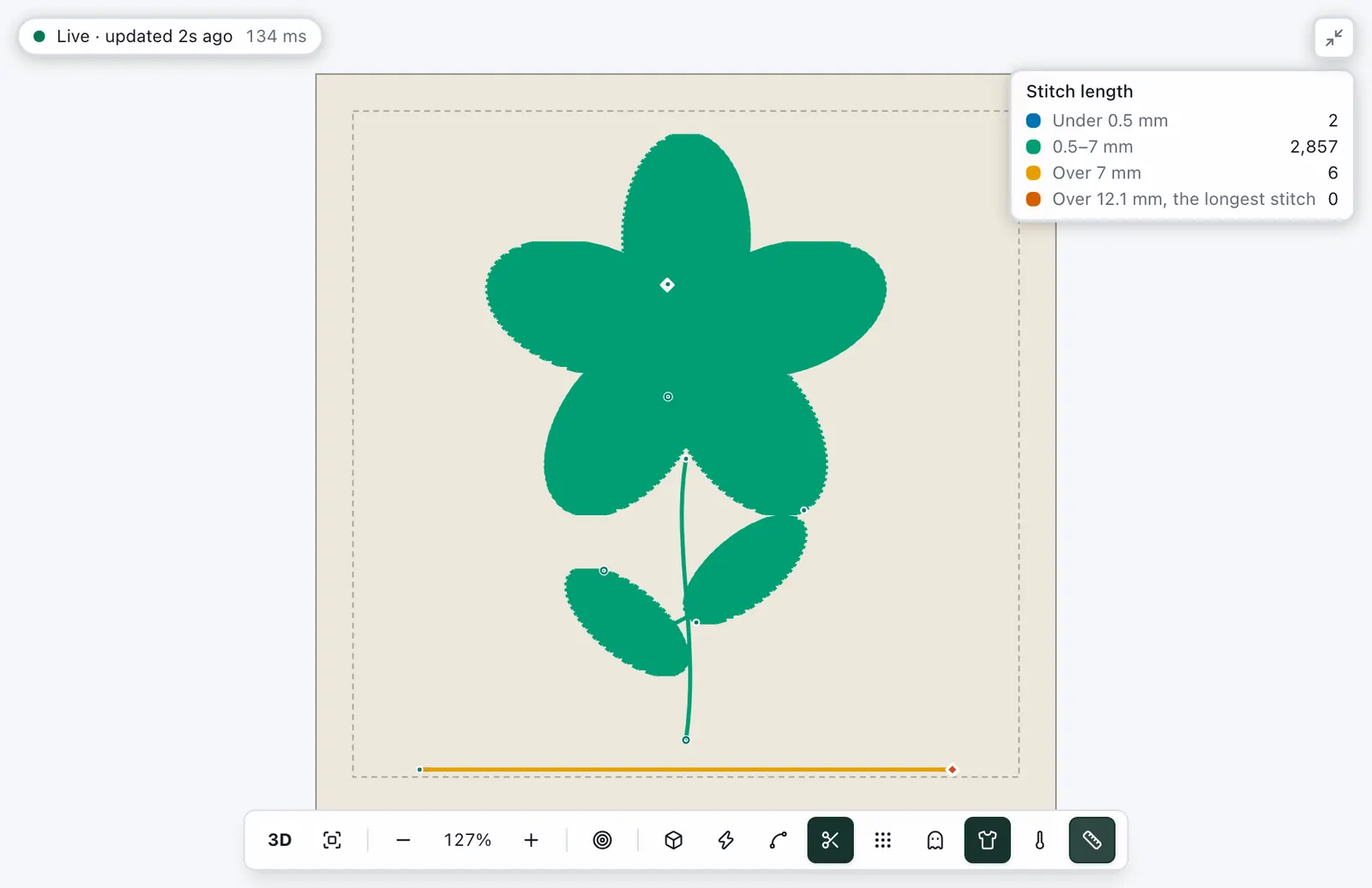
Problems adds a note for stitches of 10 mm and longer where nothing else warns about them: in a running or bean line, and in a machine file's stitches. A fill splits its rows, a satin has its 7 mm warning and a manual stitch its own, so none is named twice. Place the points closer together or set a shorter stitch length.
Thread width, contrast and brightness
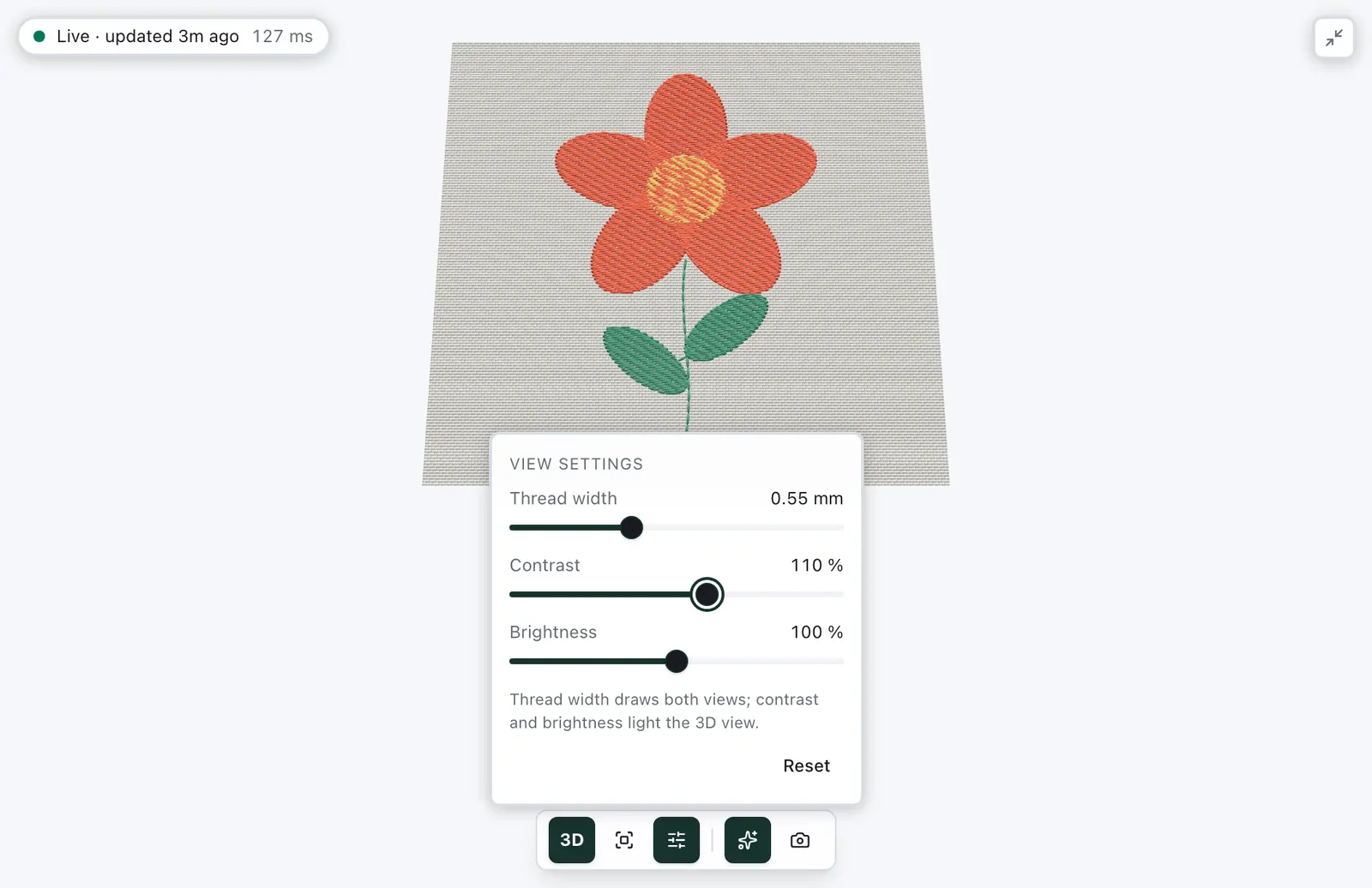
The sliders button beside Fit in the preview's toolbar opens View settings:
Thread width: how wide a thread is drawn across its stitch, from 0.30 to 1.00 mm, 0.55 mm to start with — finer for a 60wt thread, wider for a heavy 30wt or 12wt. It draws both the flat preview and the 3D view, and changes how the stitches look, never where they are.
Contrast and Brightness: the light of the 3D view, from 50 to 150 %. More contrast strengthens the light from one side, which shows the threads' relief and shadows, and weakens the even light all round; brightness lightens or darkens every colour alike — useful on a very dark or very light fabric. In the flat preview they are greyed.
Reset puts all three back. The button is highlighted while any of them differs, and like the toolbar's switches they stay as you leave them in this browser; Settings ▸ Preferences… ▸ Simulator has the same sliders.
See where a problem is
Click a problem under Problems and the preview marks where it is: a ring round each very short stitch, a dashed line along each jump, the over-dense areas or the part of the design outside the hoop, or a box round the object it is about — and zooms to it. From the Design view it opens Simulation for that. The note at the top of the preview says what is marked; its × or a second click on the problem clears it.
When the design is larger than the hoop, Fit on that problem shrinks it and centres it until every stitch, the outline's too, fits with 1 mm to spare. Remove stitches of 0.5 mm and shorter on the very-short-stitches warning sets the design's smallest stitch to 0.5 mm (Travel, trims and ties). On a towel or a stretch fabric, Problems also names a fill or satin sewn without underlay, with Fabric settings to open the fabric in File ▸ Properties, and a note for fill rows that run along a long, narrow shape has Turn 90° (Fabric and stabiliser). On Free-standing lace it names each part of the lace that touches nothing else, and marks it with a box (Free-standing lace). A manual stitch longer than the 12 mm a machine sews is a warning, but where the design's Longest stitch (mm) in File ▸ Properties, or the longest stitch of the file format you export, splits it into stitches of 12 mm or less, it is only a note, which says how many stitches it is sewn as (Manual stitches). A warning you do not need can be switched off under View ▸ Warnings or in Settings ▸ Preferences…; errors always show.
A shape drawn filled whose outline has an open part — the outline of a hole broken at a node, say — is filled on the canvas as if it were closed, but the open part is sewn neither as an area nor as a hole: a hole there is sewn over. Problems names the shape, and Close open subpaths on the warning closes its open parts as Close path does in the node editor, in one step to undo. A line is never warned about.
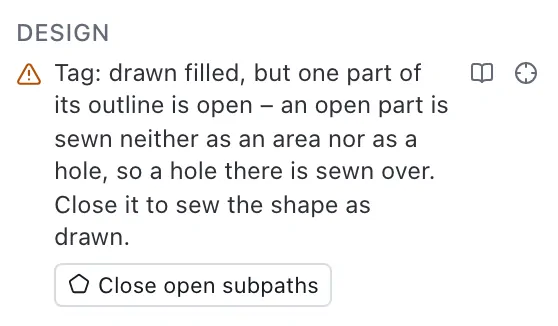
The book button beside a problem, Learn more, opens the article that explains it in a new tab, at the section that says what to do — the common ones such as a satin without a column, a stitch too long or a narrow gap each have their own, every other problem this section. The editor and your design stay open.
Narrow gaps
Fabric left showing between stitched areas closes up when it is too narrow: the stitches spread, and with 40wt thread an opening under about 1 mm may vanish. Problems warns about every gap, slit or hole narrower than the design's minimum gap — 1 mm unless you change it under File ▸ Properties — and marks each one. An outline counts as stitched, at its full width, and so does a line: a satin column at its width and pull compensation, a zigzag at its width, a running line as wide as it is drawn. A gap inside one letter — the counter of an e, a notch — is the font's design and is not warned about; between letters, and between a letter and anything else, it is.
Widen gaps on the warning brings each of them to the minimum: the shapes beside a gap give way half each, a shape beside its own slit or hole all of it, and the curves elsewhere stay as they were. A locked shape, a catalogue design and a line stay where they are, and the shape across from one gives the whole width instead. A gap with nothing beside it that can give way stays narrow, and the warning then says how many are left. For some shapes only, select them and choose Object ▸ Widen gaps…, where you can also set the width. Either is one step to undo.
Why jumps matter
Between two parts the needle jumps across, pulling the thread behind it. A short jump disappears under the next stitches; a long one is cut by the machine, and a better order keeps it short in the first place — see where fills start and end. Travel, trims and ties says which jumps are cut, sewn over or hidden, and how they are tied.