
Scrub through the stitches
Watch your design sew before it reaches the machine: drag through the stitch order, play it back and spot the jumps.
Updated October 21, 2026
Simulation shows your design the way the machine will sew it, stitch by stitch.
- 1
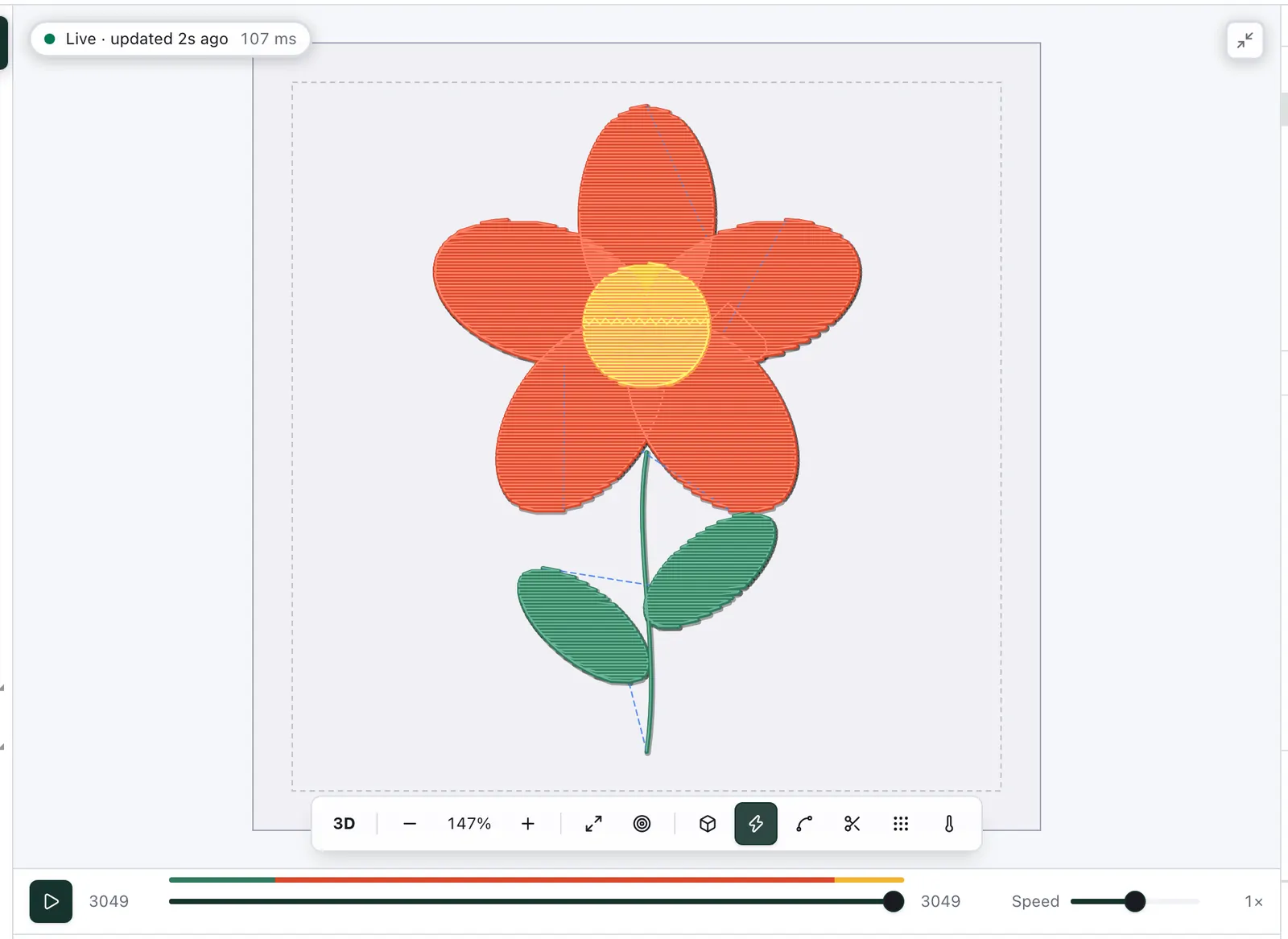
Open Simulation. Switch the view under the canvas to Simulation. It opens beside the editor; the maximise button gives the stitches the whole space.
- 2
Drag through the stitches. The bar under the preview runs from the first stitch to the last. Drag its handle back and the design unsews; the numbers show where you are and how many stitches there are in all.
- 3
Play it back. Play sews on from wherever the handle is, and Speed sets how fast. The coloured band above the bar shows which thread sews when.

- 4
Look for jumps. The jump-stitch button in the preview's toolbar draws the jumps as thin lines between the parts they connect.
See where a problem is
Click a problem under Problems and the preview marks where it is: a ring round each very short stitch, a dashed line along each jump, the over-dense areas or the part of the design outside the hoop, or a box round the object it is about — and zooms to it. From the Design view it opens Simulation for that. The note at the top of the preview says what is marked; its × or a second click on the problem clears it.
When the design is larger than the hoop, Fit on that problem shrinks it and centres it until every stitch, the outline's too, fits with 1 mm to spare. A warning you do not need can be switched off under View ▸ Warnings; errors always show.
Narrow gaps
Fabric left showing between stitched areas closes up when it is too narrow: the stitches spread, and with 40wt thread an opening under about 1 mm may vanish. Problems warns about every gap, slit or hole narrower than the design's minimum gap — 1 mm unless you change it under File ▸ Properties — and marks each one. An outline counts as stitched, at its full width.
Widen gaps on the warning brings each of them to the minimum: the shapes beside a gap give way half each, a shape beside its own slit or hole all of it, and the curves elsewhere stay as they were. For some shapes only, select them and choose Object ▸ Widen gaps…, where you can also set the width. Either is one step to undo.
Why jumps matter
Between two parts the needle jumps across, pulling the thread behind it. A short jump disappears under the next stitches; a long one is cut by the machine, and a better order keeps it short in the first place — see where fills start and end.