Projects and files
Save, find and organise designs in My files, or restore an earlier version.
Updated November 13, 2026
Everything you save to your account is in My files. In the editor, File ▸ My files or My files in the menu under your initials opens it over your design, which stays open behind it; on the website it is a page of your account, My files. Both show the same folders and do the same things; the page has more room.
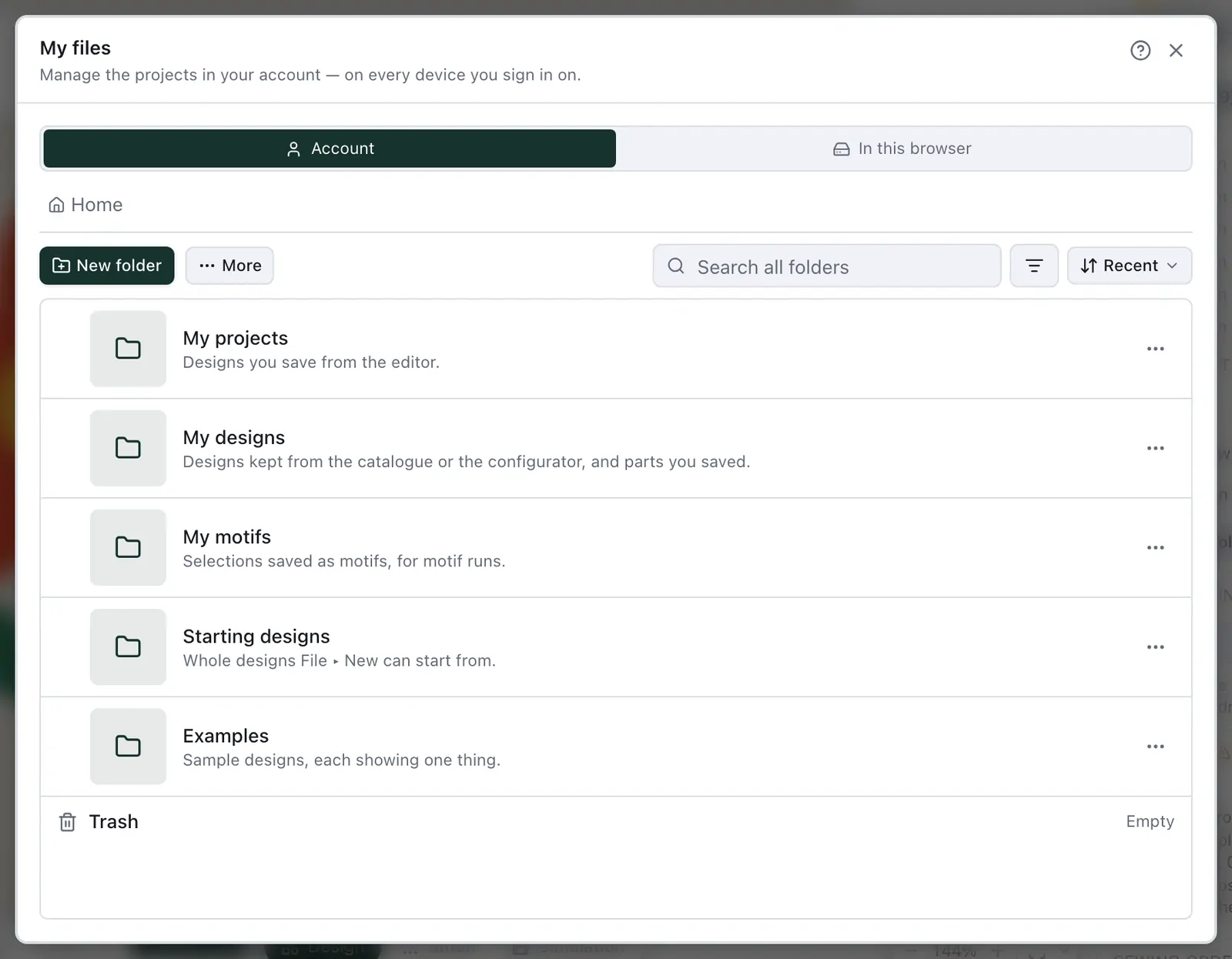
Above the list are the search, the filter and the order — one button that says the order in use, Recent, Name or Size, and opens the three — and before them the one thing you most likely do next: Save current design here while the design in the editor has changes you have not saved, otherwise New folder at Home and Upload in a folder. Everything else is in More: the other two, Download folder (at Home, Download all) and, in the editor, Folders beside the list, which shows the folder tree and stays on in this browser; on the account page also Contact sheet, Design list (CSV) and Convert a file. The order works the same when you pick a design under Insert ▸ My design, search results included.
My files and its folders
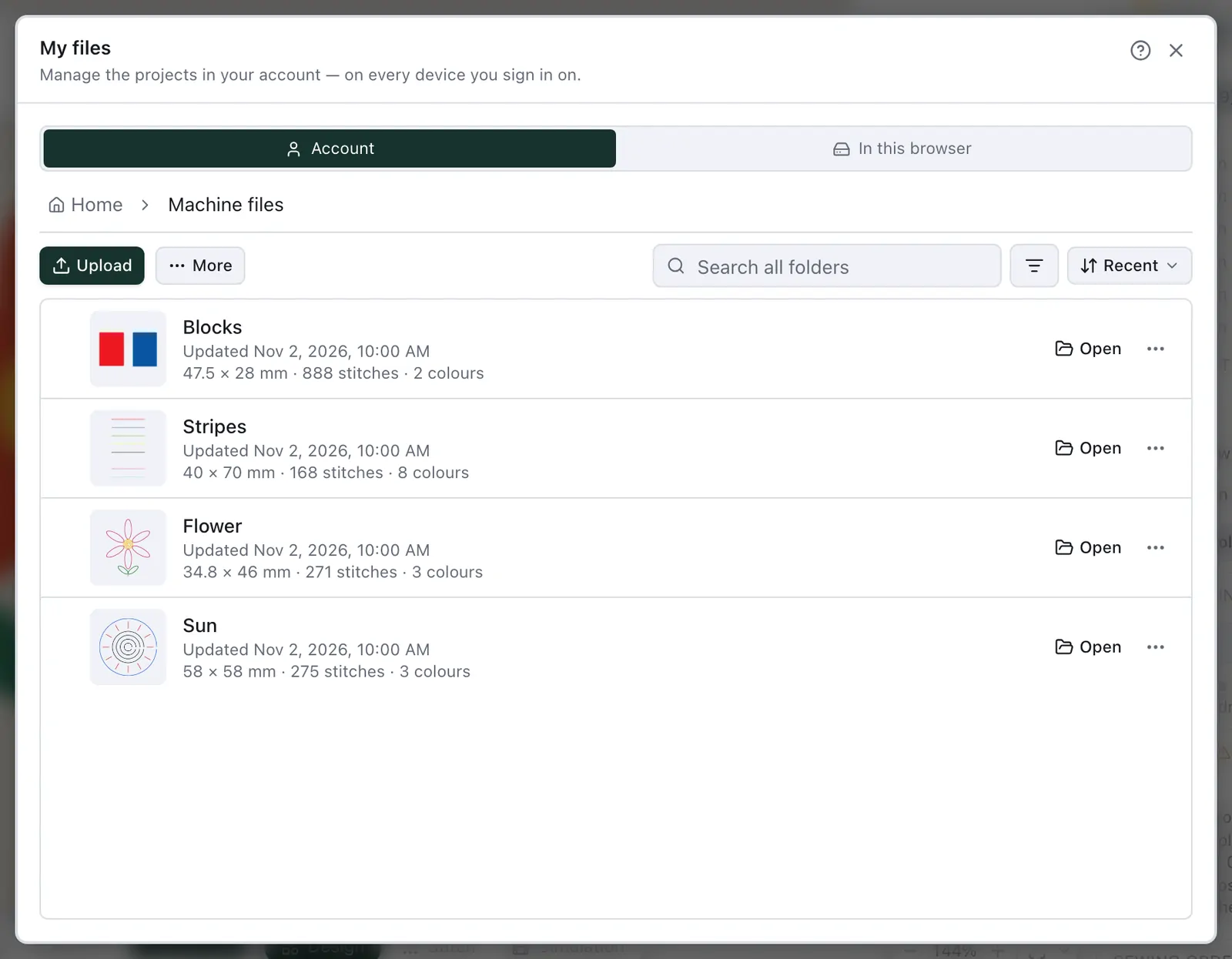
Every account starts with five folders at Home, each with a line under its name saying what goes in it: My projects, where a first save lands, My designs, where the designs you customise and the catalogue designs you keep go, My motifs, where File ▸ Save a copy ▸ Selection as motif keeps your own motifs for a motif run, Starting designs, where File ▸ Save a copy ▸ As starting design keeps whole designs that File ▸ New starts a copy of, and Examples, with designs that each show one thing — an appliqué, cross stitch, a colour fade, lettering on an arc, a monogram — and the flower from Your first flower. They stay where they are; make as many folders of your own as you like with New folder, and nest them.
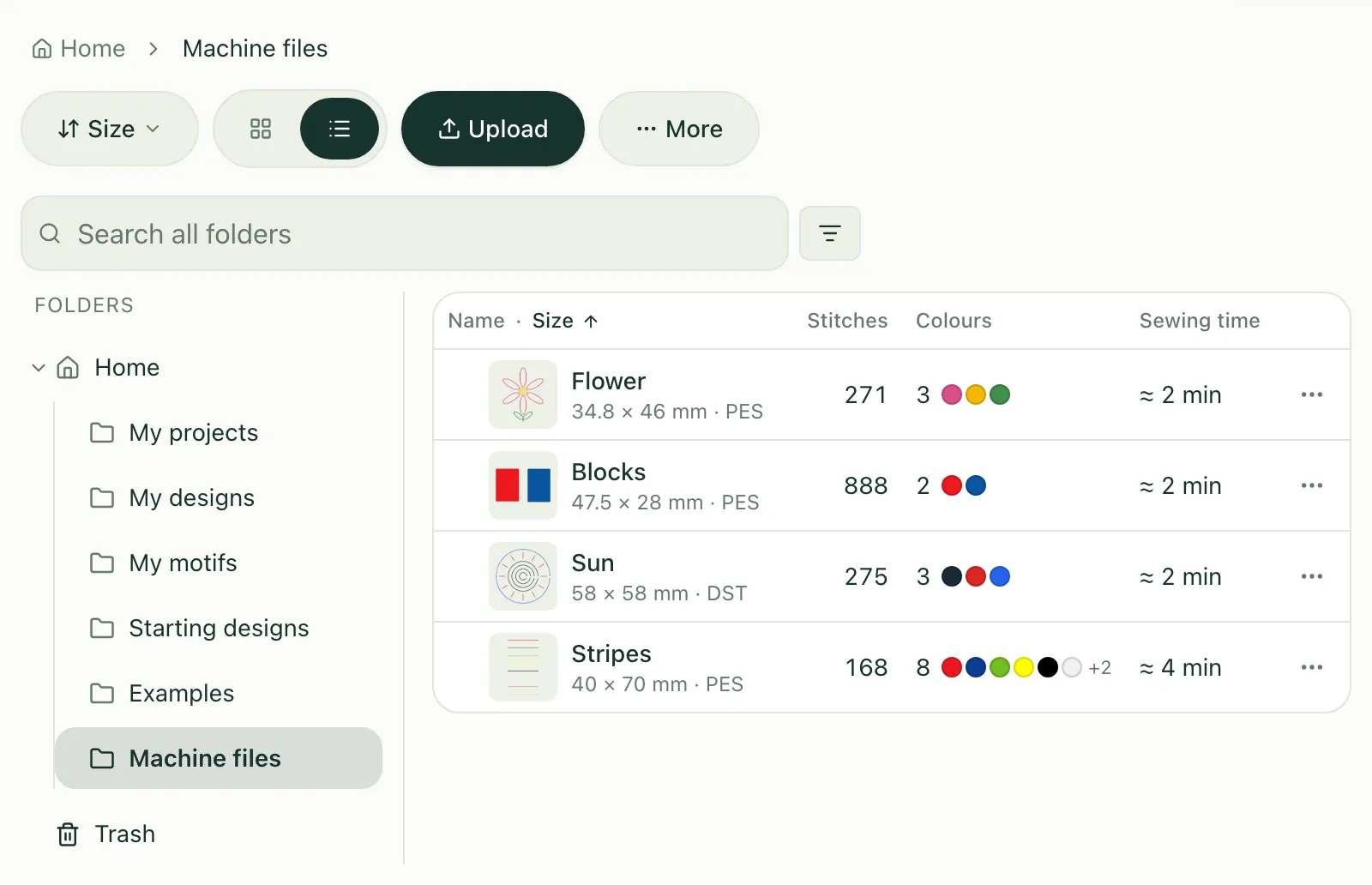
Open a folder with a click, go back up with the path above the list, or use the folder tree beside it (on the account page; in the editor, More ▸ Folders beside the list). Drag a design or a folder onto another folder — a card, a row, a step of the path or a folder in the tree — to move it there; Move to in its ⋯ menu does the same from the keyboard. Cards shows each design's picture large, Details lists them as a table, and the order is the most recent first, by name or by Size. Size goes by each design's larger side, then its other side, the smallest first, so the designs that fit your hoop come first whichever way round they are sewn; a design saved before its size was kept comes last. More ▸ Download folder gives you a folder, with the folders in it, as a zip of project files.
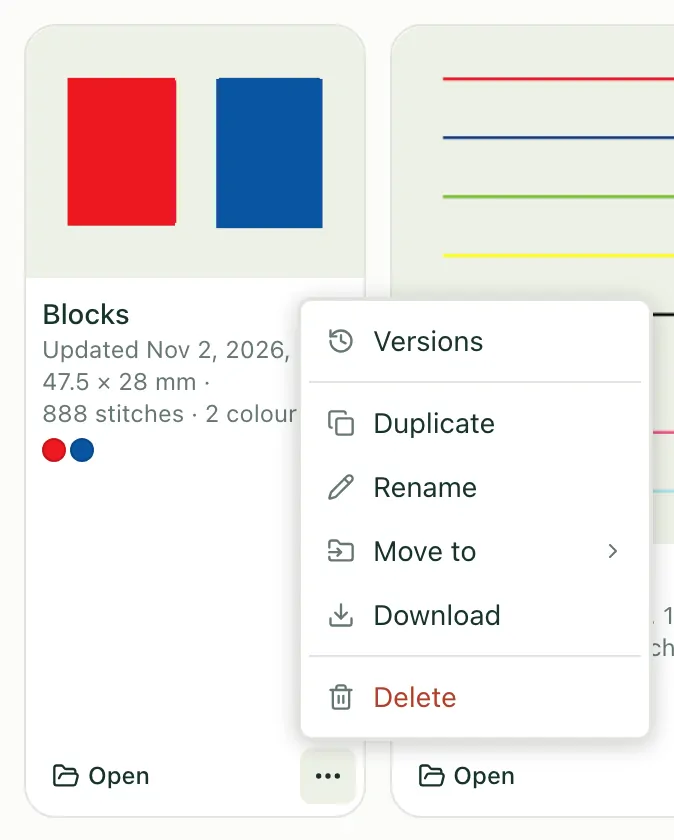
Open on a design opens it in the editor, and so does a click on its name or its picture. Everything else you do with one design is in its ⋯ menu, each with its name: Versions, Duplicate, Rename, Move to, Download and Delete — and Customise first, for a design the configurator can open again. A folder has a ⋯ menu too: a folder of your own with Download folder, Move to, Rename and Delete, the five folders at Home with Download folder alone.
The storage meter at the top says how much of your account's room your designs take, the trash included.
Save to your account or to this device
File ▸ Save asks the first time where a design goes. Account, the default, keeps it in the folder you choose — My projects unless you pick another — and you open it from any device you sign in on. Download as a file downloads it as a project file (.nextstitch.json) at every save, which File ▸ Open from file opens again; this browser keeps a copy too, for Open recent, which My files lists under In this browser. File ▸ Save a copy ▸ Download as a file downloads the design once, wherever it is saved. Save as makes a copy under a new name, in the same folder unless you choose another.
To keep the project each time you export its machine file, switch on Also keep the project in My files in the Export dialog (Keep the project in My files).
Once a design is saved, a small icon beside its name in the header says so, and where the last save went: a cloud with a tick when it went to your account, a file with a tick when it was downloaded as a file — Save a copy ▸ Download as a file of an account project too —, and a laptop with a tick when Save current in the Files dialog kept it in this browser alone. Point at it for when and where — Saved · 6:42 PM · in your account. As soon as you change the design again, a small orange dot says Unsaved changes until the next save — ⌘S on a Mac, Ctrl+S elsewhere. A design you opened and have not changed shows neither.

The draft in this browser
Whatever you have not saved yet is kept in this browser as you work, as a draft: reload the page, or close the tab and open the editor again, and your design is back, and Save still goes where it went before. Each editor tab keeps a draft of its own, so two designs open in two tabs never write over each other. A reload brings back that tab's own draft; a new tab opens with the newest draft of any tab.
A draft is not a save: it is only in this browser, and it holds only the latest state of each tab; earlier ones are under Unsaved drafts. When a design is too large to keep there, the editor says so: save it to your account, or as a file.
Unsaved drafts
While you edit, this browser also keeps earlier states of your work: one every 2 minutes at most, and only when the design changed since the one before. Two more are kept because nothing else holds them: the state a design came back in after a reload, once you edit it, and the last state of a design you changed when you open another over it. It keeps up to 20 of each design, for 7 days; the oldest go first, and they go too when together they would take too much room.
Choose File ▸ History ▸ Unsaved drafts. The list shows the design open in this tab first, then your other designs, newest first, each with when it was kept, a small picture, its stitches and its objects. Open in a new tab opens the one you choose as a new draft, in a tab of its own: the design you have open stays as it is, in its tab, and the one you opened belongs to no project yet, so Save asks for a name and where. With no draft to bring back, the start card offers Unsaved drafts too, when this browser keeps some.
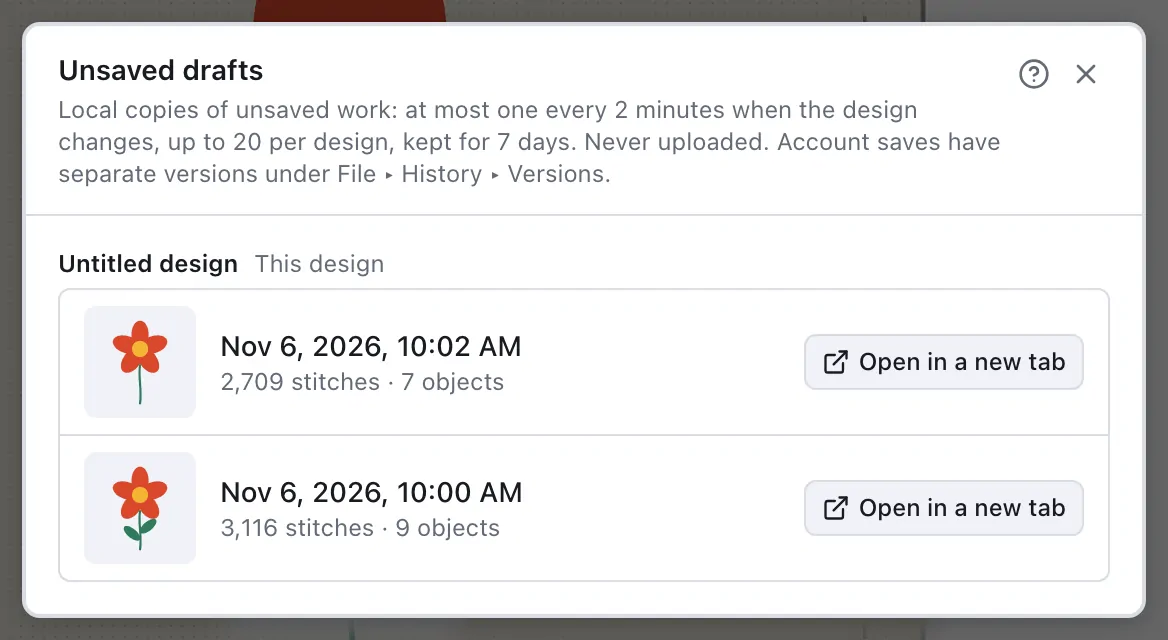
Unsaved drafts stay on this device: they are never uploaded, and they are not in your account. They are only for whoever kept them: signed in, you see your account's; signed out, only those kept while signed out. Signing out takes your account's out of this browser, and clearing the browser's site data clears them with the drafts. In the desktop app, which has no tabs, Open as a new draft opens one in its window, after asking about unsaved changes; the design it replaces, if you changed it, is kept among the unsaved drafts.
A design saved to your account has earlier versions of its own: every save keeps the version it replaces, for 30 days. Unsaved drafts are for the work in between, before a design is saved or since its last save.
Keep a part, insert it again
File ▸ Save a copy ▸ Selection as design keeps what you have selected — a logo, a border, a name — as a design of its own in My designs, under a name you give it (Design part to start with). The design you are working on stays as it is. It needs an account.
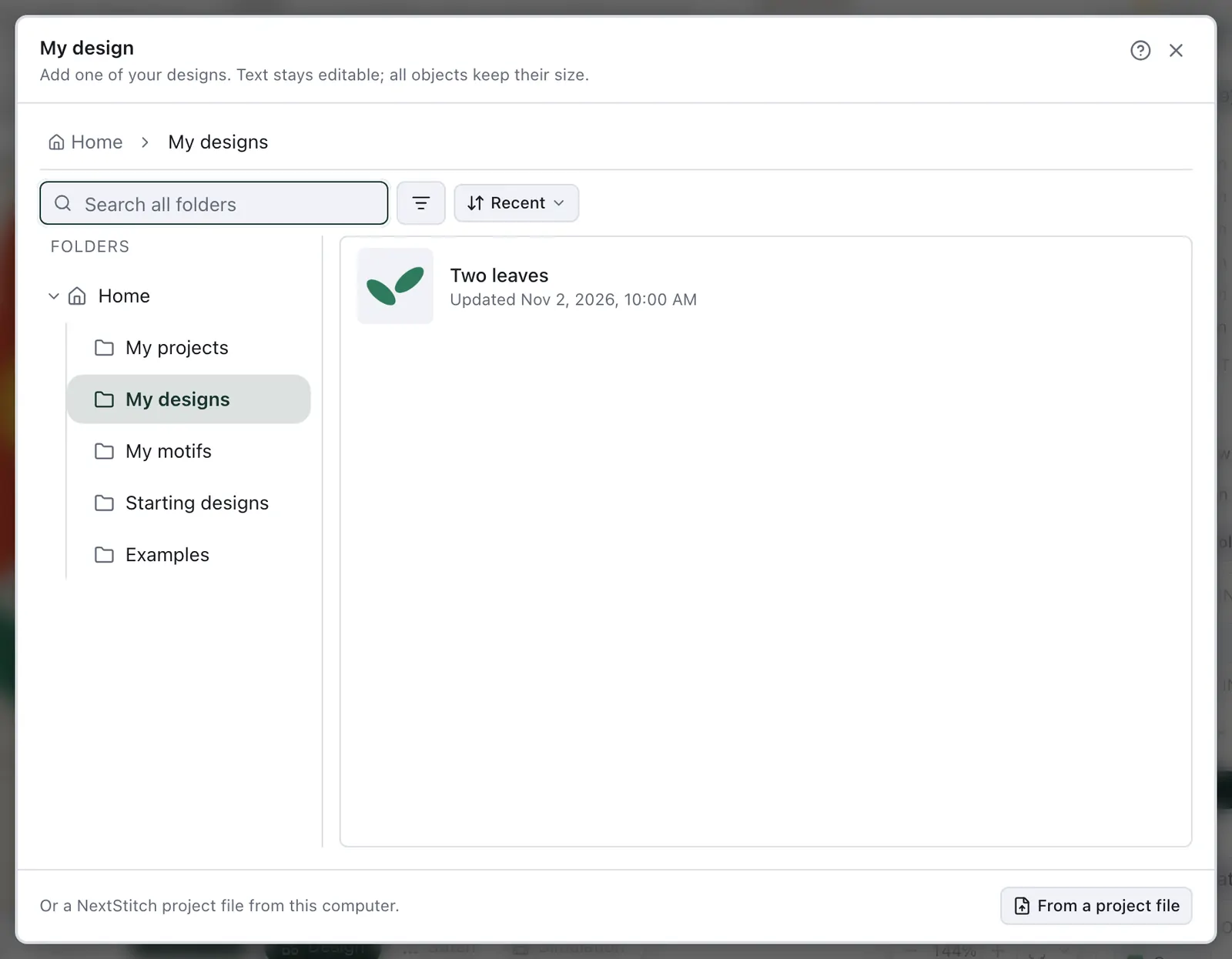
Insert ▸ My design adds such a part, or any other design of yours, to the design on the canvas: pick it in My files, which opens on My designs, or choose From a project file for a .nextstitch.json from this computer, which needs no account. It comes in centred in the hoop, at its own size and in its own threads, selected so you can move it; a text in it stays a text you can change.
Find a design
Type part of a name or a tag into the search box above the folders: it finds matching designs in every folder, in any order of the words and whatever their accents, and says under each where it lies — a click on that folder opens it. Clear the search, or open a folder, to see the folder again.
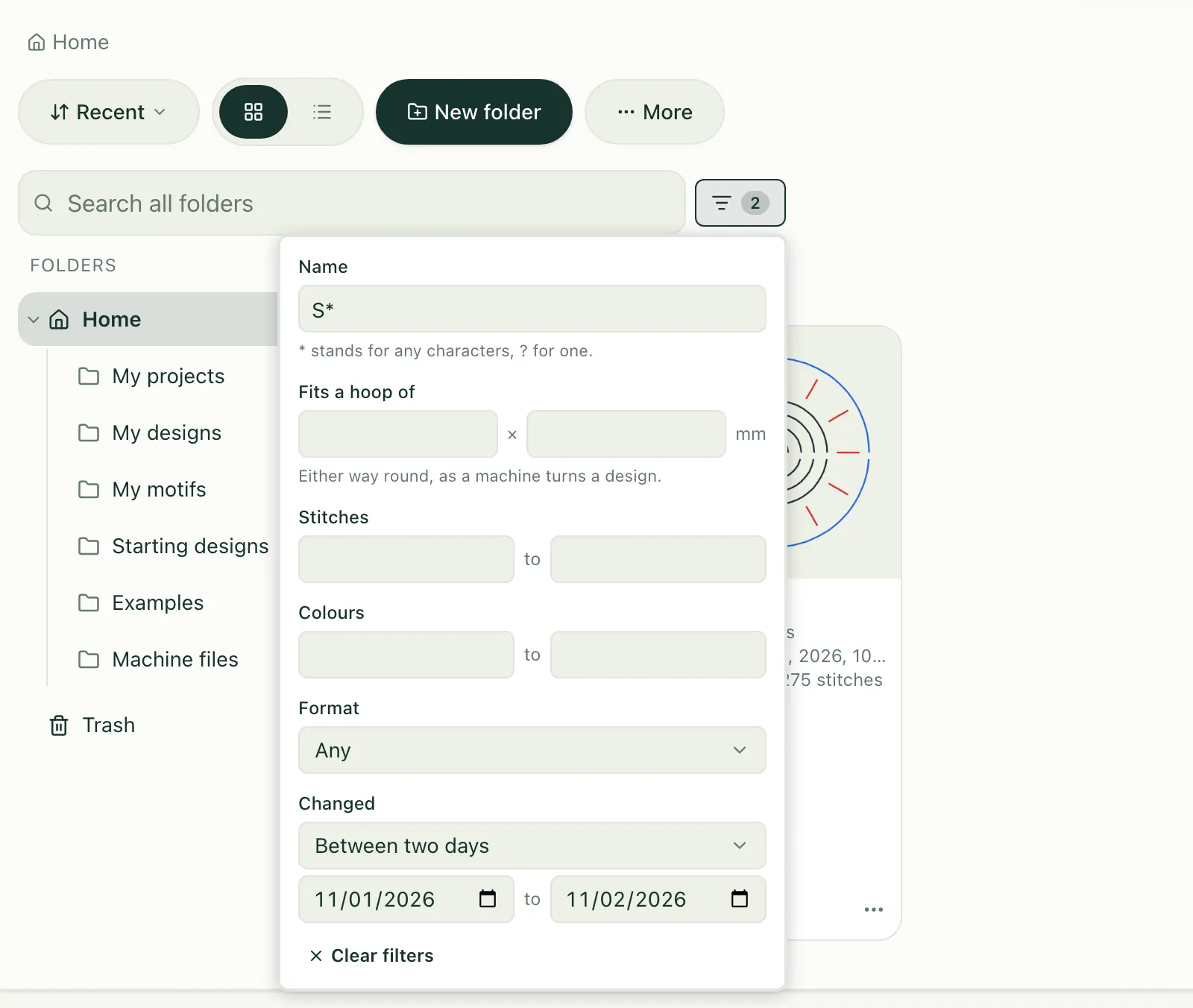
Filter, beside the search, finds designs by their name and by what they sew: those that fit a hoop (either way round, as a machine turns a design), stitches and colours from … to, the format they came from or made in NextStitch, when they last changed, and a Tag they carry. It looks in every folder, as the search does; a design saved before its figures were kept is counted apart until its next save. Clear filters brings the folder back.
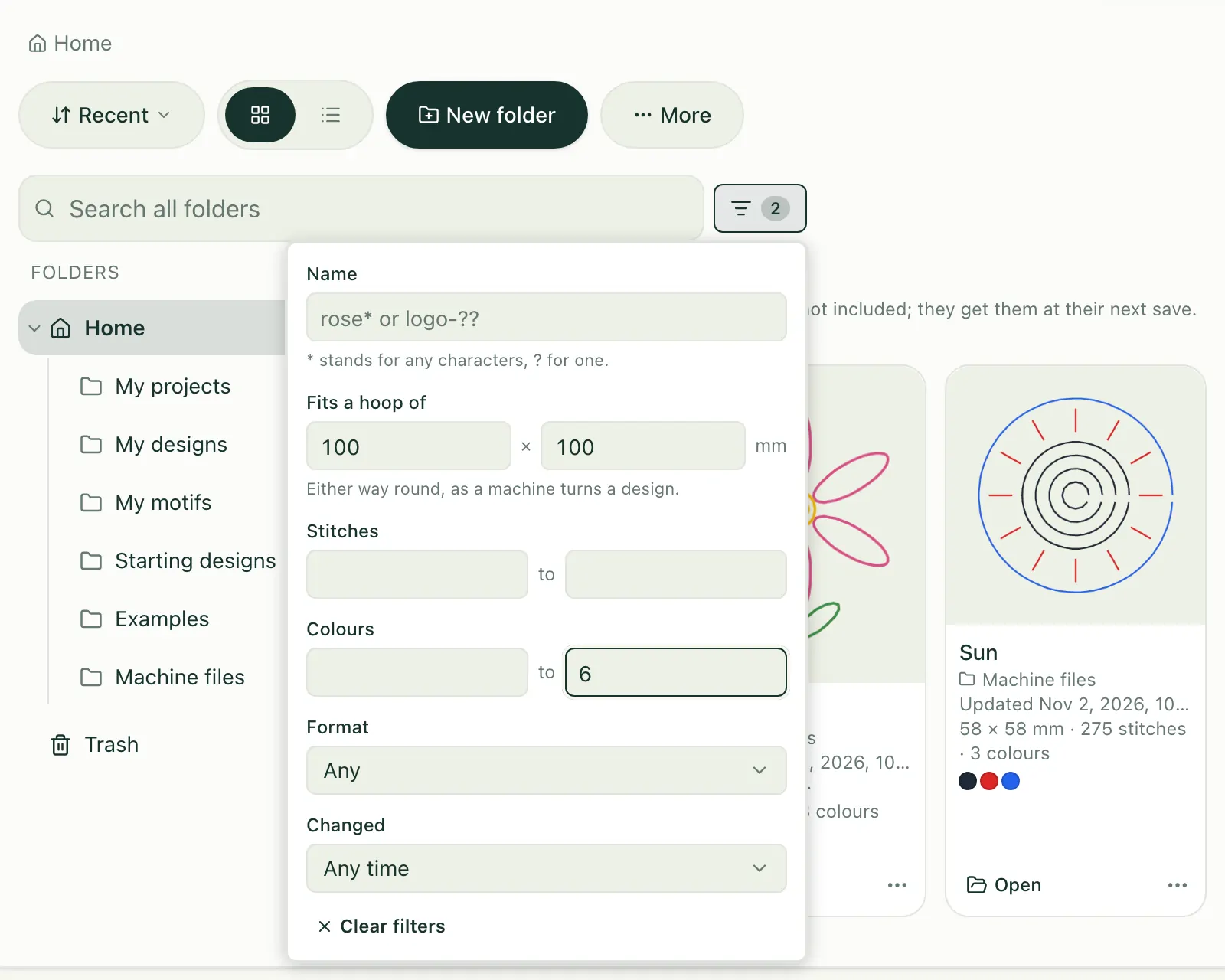
Name takes a pattern, as a file manager does: * stands for any characters and ? for exactly one. rose* finds the names that start with rose, *cap those that end in cap, and logo-?? logo- with two more characters, such as logo-01. Without a * or a ?, it finds the names that contain what you type. Capitals and accents make no difference, as in the search.
Changed finds the designs changed in the last day, week, month or year, or Between two days: the days the Changed column shows, the first and the last included. Leave one of them empty to look from a day on, or up to it.
Details, beside the sort, lists the designs as a table: their stitches, their threads in the order they are sewn, and the sewing time at your machine's speed, with the size and the format each came from under its name — as of its last save. A design last saved before My files kept a figure shows a dash there until it is saved again; where the design itself says which threads it sews in what order — it is sewn in layer order, or in one colour — its swatches were filled in for you. Choose a column's name to sort by it, the smallest first; Size, beside Name, sorts by the size under each name, as the order above does.
Bring in machine files and project files
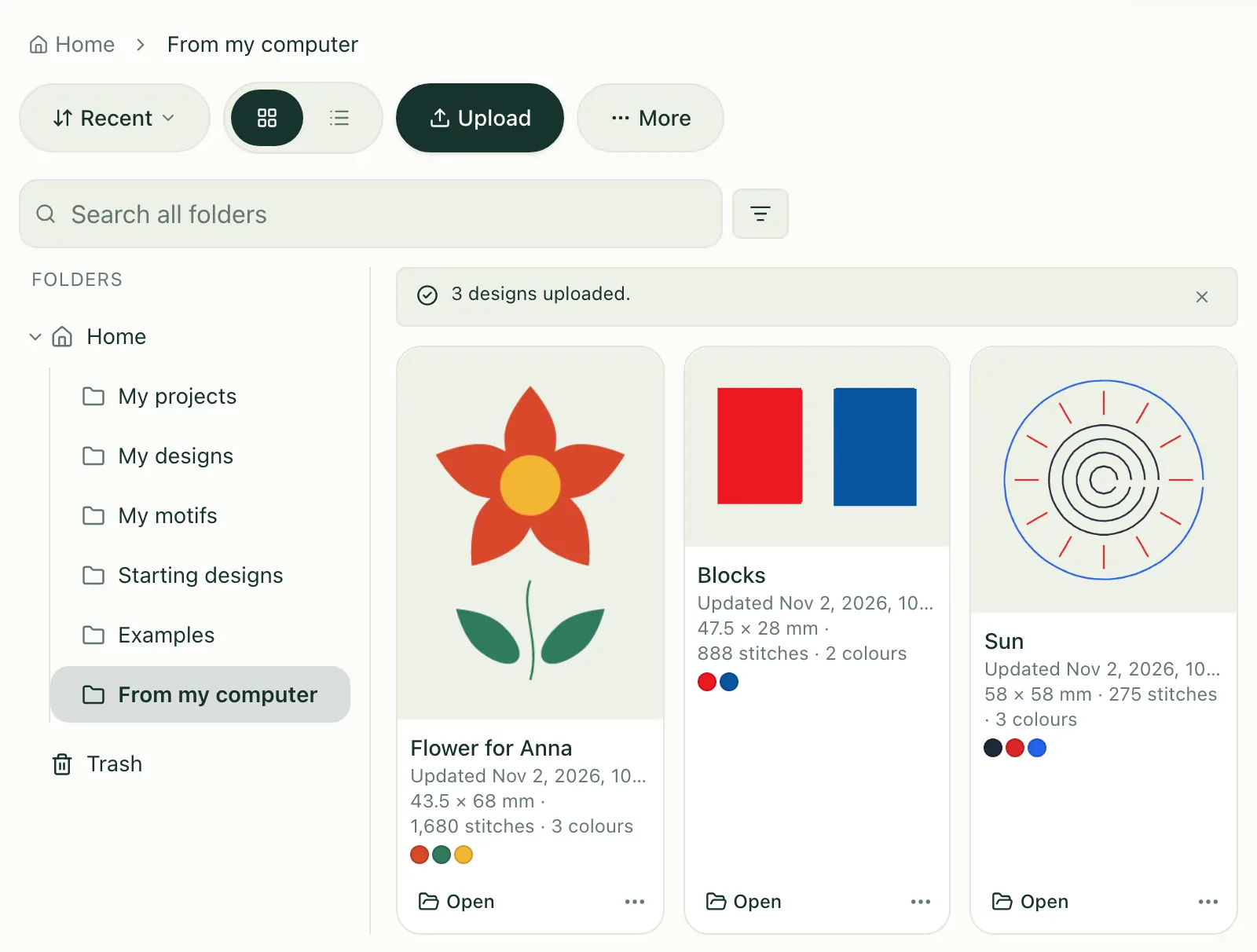
Machine files belong in My files too. Open the folder they go in and choose Upload, or drag files, a whole folder or a zip onto the list: each file becomes a design of its own, with its picture and figures, as File ▸ Open from file would open it, and a folder arrives as a folder. Machine files says how they are read.
Project files come in the same way: a .nextstitch.json you saved to this device, downloaded with Download folder or were sent goes up with Upload, or dragged onto the list, on its own or beside machine files. Before anything is kept it is checked as File ▸ Open from file checks it: it must be a NextStitch project, no more than 25 MB as a design, and saved by this NextStitch or an earlier one — an older one is brought up to date as it is when you open it, and one a newer NextStitch saved asks you to reload the page first. It keeps the name it was saved under, else the file's, and gets its picture and figures; reference pictures it carries come with it. It is a design of your account like any you save, and no one else sees it. One that is refused is named after the upload with why — it is not a NextStitch project file, too large to keep in My files — and the others go on.
Several at once
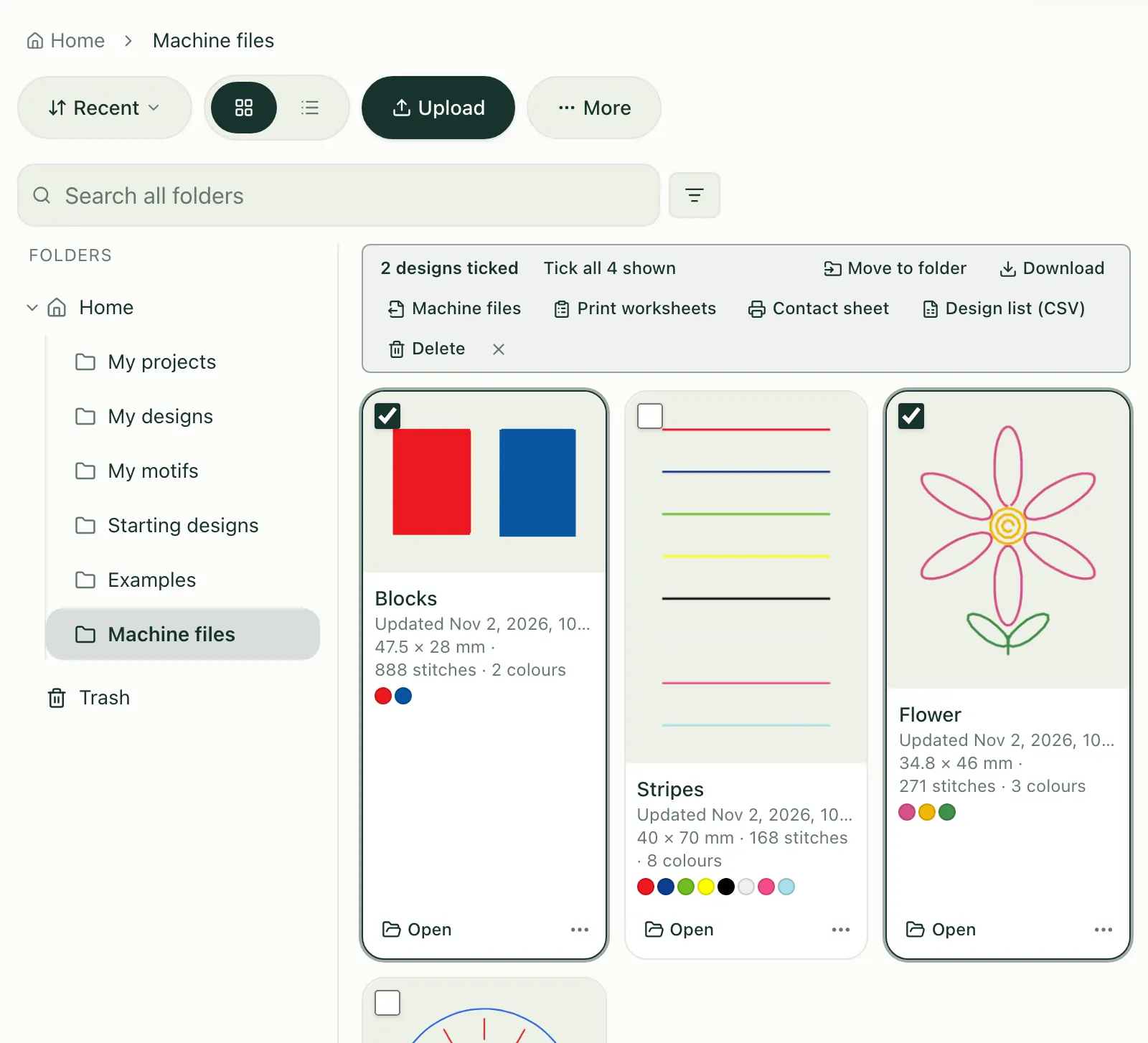
Point at a design and a box appears in its corner; tick it, and every design shows its box, so ticking the rest is one click each. On a phone or a tablet the boxes are always there. A bar above the list says how many are ticked and what they can do together:
Move to folder moves them all into one folder — or drag one of them and the others come along.
Download gives you one zip of their project files, in the order you ticked them.
Machine files writes them out for your machine, below.
Print worksheets prints each one's full worksheet, one after another in one print (on the account page; Print a worksheet).
Contact sheet and Design list (CSV) print or list them, below (on the account page).
Delete puts them all in the trash, with one Undo.
Tick all … shown ticks everything in the folder, or everything a search or a filter found; the cross unticks them. Opening another folder, searching or filtering unticks them too, so nothing you can't see is moved or deleted with what you can.
A move or a delete of the ticked designs goes to the server in one go, however many you ticked. If one of them can't go along — it was deleted meanwhile in another tab or on another device — the others still do, and the line above the list names each one that stayed where it was.
Write them out as machine files
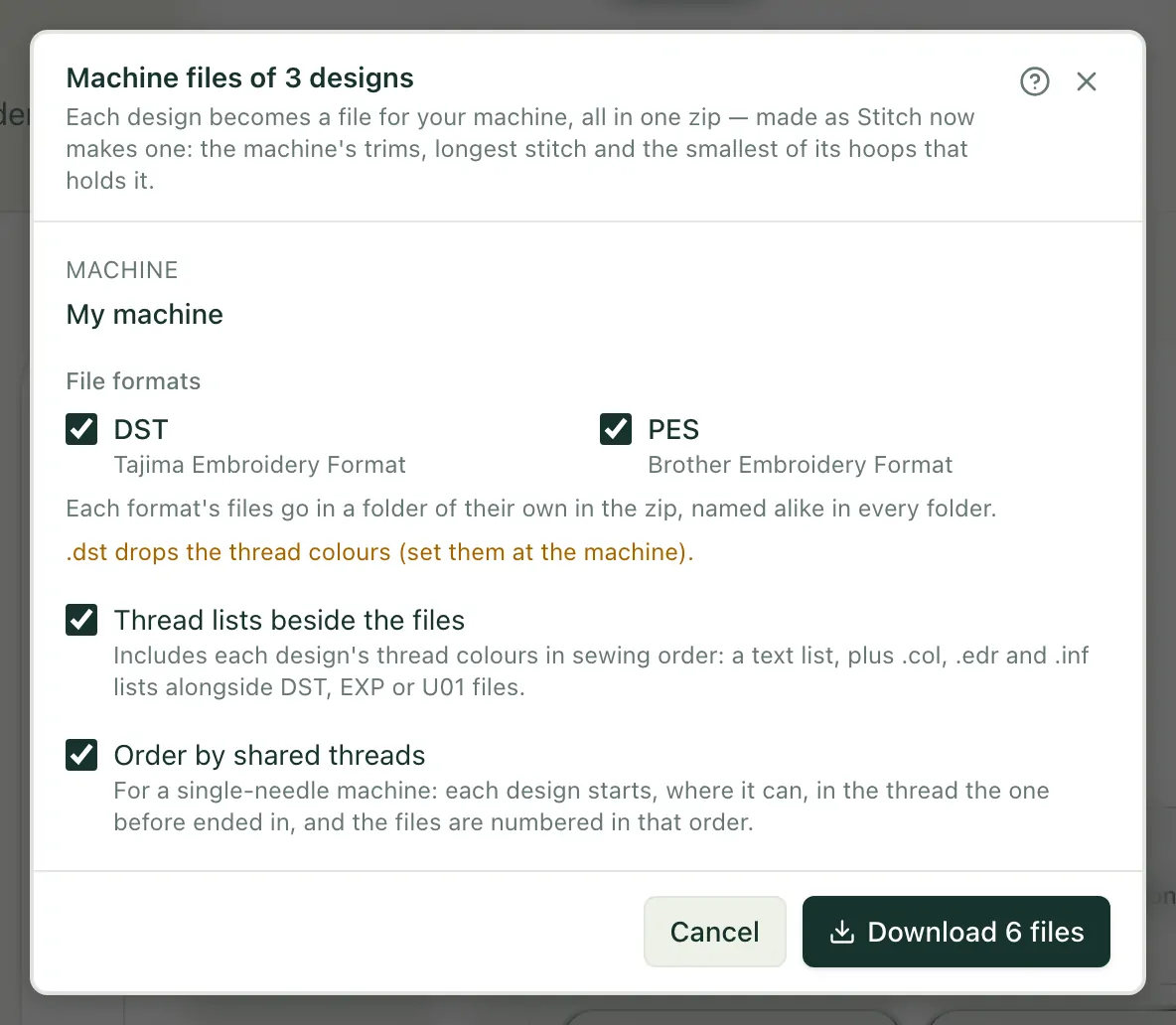
Machine files in that bar turns the designs you ticked into files for your machine, one per design, in one zip. Pick one of your machines from My machines and its format; each design is made as Stitch now makes one — your machine's trims and longest stitch, on the smallest of its hoops that holds it. A design that fits none of its hoops is left out, and the dialog names it. Up to 100 designs go in one zip, and the zip counts as one export.
Tick up to four formats, and each design is written in every one — a customer's PES and DST, say, in one go. The zip then has a folder for each format, DST and PES, with the same file names in every folder; a name two designs share is numbered, Rose, Rose_2. Under the formats the dialog says what each drops of any design — a DST keeps no thread colours, a VP3 no stops — and after the download, under each format, which designs lost what, in the words of the Export dialog. A design with more colour blocks than a chosen format's file holds is left out and named.
Thread lists beside the files, ticked to begin with, puts each design's thread list beside its file in every format's folder, as the Export dialog's zip of one design has it: Rose_threads.txt with every colour in the order it is sewn, and beside a DST, EXP or U01 file Rose.col, Rose.edr and Rose.inf, which machine software reads. A folder copied to the machine's stick so carries each design's colours with it; untick it for the machine files alone. After the download the dialog says the lists are there.
On a single-needle machine every change of thread between two designs is a rethreading by hand. Order by shared threads puts the designs in an order where each starts, as far as they allow, in the thread the one before it ended in, and numbers the files 01 …, 02 … so your machine lists them that way. After the download the dialog lists the files in their order with their threads, and how many thread changes are left between them.
A contact sheet and a design list
On the account page, More ▸ Contact sheet prints the designs shown — the folder's, or what a search or a filter found — or the ones you ticked: twenty to a sheet of A4 or Letter, each with its picture, name, the customer it is for and its tags, size, stitches, threads as swatches, sewing time and format. Orientation turns the sheets to landscape, eighteen to a sheet, six across; the contact sheet keeps its own choice, apart from the worksheet's. Print waits until every picture is in, then hands the sheets to your browser's print dialog, which prints them or saves a PDF.

More ▸ Design list (CSV) downloads the same designs as a spreadsheet: name, folder, customer, tags, width and height, stitches, colours, sewing time, threads and format, one row each, in your language's numbers.
Open recent
File ▸ Open recent lists the ten designs you changed last — the ones kept in this browser and, when you are signed in, the ones in your account, which say Account. So a design you saved on another computer is one click away; opened from there, it saves back to your account.
Earlier versions
Every save to your account keeps the version it replaces: the last 20 of each design, for 30 days, outside your storage. Choose Versions in a design's ⋯ menu in My files, or File ▸ History ▸ Versions in the editor. Restore puts one back — the version it replaces is kept too — and Open as a copy opens it as a new design without changing the one in My files. The copy is named after the design and the time of the version, such as Anna heart (version of Nov 8, 6:22 PM), and Save offers that name. These are the versions of saved work; what you have not saved yet is under Unsaved drafts.

The trash
Delete moves a design, or a folder with what is in it, to the Trash at Home, and Undo puts it back at once. In the trash, designs are grouped by the folder they came from, each saying when it goes for good: after 30 days. Restore puts a design back where it was, recreating its folder if needed; Delete forever and Empty trash ask first, because they can't be undone. Designs in the trash still count towards your storage.
Design settings
File ▸ Design settings belongs to the design that is open, not to the file. Its sections are listed on its left: Machine and fabric (the machine and hoop — or a hoop of the design's own size, Custom size at the end of the hoop list — the fabric and stabiliser), Production (trims, ties, the longest and smallest stitch, automatic underlay for new shapes; the finer ones under Advanced) and Details (Design settings). What you choose there is also where your next new design starts. Fabric and stabiliser and Travel, trims and ties explain those settings.
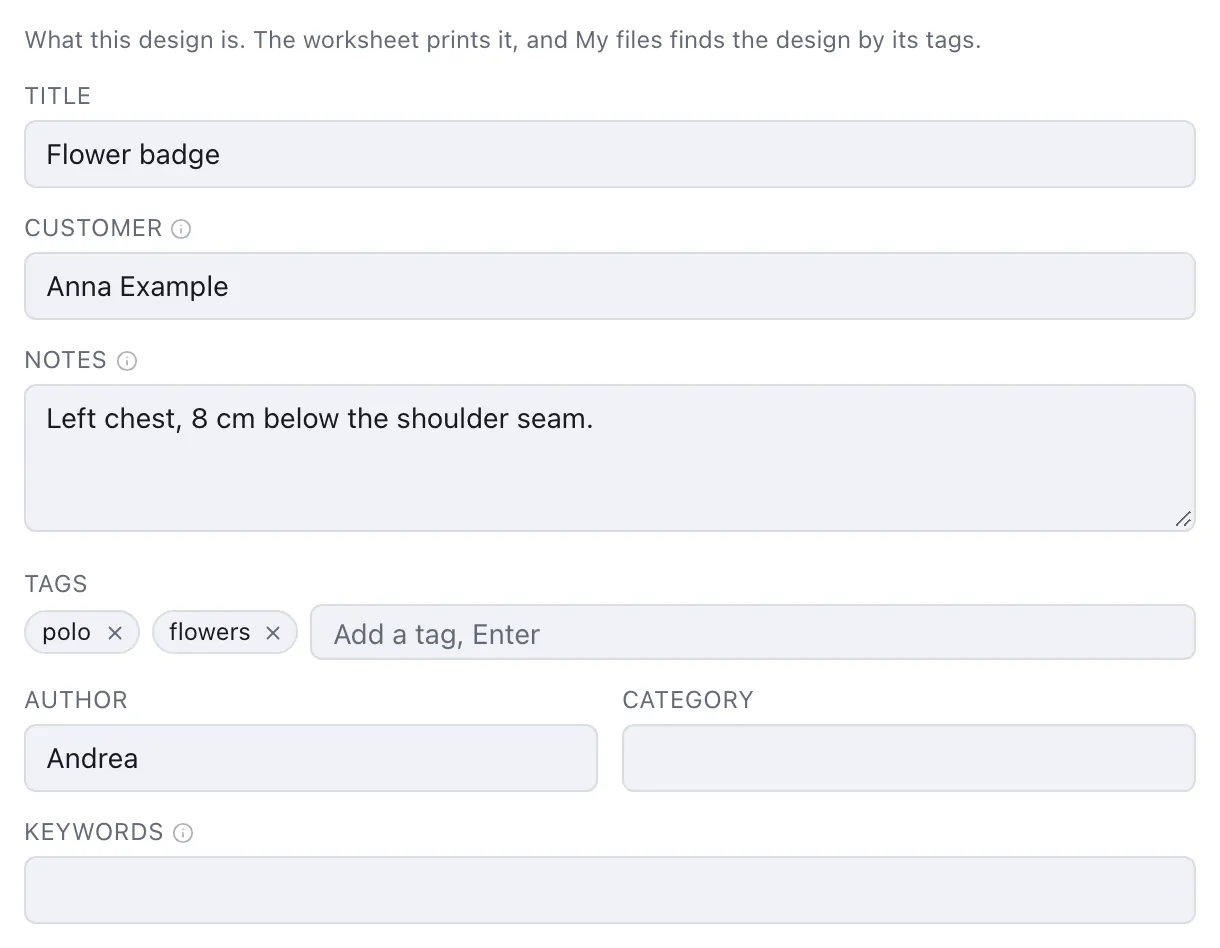
Details, the last of Design settings' sections, says what the design is: a Title, the Customer it is for, Notes, Tags, the Author, a Category and Keywords, all kept in the design. Type a tag and press Enter; Your tags offers the ones you used before. Saved to your account, a design is found by its tags in My files, and the worksheet prints the customer and the notes (Print a worksheet). A customer's name is someone else's personal data: enter it only for your own orders. It is in your account's data export, with the other details.