
Names list
One design for a whole team: paste or import the names, check each on the canvas, then export a file per name or one file with stops.
Updated October 30, 2026
A names list sews one design once for every name — a team's shirts, a class's bags, the family's towels. You set the design up once, with a text where the name goes, and NextStitch makes the machine files.
Paste or import the names
Select the whole text that should change — all of its letters, as a click on it selects them. The Names section opens in the right rail, under Design. Names lists come with Pro and Studio, the Pro trial included.
Paste names opens a box: one name per line, or a table copied from a spreadsheet. Use names reads it.
Import CSV or TXT… reads a file. A table's first row is taken as the names of its columns when it says what they hold — Name, Size, Number. A CSV that Excel saved on a German Windows keeps its umlauts.
A list holds up to 500 names. The text shows the first one straight away.
Check each name
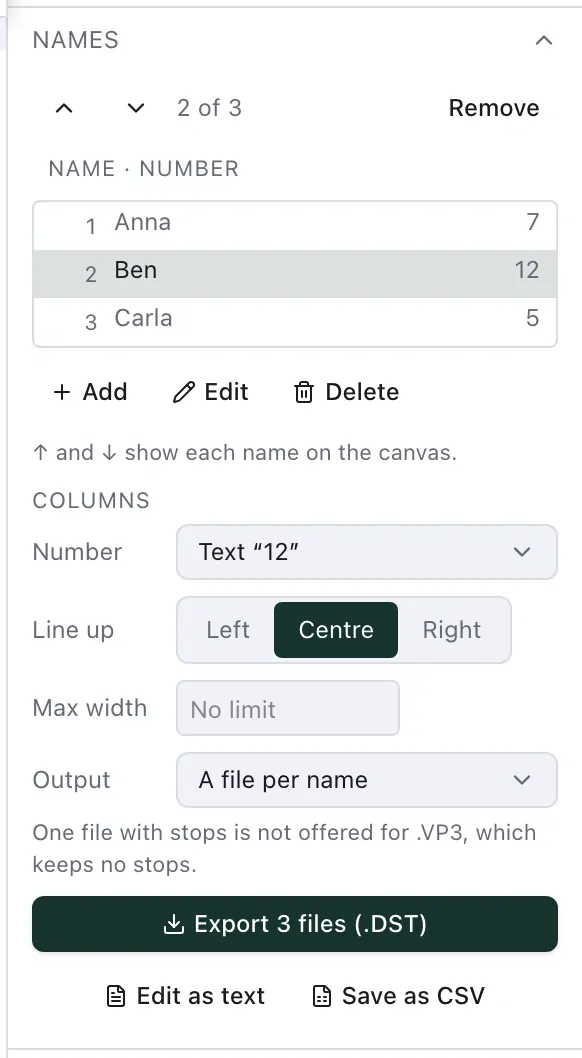
Press ↑ and ↓ in the list, or the arrows above it, to show each name on the canvas. Each name is centred where the last one was, so a longer one grows to both sides. Look at the longest names: they need room in the hoop and on the garment.
Add, Edit and Delete under the list work on the name shown; a double-click on a row edits it too. At the foot of the section, Edit as text opens the whole list as text again, and Save as CSV writes it for a spreadsheet — split at semicolons for a German Excel, at commas for an English one.
Columns that fill other texts
A table's other columns go into the file names: Anna with size M becomes Anna_M.pes. Under Columns, each of them can also fill a text of its own: put a second text in the design — a number on the back of a jersey, a role under the name — and choose it for that column. With each name, that text shows the row's cell; a row whose cell is empty leaves the text out.
Line up and fit
Line up keeps the left edge, the centre or the right edge of each name where the last one was — left for a name beside a logo, right for one that ends at a seam. Text on a path, bent or turned stays centred.
Max width narrows a name wider than it to fit, from the text's own width; shorter names stay as they are. Leave it empty for no limit. It keeps a long name on a cap front without making the short ones smaller.
Export
Output decides what the export writes:
A file per name — a zip with one machine file per name, named after it in letters every machine can show.
Names in one file, stops between — only the names, one after the other in a single file, and the machine stops between them. For shirts that already carry the logo.
Design and names in one file, stops between — the whole design with each name, garment after garment: the cap run.
In one file, every name starts at the bottom centre of all the names together and returns there, and the file begins at that point. Mark that spot on each garment — the middle, where the bottom of the name goes — and hoop it with the needle over the mark. At each stop, hoop the next garment the same way. A names.txt in the zip lists the names in the order they are sewn.
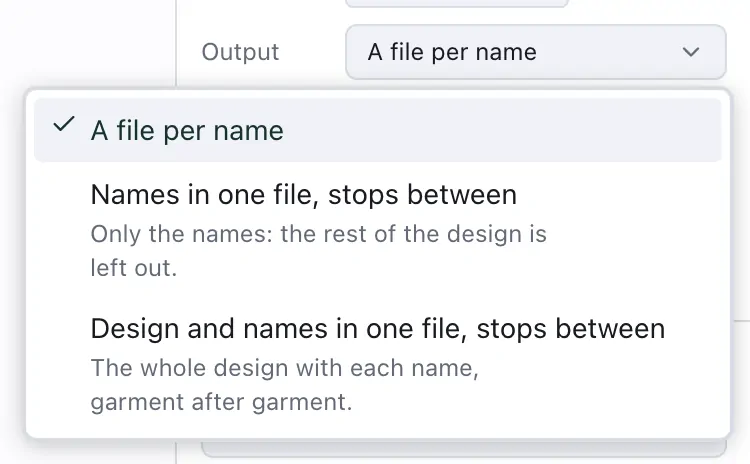
The files are written in the format the Export dialog would use — your machine's own. One file with stops is offered only for formats that keep stops: VP3 keeps none, so with VP3 a names list goes out as a file per name, and the section says so.
A list of more than 100 names comes as several zips of up to 100 each, names_1-100.zip, names_101-200.zip and so on; with stops, each holds one file. Your browser may ask once whether NextStitch may download several files.
Before a big run, sew the longest name and the one with the most descenders (g, j, p, y) once on a scrap of the garment's fabric.