
Export your first file
Turn your design into a file your embroidery machine reads: open Export, pick the format and download it.
Updated November 1, 2026
- 1
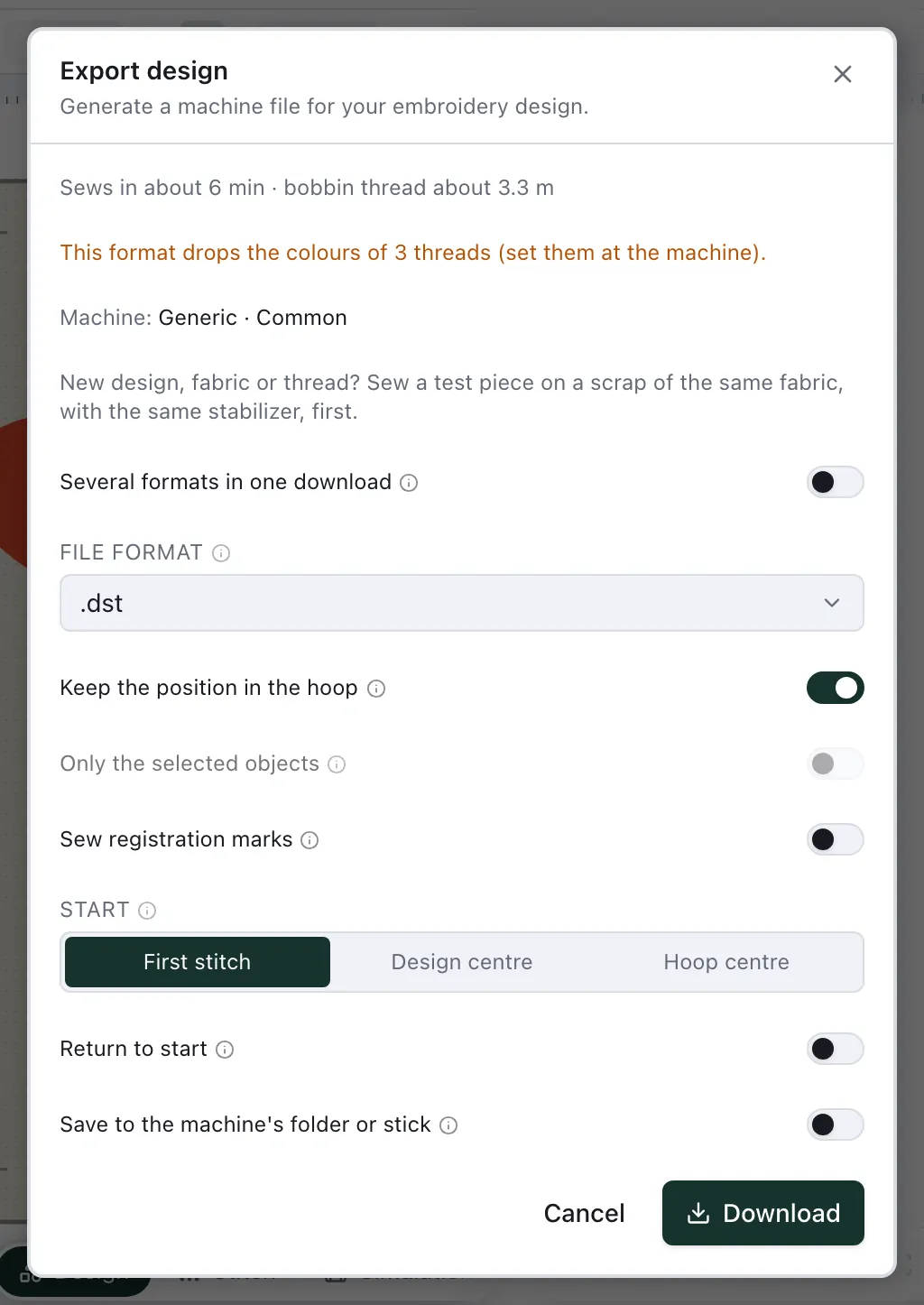
Open File ▸ Export ▸ Machine file…. The dialog first tells you how long the file takes to sew and how much bobbin thread it uses — with everything the file adds to the design, such as registration marks or a travel back to the start.
- 2
Pick your machine's format. File format lists the formats the machine named under Machine: reads, its own first —
.pesfor Brother,.jeffor Janome,.expfor Bernina and so on, each with its full name underneath. With a custom frame, it lists every format we write. Your machine's manual has the last word; most read more than one.Not every format keeps everything a design holds. Where the one you picked loses something of this design, the dialog says so before you download: every format but DST sews a sequin as a plain stitch, VP3 has no stop, and DST, EXP and U01 store no thread colours. The preview already splits stitches longer than the format's machines sew — 12.1 mm for DST and PES, 12.7 mm for JEF — so the sewing time counts them.
- 3
Download. Downloading needs an account: signed out, the dialog asks you to sign in, and your design stays open in the editor. Then copy the file to your machine the way it takes files. For a Brother or a Baby Lock the dialog says how, as Brother states it for that model — How the … takes a file: a USB stick, a USB cable from a computer, wireless LAN or Bluetooth with the apps Brother names (Artspira, Design Database Transfer, PE-DESIGN), an SD card; for other machines, their manual does. The file is named after your design, in letters every machine can show: ä becomes ae, ß becomes ss, é becomes e — and that name is the one your machine shows on its screen. If the connection drops while the file is made, NextStitch tries once more; if that fails too, the dialog says so.
A Brother Skitch PP1 has no USB port: it takes a file over Bluetooth with Brother's Artspira app. Download it as PES and send it from Artspira.
New design, fabric or thread? Sew a test piece on a scrap of the same fabric, with the same stabiliser, before the real thing. The dialog reminds you. Fabric and stabiliser says what to look for.
Where it sits in the hoop
Every machine file has a zero point, and the machine lines it up with the middle of the hoop — a multi-needle machine with the needle you centred the frame on. Keep the position in the hoop decides where that zero point is. Switched on, it is the middle of your hoop in NextStitch, so a design you placed off-centre — a logo on the chest, a name low on a towel — sews right there. Switched off, it is the middle of the design, as most home machines expect: the design sews in the middle of the hoop, wherever it sat on the canvas.
It starts on for DST and EXP, the formats of commercial machines, and for every format when the design is made for a multi-needle machine; for home formats such as PES or JEF it starts off. Each time you choose another format it starts at that default again, and you switch it as you need. A names list's files are always centred, each on its name; in one file with stops, every name starts at the bottom centre of all of them — see Names list.
Start says where the design begins. First stitch, as every file did, begins right at the design; with Design centre or Hoop centre the machine travels from that point to the first stitch. Return to start ends the file with a cut and a travel back to the start, so the needle finishes where the design began — ready for the next hooping, or for the next design placed from the same point. In a file centred on the design, the hoop's centre is the design's centre, and neither moves the design in the file. The dialog's sewing time counts the travel and the cut these add; the status bar and Design info keep the time of the design itself.
Registration marks sit round the design wherever it is, so they stay with it either way.
Several formats at once
Switch on Several formats in one download and tick the formats you want; your machine's formats are ticked to begin with. You get one zip: a file per format, each placed as above for its format, the thread list as .col, .edr and .inf beside formats that store no colours of their own, such as DST, and threads.txt, which names every colour in the order it is sewn. The zip counts as one download.
Straight onto your machine's stick
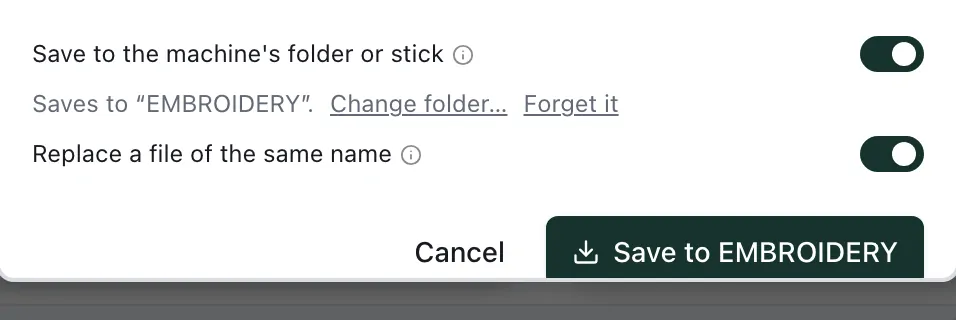
In Chrome and Edge, switch on Save to the machine's folder or stick and choose the USB stick your machine reads, or the folder its software picks files up from. The browser remembers it for this machine, on this device, and asks once per session whether NextStitch may write there. The NextStitch desktop app does the same with your system's folder dialog and keeps the folder for each machine on this computer. Firefox and Safari keep the download, and a zip of several formats is always downloaded.
A file of the same name already there is kept: the new one takes a number, rose_2.pes. To replace it instead, as a Brother's own USB output does, switch on Replace a file of the same name. NextStitch then asks before each file it would overwrite — Replace writes over it, Cancel saves nothing — and the switch starts off again each time you open the editor.
Only part of the design
Select what you want and switch on Only the selected objects: the file holds those alone, where they sit in the hoop, in their threads, and the sewing time is theirs. The design itself stays as it is. The switch starts off every time — View ▸ Show only selection changes only what you see. A design larger than your hoop is sewn in parts this way, one file per part: Designs larger than your hoop.
The second half of a split design
A design that comes in parts sewn one after the other — a border sold in pieces, the two halves of a split design — comes together in one file. Open the first part, then choose Insert ▸ Machine file ▸ At the design's last stitch… and pick the second: its first stitch lands where the first part's stitching ends, as it was digitised to, and Export writes both as one file. At the hoop centre… puts an inserted file in the middle of the hoop instead. More in Machine files.
A hoop turned 90°
A design wider than your hoop is tall can use the hoop turned: in File ▸ Properties (or New), switch on Turn the hoop 90° below the frame. The hoop keeps its name, marked turned. The machine file is turned back to fit the hoop as it sits on the machine, so hoop the fabric turned a quarter, the top of the design to the left — the Export dialog reminds you. Another hoop chosen from the status bar is turned too; switch Turn the hoop 90° off to have it upright.
As your machine wants it
Under My machines, a machine's Files tab sets how its files are written: how many jumps a trim is in DST and JEF, which have no trim command — a machine with a cutter cuts when it counts as many as it is set to, 3 on most — and whether a DST lists its threads in its header, for design software. A design made for that machine is written that way, and the Export dialog shows it.
Appliqué on a multi-needle machine
An appliqué pauses twice: after its placement line, for you to lay the fabric, and after the tack-down, to trim it — once with a tack-down of None, and the letters of an appliqué name share both pauses (Appliqué). The Export dialog counts the pauses and says what your machine does at them. A single-needle machine stops at each one, as at every colour change, and waits for you. A multi-needle machine changes to the next needle and sews on — DST, EXP and XXX even write a stop as a colour change — so the dialog names the colour changes the pauses fall on: set a stop at those changes on the machine before you start. Registration marks count as one stop and one colour change before the design. When the design names no machine, the dialog says both.
What a Brother does at a jump
A PES or PEC file has no trim command. A Brother cuts where the file marks a jump as a cut — a machine with a thread cutter by itself, one without leaves it for your scissors. NextStitch marks every jump that way for now, also where your design travels on without a trim: a jump shorter than Trim jumps longer than in File ▸ Properties, or after an object set to Trim after ▸ Never. So a Brother with a cutter may cut there too. The Export dialog says so when the design has such a travel, and File ▸ Properties says it beside the trim setting for a design made for a Brother.
Where a cut would spoil the look — the letters of a word, a running line from one petal to the next — let the parts join by stitching instead: a Stitch-over gap as long as the travel sews it over rather than jumping.
Without opening the editor
On the Designs page and in the Configurator, Stitch now makes the file in one go: choose your machine — on the Designs page also the width and the colours — and download it, no editor needed. The file is centred on the design, made for the smallest of your machine's hoops that holds it — turned, if it fits only that way, and the panel says to hoop the fabric turned.