Bring in artwork from Illustrator, CorelDRAW or Inkscape
Import SVG or DXF artwork, prepare text and check which parts stay editable.
Updated November 17, 2026
Artwork from a drawing program comes into NextStitch as shapes you can stitch. Insert ▸ Import SVG or picture adds an SVG or a DXF to the design as it was drawn — curves kept, scaled to fit the hoop and centred. Each colour becomes a thread. A file dropped on the editor or pasted comes in the same way, and the notice over the canvas says the same about it, whichever way it came (What stays editable).
Save it as SVG
SVG is the format every drawing program writes. SVGZ — an SVG compressed to a fraction of its size — is read just the same.
Illustrator — File ▸ Save As… and choose SVG, or File ▸ Export ▸ Export As… and choose SVG. Turn text into outlines first: Type ▸ Create Outlines.
CorelDRAW — File ▸ Export… and choose SVG. Turn text into curves first: Object ▸ Convert to Curves.
Inkscape — File ▸ Save as…, as Inkscape SVG, Plain SVG or a compressed SVG (.svgz). Turn text into paths first: Path ▸ Object to Path.
Text as paths
Text in an SVG comes in only once it is turned into paths: the file names a font that may not be on your computer, and the shapes of its letters are not in the file. Text left as text is left out, and the import says so. Convert it in the program that made the file, as above — or set the words in NextStitch with Insert ▸ Lettering, where the letters are made for embroidery.
Strokes, hairlines and effects
The import reads the drawing as it looks, at the size that fits the hoop:
A filled shape's stroke becomes its outline, in the stroke's colour and as wide as it is drawn. Its width picks the stitch: running up to 1 mm, satin up to 8 mm, a fill when wider (outline settings). A dashed stroke is sewn as a running stitch, whatever its width.
A shape drawn only as a stroke comes in as a line, never as a filled area: a closed one with its fill off and the stroke as its outline. An open one is a running stitch up to 1 mm wide, and a satin column as wide as it is drawn up to 8 mm (satin column settings). Its round or square ends are kept as far as a satin column can: a square end reaches half the line's width past the end point; a satin column cannot sew a round end, so it ends straight and reaches as far as covers the same area. Wider than that it is a running stitch again, narrower than drawn; a dashed one is a running stitch whatever its width.
Strokes thinner than 0.15 mm are too thin to sew and are left out: a shape drawn only with one is not imported, and a filled one comes in without it. The rest of the drawing is then fitted to the hoop again. To keep them, draw them wider.
A blur or another filter, and transparency, cannot be sewn: the shape comes in solid. A plain blur takes the shape's outline with it.
A clip path or a mask, on a shape or on a group, is left out too: the whole shape comes in, the part the drawing hides included. The notice names only the shapes a clip actually cuts: a clip round the whole shape, like the page-sized one a PDF opened in Inkscape carries, hides nothing. A mask can fade as well as cut, so it is named unless it is one solid white shape over the whole shape. To keep only the part that shows, cut the shape to it in your drawing program before you save the file.
A filled shape that is a thin band — at most 7 mm wide at its widest, at the size it fits, as a traced drawing's outline is — comes in as Satin (area), a wider one as a fill. A band's parts under 1 mm are sewn as a running stitch, not a cramped satin. The bands are sewn after the other shapes, so an outline covers the edges of the areas it surrounds; a band keeps its place where a shape drawn after it lies over it, and a file with named parts keeps its order. When bands move so, the threads are listed in the order they are sewn too.
The notice after the import says how many strokes were left out — and in which colours, up to four of them — which effects, and which lines are sewn narrower.
Paste it in
You need not save a file at all. Copy the artwork in your drawing program and press Ctrl+V (⌘V on a Mac) in the editor:
SVG code comes in as shapes, as an imported SVG does. Inkscape copies SVG code, and Illustrator does when its clipboard preferences include SVG; so does copying the code of an SVG in a text editor.
A picture — a screenshot, or an image copied in a browser — opens the trace dialog when the design is empty. On a design with objects Ctrl+V keeps pasting objects, so open Insert ▸ Trace a picture and paste the picture there. See Trace a picture.
A machine file or a zip copied in the Finder or Explorer is inserted into the design, on a layer of its own, as a drop with Alt does. See Machine files.
Objects you copied in NextStitch since you last came back from another app are pasted before anything on the clipboard.
Stitch as, outlines and a border
Make stitch-ready (see remove overlaps) sews each colour of the artwork as the trace dialog sews a traced one (outlines in satin):
A dark colour whose areas are all thin strokes — at most 7 mm wide — goes in as Satin (area): a logo's outline and its lettering, drawn as strokes, are sewn as satin, not as narrow fills. The line under the colours says how many that is. Every other colour is a fill, a light hairline too.
Under Stitch as, each colour's own choice wins: Fill, Satin (area), Centre-line run or Cross stitch, on the fabric count you give.
Outline every area and Border round the design finish it as they finish a trace: one triple run along every edge the areas show, sewn after them, and a 4 mm satin round the whole design that follows it, in the artwork's darkest colour or in black (outlines and a border).
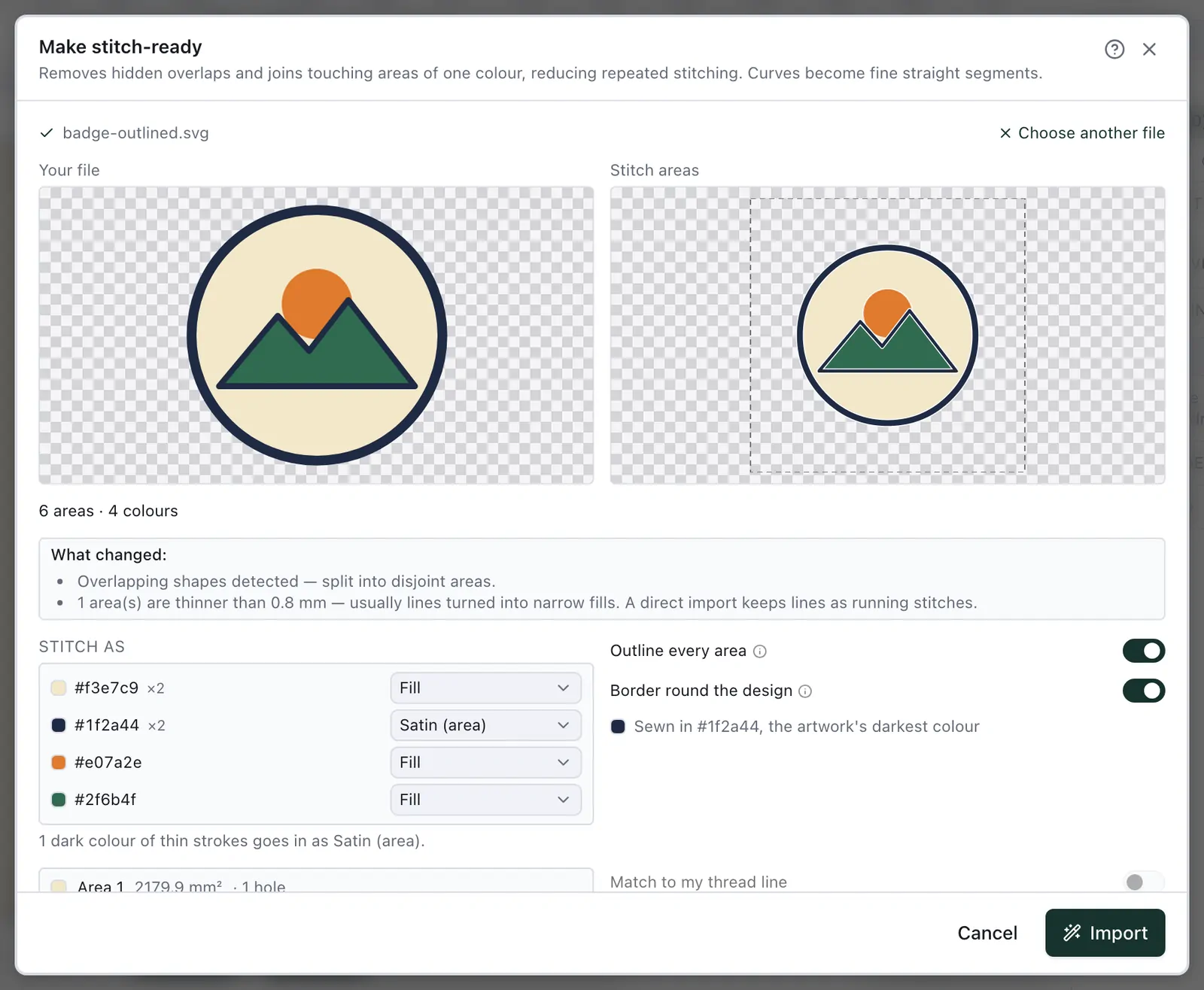
A stroke comes in as an area of its own, as wide as it is drawn, with its corners and ends — also from a file the clean-up reads the simpler way, one with a <style> block as Illustrator writes it, text or a picture in it.
What stays editable
Whatever you bring in — picked in Insert ▸ Import SVG or picture, dropped on the editor or pasted — the notice after the import says first how its objects can be edited, in one of three words the editor uses everywhere:
Native shapes: the file's own shapes, as it draws them. An SVG or a DXF comes in this way, and so do the areas Make stitch-ready cuts from the drawing's own outlines. Edit their points, fill and outline as you would your own.
Inferred shapes: shapes NextStitch reconstructed from something that is not a drawing: a picture traced with Insert ▸ Trace a picture, or a machine file's stitches traced with Object ▸ Convert ▸ Stitches to shapes (in the Stitch view). You edit them like any shape, but they are a reading of the picture or the stitches, not the original artwork: check their edges before you sew, or change the trace with Object ▸ Run trace again.
Fixed stitches: stitches sewn as they are. A machine file comes in this way, read as its stitches alone (What stays editable), and so do shapes you froze with Object ▸ Convert ▸ To stitches (in the Stitch view).
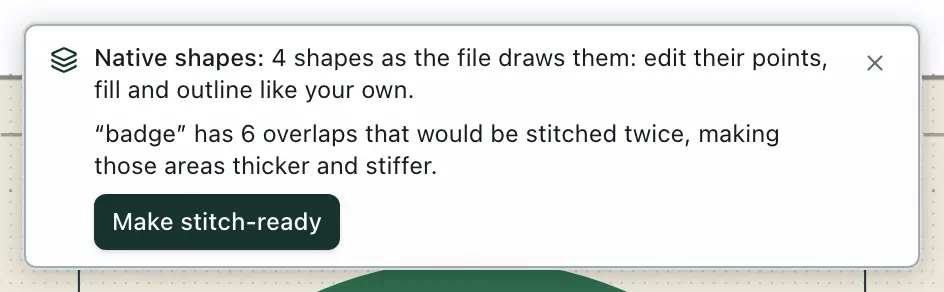
The conversions say it in the same words: Object ▸ Convert ▸ Text to shapes makes a text native shapes, its letters' own outlines, whose words can no longer be edited. A notice with nothing else to say goes by itself after a few seconds; notes on what was left out or flattened, and shapes that overlap, keep it open until you close it.
Named parts
An SVG can carry names for its shapes and for the groups they make — Body, Wings, Breast markings — written into the file for NextStitch. Such a file comes in with those groups in the Layers panel, instead of one group named after the file, and each shape under its own name. The shapes are stitched in the order they were drawn, so a group's shapes may lie between another's. Designs from the catalogue can carry such names too (from the catalogue in the editor).
The names belong to the drawing as it was when they were given. If a shape was changed afterwards, or one has no name, the names are left out: the import says so, and the shapes come in as from any other SVG. Make stitch-ready draws new areas, so they come in without the names.
What cannot be read, and the way round
PDF, AI and EPS — not read. Open the file in the program that made it and save or export it as SVG. Someone sending you a logo can usually send an SVG too.
CDR (CorelDRAW's own format) — export it as SVG.
Pictures inside an SVG are left out: trace them on their own with Insert ▸ Trace a picture.
Gradients — a linear or radial gradient on a filled shape comes in as a colour fade, sewn from one thread into the next (Colour fades); a stop is a thread, so stops that look alike share one and at most six stay. A gradient on an outline, a mesh gradient and a pattern are stitched in one colour, and the import names which. Make stitch-ready sews a gradient as a fade in every area it leaves, an outline's too, also when it reads the file the simpler way — and adds only the threads the fade sews.
Shapes stacked on top of each other are sewn twice where they overlap. The editor offers to clean them up, and its Advanced settings drop the specks and slivers such artwork is full of; see Make stitch-ready.
A picture saved as a PDF or a scan is a picture, not shapes: trace it — see Trace a picture.