
Appliqué
Sew a placement line, lay the fabric, tack it down, trim and cover the edge: one piece, pre-cut fusible pieces or a whole name.
Updated October 31, 2026
The appliqué stitch type sews a piece of fabric onto the design in three stages: a placement line shows where the piece goes, and the machine pauses so you can lay it on; a tack-down just inside the edge holds it, and the machine trims and pauses so you can cut the fabric away round it; then a cover of satin, zigzag or another border hides the cut edge. Each stage can have its own thread, and each pause can be a colour change or a stop.
Ways of working
There are two ways to bring the fabric to its shape, and the settings follow the one you choose.
Trim in place (the default): lay a piece larger than the shape over the placement line, let the tack-down hold it, then trim close to the tack-down with small curved scissors before the cover. Nothing has to be cut to size beforehand.
Pre-cut: cut the pieces first, from the printed templates or a cut file, and lay each one exactly on its placement line. A piece backed with fusible web can be pressed on and needs no tack-down: set Tack-down to None (fusible), and the machine goes straight from the placement line to the cover, with one pause instead of two. A pre-cut piece without fusible web keeps its tack-down, which holds it while the cover is sewn.
Pieces that overlap are sewn in the design's order, so the piece underneath comes first: put it lower in Layers, and the cover of the piece on top hides its edge. Each piece can name its appliqué fabric, so the templates and the cut file say which cloth it is cut from.
A worked example
A ring of felt, with a hole in the middle:
Draw a circle about 40 mm across and a smaller one inside it. Select both and choose Path ▸ Subtract from bottom shape: the smaller circle becomes the hole (Arrange, cut out and combine).
With the ring selected, set the stitch type to Appliqué. The stitch settings show its stages, and the Simulation sews them in order: the placement line, the tack-down and the cover, round the outside and round the hole.
Under Appliqué fabric, pick the felt's colour and type its name. The Design view now shows the ring in that colour, with its cover round it.
To cut the felt by hand, print the templates (File ▸ Print / PDF…, Appliqué templates); for a cutting machine, choose File ▸ Export ▸ Cut file….
Export the machine file. At the machine: hoop the base fabric, let it sew the placement line, lay the felt on, let it sew the tack-down, trim the felt along it (inside the hole too), and let it sew the cover.
Tack-down
Tack-down chooses how the fabric is held before you cut it:
Running stitch: one line, Tack-down inset (mm) inside the edge.
Open zigzag: a zigzag along the edge, Zigzag width (mm) wide, for fabric that frays.
Triple stitch: the running line with every stitch sewn three times. It holds a slippery or thick fabric better.
None (fusible): no tack-down and no pause to cut, for pieces cut out and fused on beforehand. Choosing it switches Trim and pause to cut the fabric off; choosing another tack-down switches it back on.
Cover
Cover chooses the border over the cut edge, Cover width (mm) wide:
Satin: a satin column. Under Method it can be a Blanket (E-stitch) instead: a line along the edge on the base fabric, with short stitches reaching onto the piece.
Zigzag: a zigzag, at Zig-zag spacing (mm).
V-stitch: a line on the base fabric with V-shaped stitches reaching onto the piece.
Chain: a line of linked loops, as wide as the cover.
None (raw edge): no cover, for a frayed look or felt that does not fray.
The V-stitch and the chain are spaced by Interval (mm): the distance between the V's, or the length of each link. Choosing one sets it to 2 mm; it is never closer than 1 mm.
A satin cover is sewn with pull compensation, as a satin column is: Automatic pull compensation chooses it by the cover's width, or switch it off and set it in millimetres (and in % under Advanced), in the stitch settings or in the stitch bar, or with Per side for each side on its own. The other covers have none. Cover shift outward (mm), under Advanced, moves the cover's middle outside the edge, so it reaches over the cut.
The cover turns the piece's corners as you choose under Corners: Miter runs it out into a sharp corner, with Limit tips cutting very sharp ones flat; Bevel cuts the corners flat; Round fans it round them. A shape you make an appliqué starts mitred; an appliqué from an earlier design stays round until you choose.
Pieces without holes
A shape with holes is sewn round every hole: the placement line, the tack-down and the cover. Without holes sews the piece as one patch over them, along its outer edge only, and the templates and the cut file leave the holes out too, so the piece you cut is the piece that is sewn.
Appliqué fabric
Appliqué fabric is the cloth a piece is cut from: a colour and, if you like, a name. It is not the design's fabric in File ▸ Properties ▸ Fabric, which is what you sew on. With one set:
the Design view draws the piece in that colour, its cover round it in the thread;
the Simulation lays the piece under the stitches once its placement line is sewn;
the templates are tinted in it and name it;
the cut file puts each appliqué fabric on a layer of its own, so a cutting machine cuts one mat per fabric.
Two pieces are of the same appliqué fabric when their names agree, or, without names, their colours. Reset stitch settings keeps it; Paste stitch settings, Make these settings current and Presets carry it.
Letters and names
An appliqué name used to pause twice for every letter. The letters of an appliqué text are sewn together now, in a name saved earlier too: every placement line, one pause to lay the fabric on, every tack-down, one pause to cut, then every cover — two pauses for the whole name. The figure counts them as its two colour changes, which a pause is unless Pause as says Stop.
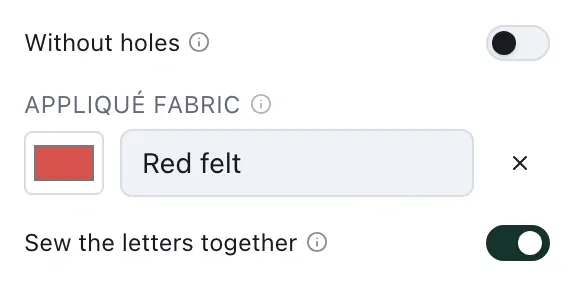
Sew the letters together, in the stitch settings of the text, turns it off for a name whose letters you want to lay and cut one at a time. For appliqués that are not one text's letters, group them (Ctrl+G) and switch on Sew the pieces together. Letters or pieces of a different appliqué fabric, or with other placement or tack-down threads, are always sewn apart, so you are never asked to lay two fabrics at one pause.
Pauses and multi-needle machines
Pause as, under Advanced, makes each pause a colour change or a stop. A single-needle machine halts at either and waits for you. A multi-needle machine does not: at a colour change it moves to the next needle and sews on, and DST, EXP and XXX write a stop as a colour change too. Set a stop at those changes on the machine — the Export dialog names them for a design made for a multi-needle machine (Appliqué on a multi-needle machine).
Warnings
Problems says when an appliqué will not sew as planned:
The cover is too narrow to hide the tack-down: widen the cover, or lower Tack-down inset (mm) so the tack-down lies nearer the edge. A tack-down of None has nothing to hide.
A piece narrower than 0.5 mm gets no tack-down, so nothing holds it until the cover: widen the piece, or sew it as satin.
Appliqué needs a closed shape: an open line cannot be a piece of fabric.
Templates
To cut the fabric by hand, print templates: in File ▸ Print / PDF…, Appliqué templates adds every piece at 1:1, on the line the placement stitch sews, numbered in the order the pieces are sewn, named after their object, and tinted in its appliqué fabric with that fabric's name. Mirror flips them for fusible web. Print a worksheet has the details.
Cut files
For a cutting machine — Cricut, ScanNCut, Silhouette — File ▸ Export ▸ Cut file… writes every piece into one file at 1:1 in millimetres, as SVG or DXF, numbered in sewing order and labelled with its object's name. Offset grows (+) or shrinks (−) each piece by up to 2 mm; at 0 the cut follows the placement line. Mirror flips them for fusible web cut from its paper side.
Cut chooses the design's Appliqué pieces or the Selection: any selected shapes, whatever they are sewn as — felt, vinyl or a patch. With a shape selected, the file starts with the selection.
Outer edge only cuts each piece round its outside and leaves its holes uncut.
Merge overlaps cuts pieces that overlap or touch as one; pieces of different appliqué fabrics stay apart.
Each appliqué fabric goes on a layer of its own, named after it and drawn in its colour. The dialog gives each layer's size in millimetres and warns when it is larger than a 12 × 12 in mat, or larger even than a 12 × 24 in one.
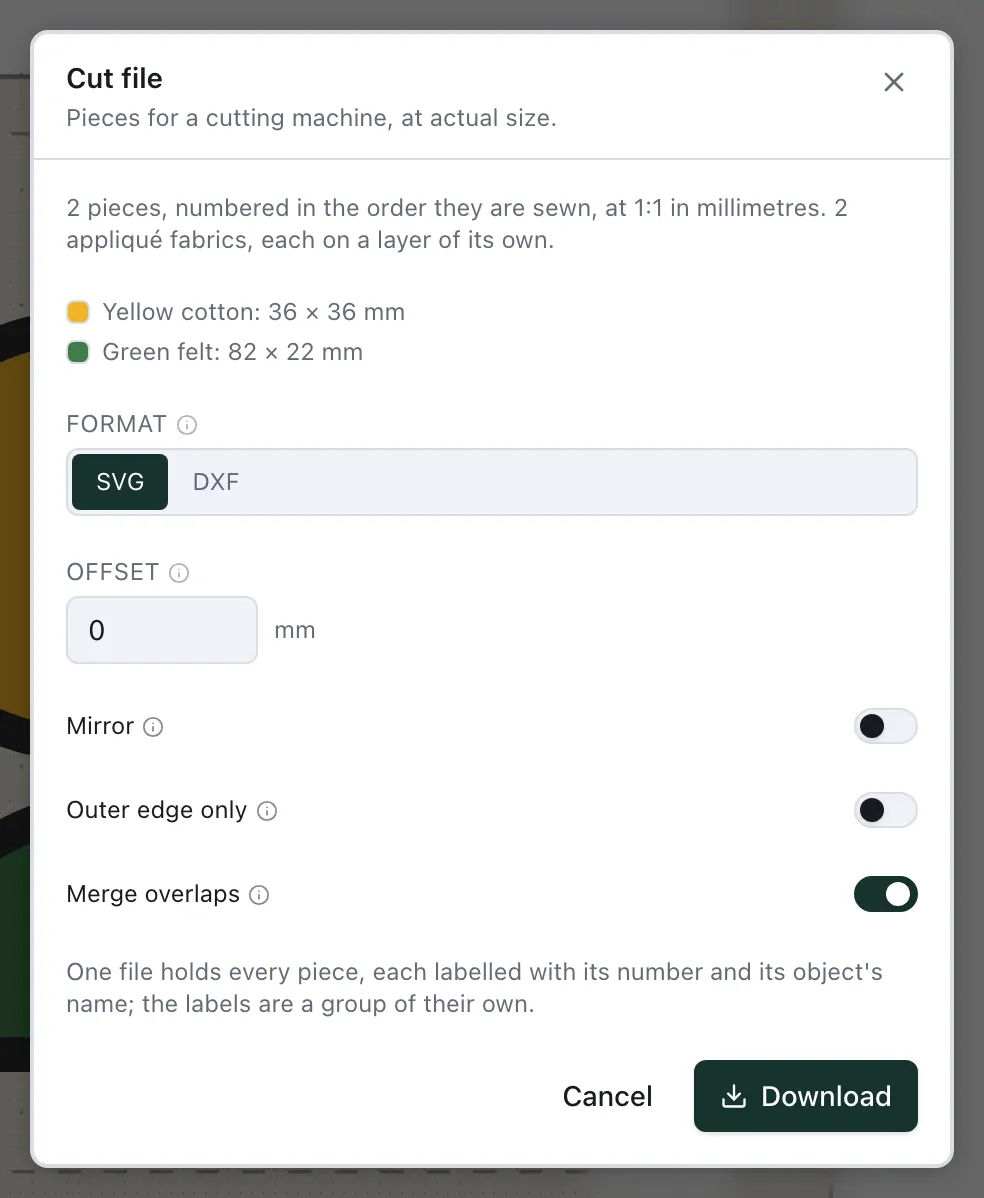
A cut file is an export: it needs an account, like a machine file. With nothing to cut — no appliqué in the design and no shape selected — the menu says so.