Personalising templates
Personalise a template, preview it and download a file for your machine.
Updated November 12, 2026
In the configurator, choose an occasion and a design. The preview beside the designs shows the chosen one with your text as you type — a name, a pet's name or an age, whatever the design asks for. Customise this design takes it to the full configurator, where we render the text into the design and you can change everything the template offers.
Text, colours, size
The full configurator sorts what you can change into three tabs beside the preview:
Text — the name, date or number the design asks for, and its font.
Colours — the colours the template offers, and below them Thread colours: click a colour to swap it for one of the basic colours, a thread from your own collections under My threads, or any colour. Sew in above them puts the whole design into one collection at once — the basic colours or one of your own — each thread becoming its nearest there; As designed and Original colours put them back.
Size & layout — the size of each text, whether the illustration shows, and the Overall size of the whole design. The slider stops where a text would get too small to stitch, and where the design would no longer fit the hoop. Original size puts it back.
Under each text field, a count shows how many characters you have typed and how many the design takes — 5 / 16. When the field is full, the count turns amber and typing stops there, so a name never runs past its space. Some designs offer a second line: a second field under the first, with its own count, for a "turns 40" under the name or a team under the player. The design sets the two lines one under the other, each lined up as the design aligns its text; leave the second field empty for one line.
The letters are sewn as a new text's in the editor are: a letter runs on to the next letter of its word only where the two touch, and the thread is cut between letters that stand apart, so no thread shows from one to the next (Between the letters).
A tab with a field that needs a fix — a name left empty, a text too long — shows a red dot. Reset puts every tab back the way the template comes.
When it looks right, Stitch now makes the machine file straight from the configurator, no editor needed, with the size and colours you set here. The machine from your account is already chosen, with its own file format; without a machine of your own, you choose the file format. After the download it lists the colours in the order they are sewn. More in Export your first file.
Keep it in My designs
Save to My designs keeps the customisation in your account, in the My designs folder under My files. From there, Customise opens it in the configurator again: Save updates it, Save as new keeps both. Open in editor takes it to the editor to fine-tune.
Personalised templates are a Pro feature. Your 14-day Pro trial includes them; once it has ended, you can still personalise a design and look at it here, but Stitch now, Open in editor and saving to My designs need Pro — see Pricing.
From the catalogue in the editor
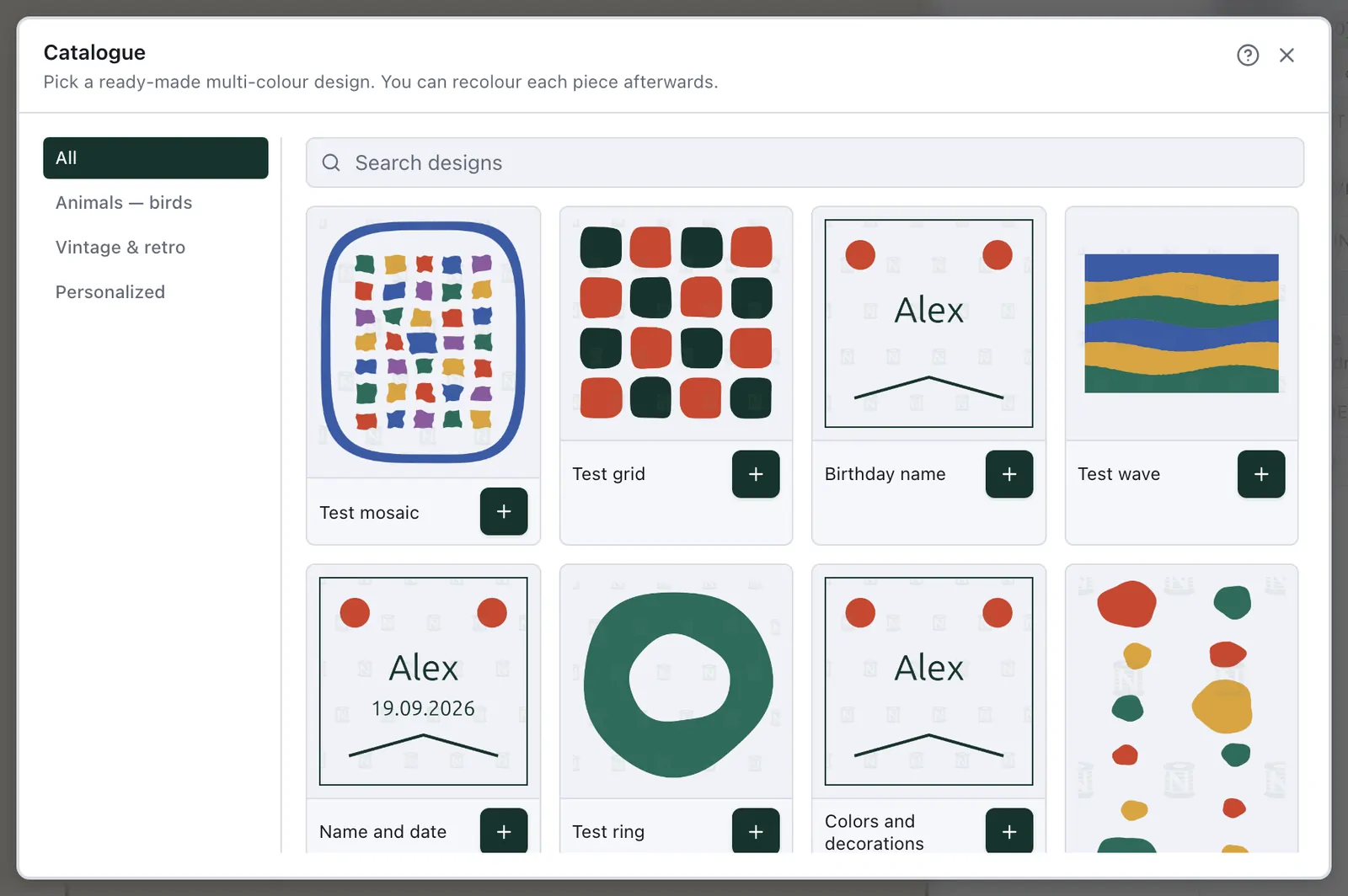
In the editor, Insert ▸ Catalogue adds a ready-made design to the one you are working on; on an empty hoop, Examples on the start card opens the same dialog. All shows every design, the categories mixed; a category in the list narrows it to that one, and Search designs finds a design by its name, its style, its tags or its category, in all of them. Under each design its licence is named, and Details opens the design licence. The categories are in your language; design names in the catalogue stay as their authors named them, in every language.
+ under a design adds it to your design: centred in the hoop, at the size it was made for or smaller where the hoop needs it. A design whose parts are not named comes in as one group, so it moves and sizes as one; one whose parts are named — Body, Wings — keeps those groups in the Layers panel, and its unnamed parts make one group. Added twice, it is two of each. Its colours join the design's threads, and a colour the design has already is used again; each piece can be recoloured afterwards. A template — a design with a name, a date or colours to choose — opens its form first, as in the configurator; Insert design adds it as you set it.