Your own embroidery fonts
Import letter files as a font, adjust its letters and back it up for another device.
Updated November 12, 2026
An embroidery font bought as a zip of letter files (A.pes, B.pes …) can be added in the lettering dialog. Our server reads the zip and keeps nothing: the font is kept in this browser only, so add it again on another device, or restore it from a backup. Files whose names don’t say which letter they are can be assigned by hand, and the gap between letters and the width of a space are set per font. A TrueType or OpenType font of your own is added differently — see Your own fonts.
Brother's letter fonts name their files u_A.pes for a capital and l_a.pes for a small letter, and give the nine characters a file name cannot hold names of their own: s_qm is ?, s_as *, s_dq ", s_cn :, s_sl /, s_bs \, s_lt <, s_gt > and s_vb |. They land on the right keys. A file called just as or lt is no character, so it waits for you to assign it.
Fix a font letter by letter
Your fonts under the font list opens your fonts kept in this browser. Choose a letter font, and its letters are drawn in their thread colours:
Name renames the font. Texts set before keep the name they were set with.
Choose a letter to see it between two of its neighbours over the baseline. Up moves it up, or down below 0; Room before and Room after give it more room on either side, or less below 0. Reset this letter takes the nudges away. A nudged letter is marked in the grid.
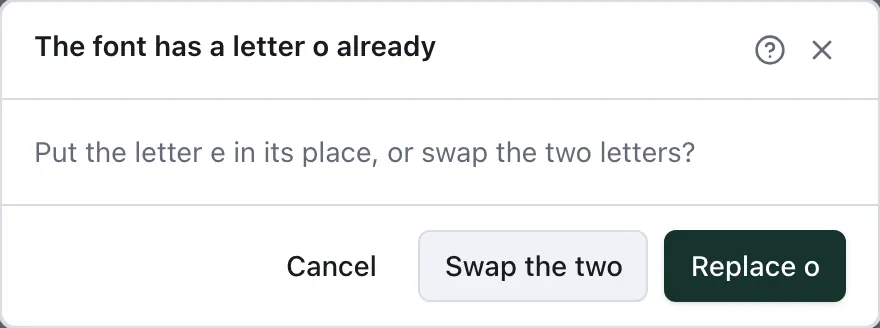
Move to sets the chosen letter for another character: type the character and Move, for a letter that came in under the wrong name. Its nudges go with it. If the font has that character already, you are asked first: Replace it with the letter you move, or Swap the two.
Remove this letter takes the chosen letter out of the font. A font keeps at least one letter: to remove the last, remove the font.
Add or replace a letter takes a single letter file: type the character it is, and Add letter. It is set on the font's baseline as the zip's letters were. If the font has that letter already, you are asked before it is replaced; Replace this letter under a chosen letter does the same for that letter.
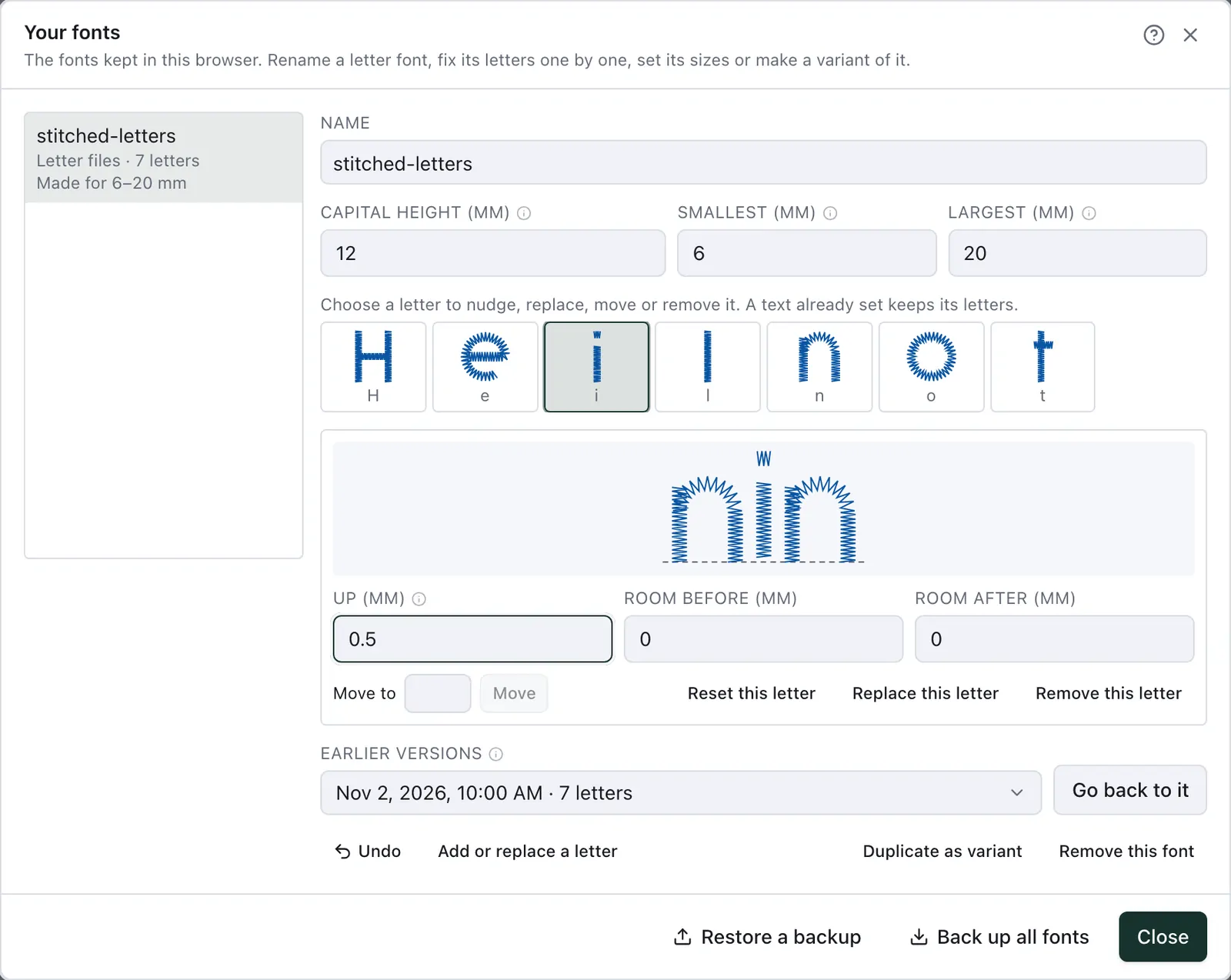
Undo, under the letters, takes back the last change you made since you opened Your fonts, one change at a time. When you close the dialog, the font as it was before is kept under Earlier versions: choose one and Go back to it, and the font as it is now is kept in turn. So a letter removed by mistake is never lost.
Everything stays in this browser. A text keeps the letters it was set with: they are in the design, so it sews, prints and exports as it was saved, whatever you change in the font later. Set again — with Edit text and Update, or Reset to 100 % — it takes the font as it was when it was set, and the lettering dialog says so; Use the font as it is now brings your changes in. On another computer that earlier version may not be there: then the dialog says that Update takes the font as it is now, and Reset to 100 % scales the text as a whole instead.
Capital height, sizes and variants
Under the font's name in Your fonts:
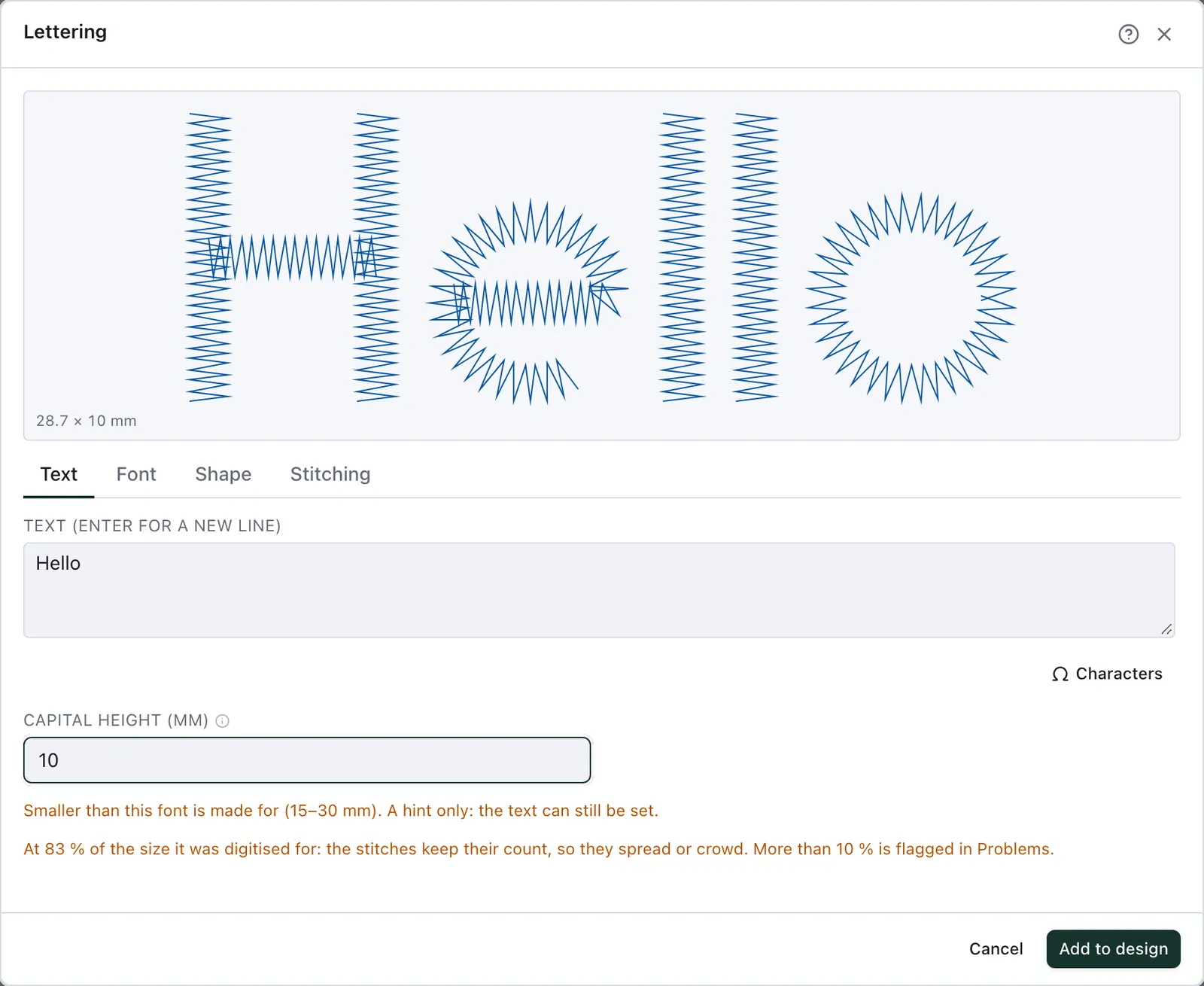
Capital height is what a text's height means for this font: a text set at it sews as digitised, and a text set at another height is scaled by it. It is read from the letters when the font is added; if it was read wrong — from a tall accent or a decorated capital — set it here. Texts set before keep their size.
Smallest and Largest are the capital heights the font is made for, as its maker or you know them. They are shown where the font is chosen: under the font list and beside Capital height on the lettering dialog's Text tab, where a height outside them is named. It is a hint, never a limit, and NextStitch never guesses them from the letters: leave them empty for none.
Duplicate as variant makes a copy of the font under a name of its own, such as one with heavier letters for a small size. Change the copy as you like: the original stays as it is.
Add a letter from the canvas
A letter you digitise in NextStitch can go into a letter font too, or start a new one. Select the shapes, the text or the stitches that make one letter and choose Object ▸ Add to my font. Shapes and text are taken as the design sews them now, exactly as Object ▸ Convert ▸ To stitches (in the Stitch view) would freeze them, and stitches as they are; the design itself stays as it is. A selection that sews sequins can't be added, as a letter's stitches cannot drop sequins.
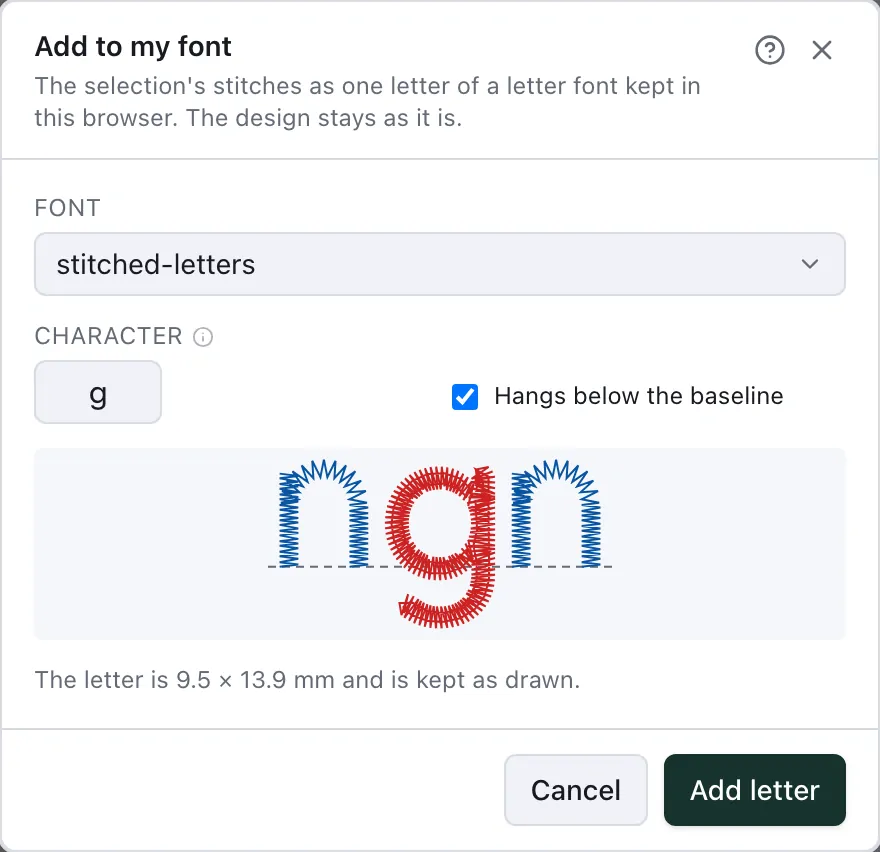
Font is one of your letter fonts, or New font with a Name and a Capital height. The capital height starts at this letter's height; text set in the font is scaled by it, so set it to how tall the font's capitals are.
Character is the one character the letter is set for. A text of one letter offers its own.
The bottom of the selection stands on the baseline. Hangs below the baseline, ticked to begin with for g, j, p, q and y, hangs a letter with a descender instead: its top stands at the font's x-height, a j hangs as deep as the font's other descenders, and in a font that tells neither, a third of the letter hangs below. The dialog shows the letter between two of the font's own over the baseline, so you see where it stands before you keep it, and Up in Your fonts moves it later.
Add letter keeps it in this browser. The letter is kept as drawn, never scaled: a capital or a digit more than 10 % taller or smaller than the font's capitals is named, as it would stand out beside them. If the font has the letter already, you are asked before it is replaced, and its nudges stay.
Lay out the text
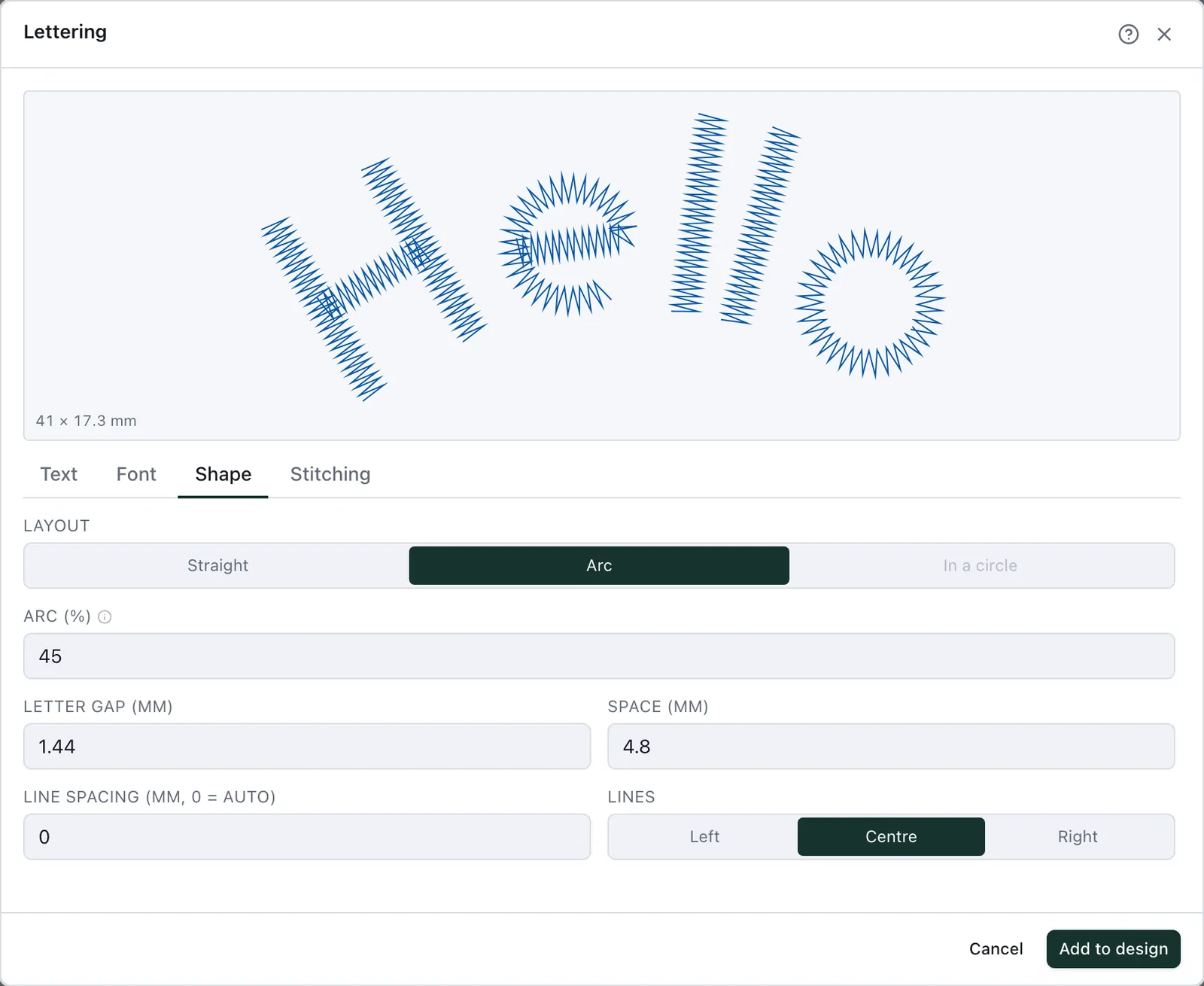
In the lettering dialog, a letter font's capital height is on the Text tab, and the rest of its layout on Shape, under its gap and space:
Lines lines the lines of a text up left, centred or right.
Capital height scales the letters to a height: their stitches scale with them while their count stays the same, so they spread or crowd. Where the font states the sizes it is made for, the field says so, and a height outside them is named. Up to 10 % either way sews well; beyond that the dialog says so, and Problems marks the letters — as a warning, and from 20 % as an error. A text resized on the canvas is marked the same way. To size it again, open it with Edit text and set the capital height: Update sets the whole text again at that height, and at the height shown under the field it sews as digitised. Reset to 100 % in the Inspector does that in one step: with any of the text's letters selected, it sets the whole text again at the height shown under the field, its letters back on their baseline, its spacing, lines, line spacing and arc kept in proportion, and its middle where it was.
Line spacing sets how far apart the lines are; 0 is 1.6 times the capitals.
Arc, chosen at the top of Shape with its percentage, turns the letters onto an arc, above 0 an arch, below 0 a smile. Each letter is turned as it is, never bent, so its stitches stay as they were digitised.
Back up your fonts
Back up all fonts in Your fonts saves every font kept in this browser — letter fonts with their letters, spacing and nudges, and your TrueType and OpenType fonts — in one file. Restore a backup on another computer, or after the browser's data was cleared, adds the fonts of that file that aren't there yet; a font that is there stays as it is, so fonts added or changed since are never lost.
The backup holds your bought fonts. Keep it for yourself, as their licences ask.
Editing text later
Text set in your own font opens again with Edit text, as long as the font is in the browser, with its layout as it was set.
Fonts in Embrilliance’s BX format can’t be read: export their letters from Embrilliance as machine files first.