My threads
Organise your threads in collections and import or export thread charts.
Updated November 14, 2026
My threads saves lists of the threads you own in your account. Use Collections for individual threads and Thread lines for the makers' lines you stock (Thread lines for your workshop). In the editor, choose a collection under Thread line and Match all colours to this thread line to match your design to those threads (Match your threads).
In the editor, My threads in the menu under your initials at the top right, My threads at the end of Thread line and Manage my threads beside the thread line in File ▸ New open it over your design, which stays open; a collection opens in the same window, with Back to My threads to go back. My threads needs an account: signed out, each of them asks you to sign in first and then opens My threads — after creating an account too, in the tab the confirmation mail's link opens, which goes back to the editor for it. On the website it is a page of your account, My threads.
- 1
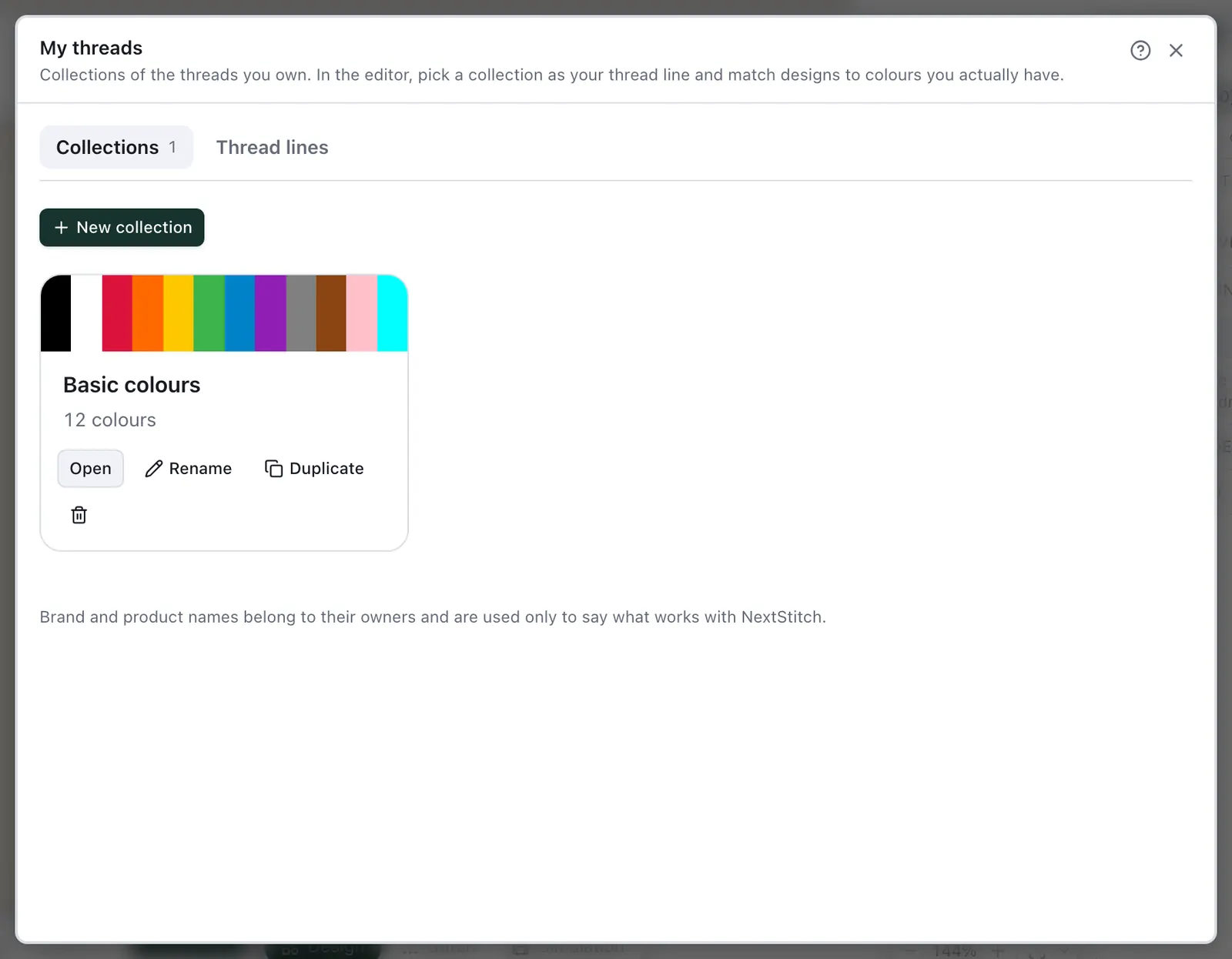
Start a collection. Every account begins with Basic colours, twelve everyday colours; while you leave it as it is, the lists of thread lines show it once, as Basic colours. New collection opens Add threads straight away; the collection exists once its first threads are in. It is named after the line they come from — Madeira Polyneon — or My threads when they come from several lines, are colours of your own or come from a file, with a number where you have that name already (My threads 2). The pen beside its name renames it.
- 2
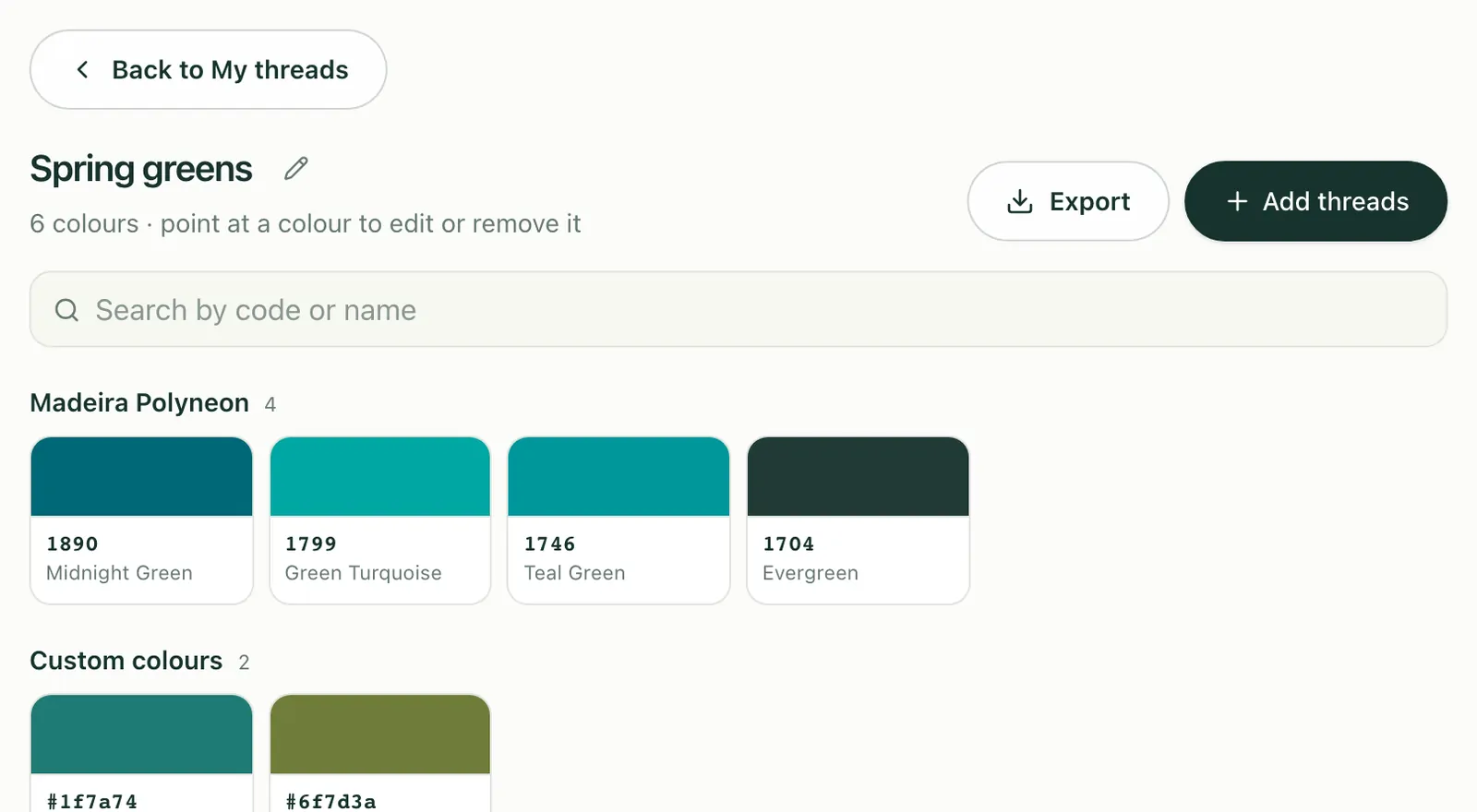
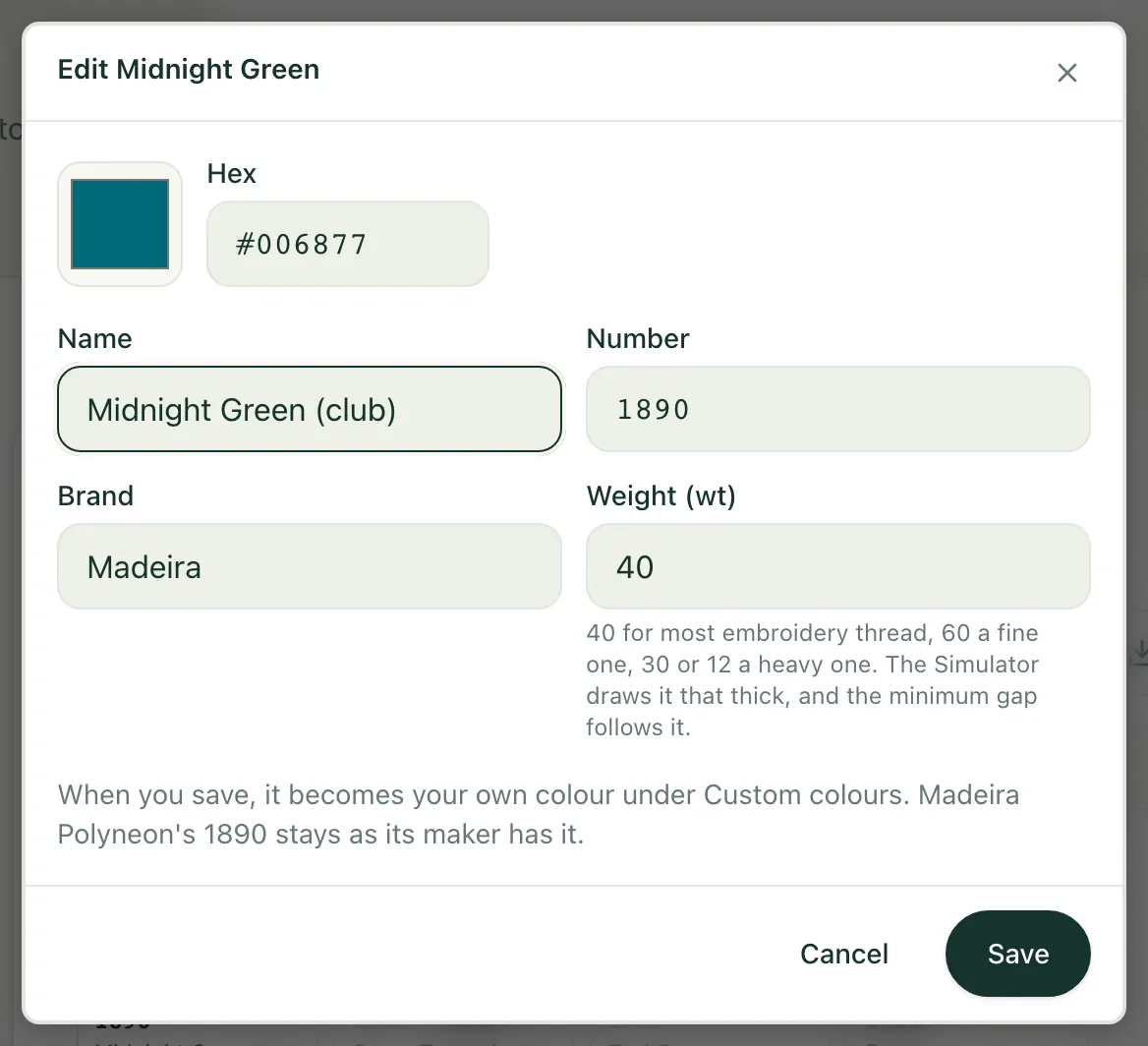
Fix a thread. Point at a colour and click the pen: change its name, its number, its colour (as a hex code too) or its brand. A thread from a maker's line that you rename, renumber or recolour becomes a colour of your own, listed under Custom colours with its brand kept; the line's own thread stays as its maker has it. The cross beside the pen removes the colour.
- 3
Save it as a chart. Export saves the collection as a file, for a spreadsheet, another program or a backup; From a file under Add threads brings it back. See Charts in and out.
Add threads
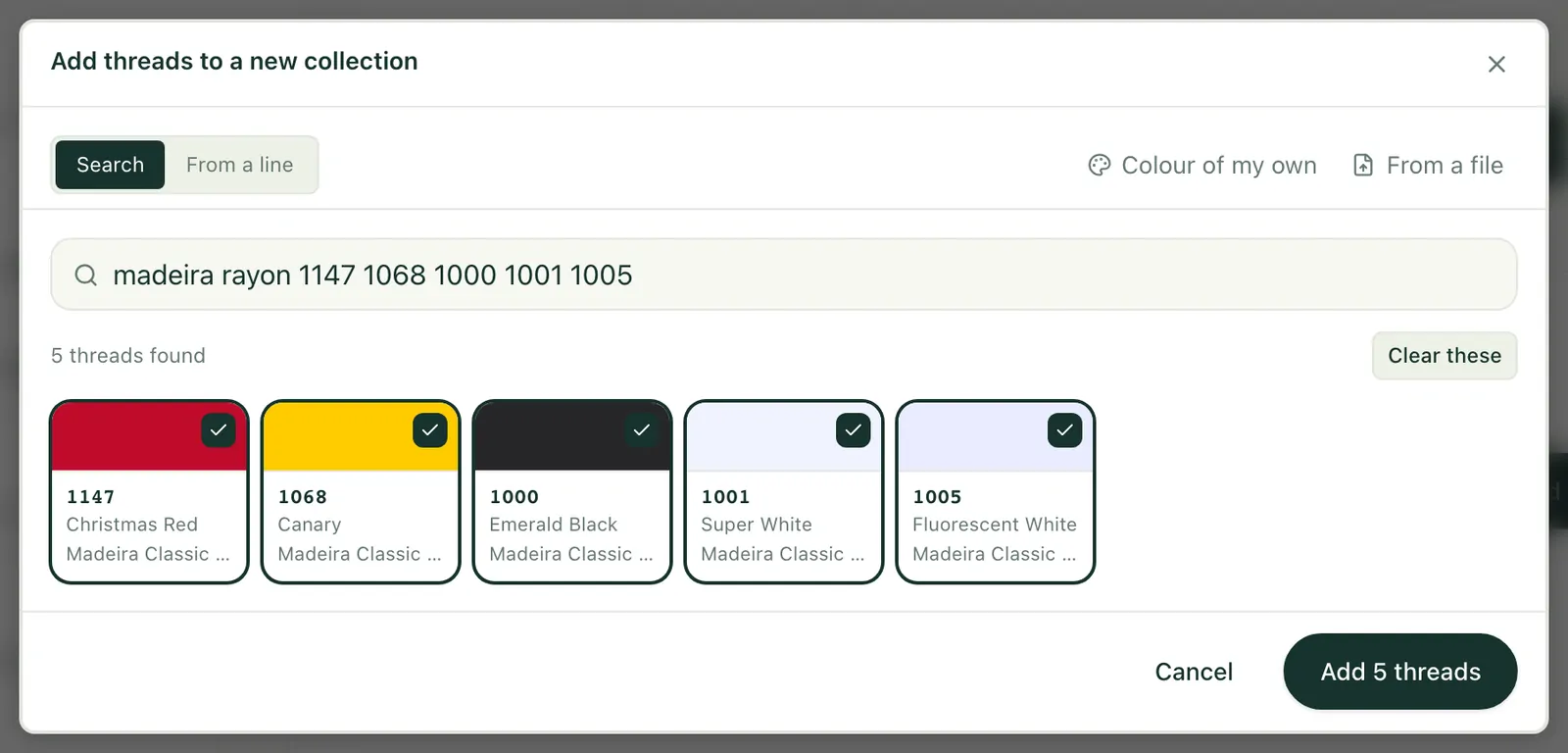
Add threads opens on Search, beside From a line. Click the threads you have to select them, then add them with the button that counts them (Add 5 threads): what you select stays selected while you search again or open another line, so threads of several searches go in together. Whatever the collection already holds is shown as such and never added twice.
Search looks through every thread line at once: a number (
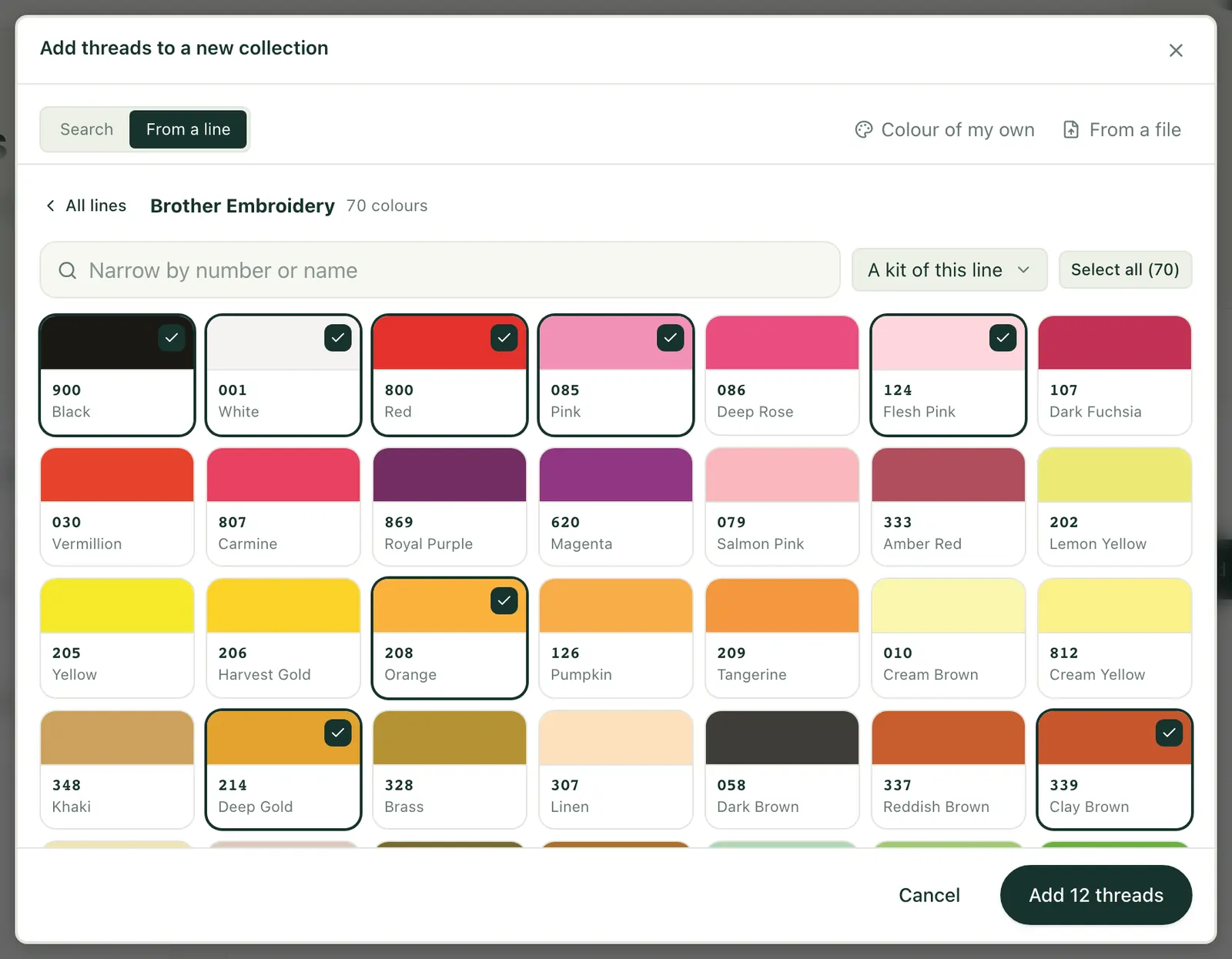
1648), a name (sage), a colour (#7a9a5f, each line's nearest) or a line's name, and the words narrow together —polyneon greenfinds Madeira Polyneon's greens. Several numbers find each of them:madeira rayon 1147 1068 1000 1001 1005lists those five threads of Madeira Classic Rayon 40, and Select all takes them in one click. A maker's kit whose name your words match is offered above the threads; clicking it selects its threads.From a line shows every line as a tile with how many of its colours you lack. Open one and select its threads one by one, narrow them by number or name, choose one of the line's kits — the boxed sets the makers sell, with their exact colours — or Select all for the whole line; remove what you don't own afterwards.
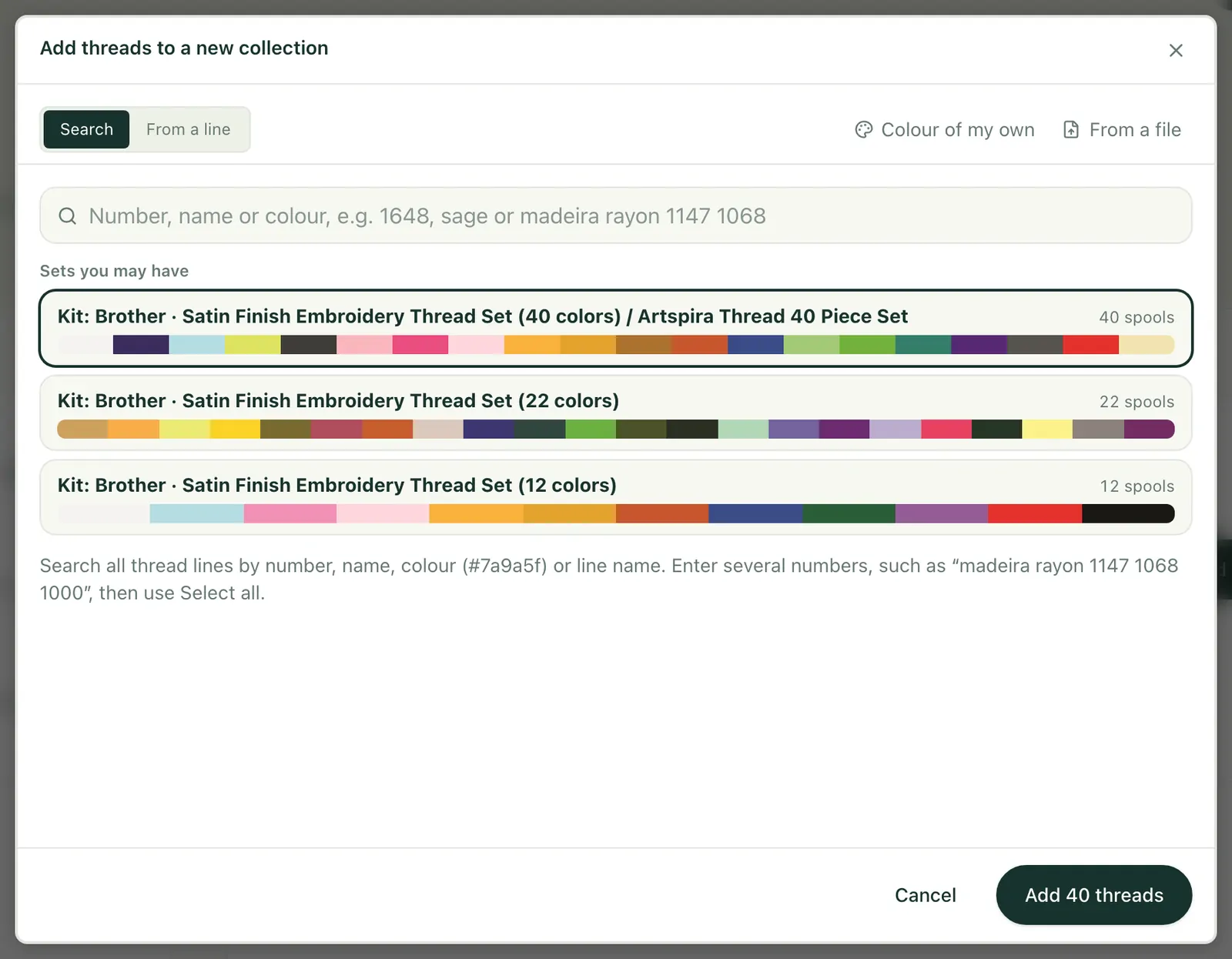
Before you type anything, Search offers the kits you most likely have, under Sets you may have: those of the line your machine's maker sells first — Brother's own sets for a Brother machine in My machines — then those of the lines the collection already holds. A kit the collection has whole is left out. Click one, then Add 40 threads: two clicks for a boxed set.
Two more ways sit at the right of the same row:
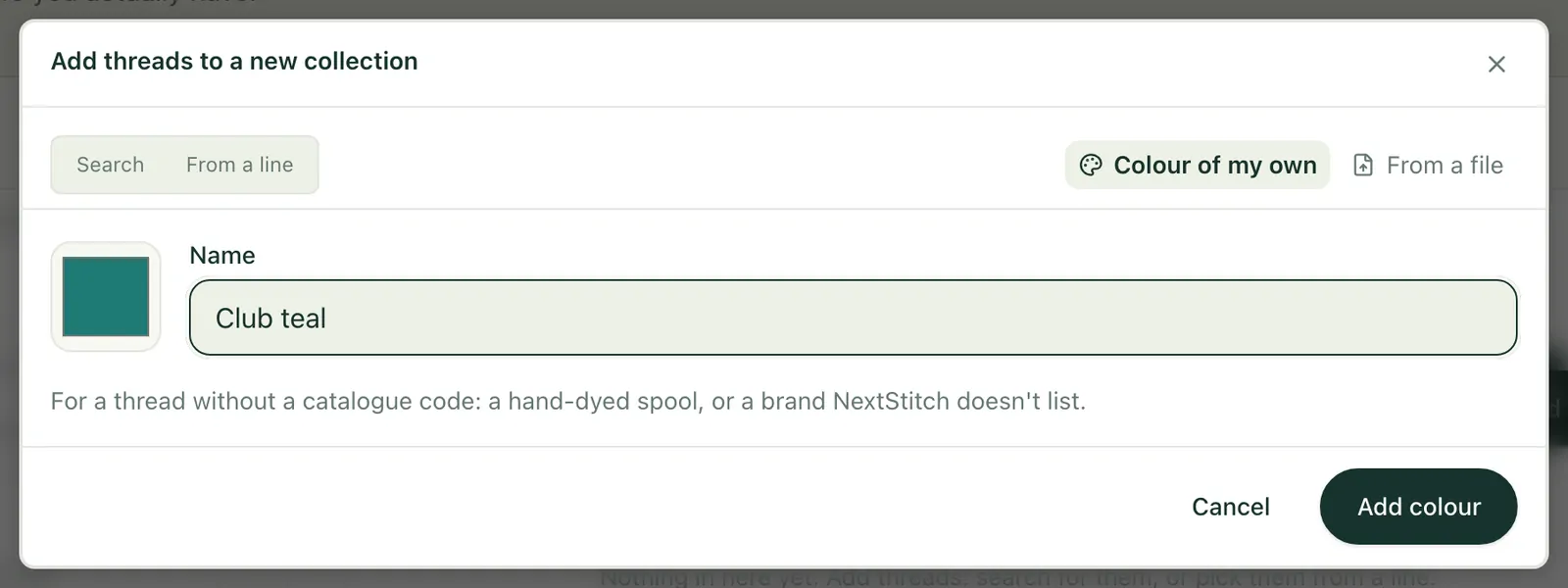
Colour of my own — a thread with no catalogue number: a hand-dyed spool, or a brand NextStitch doesn't list. Give it a name; the pen adds a number and a brand later.
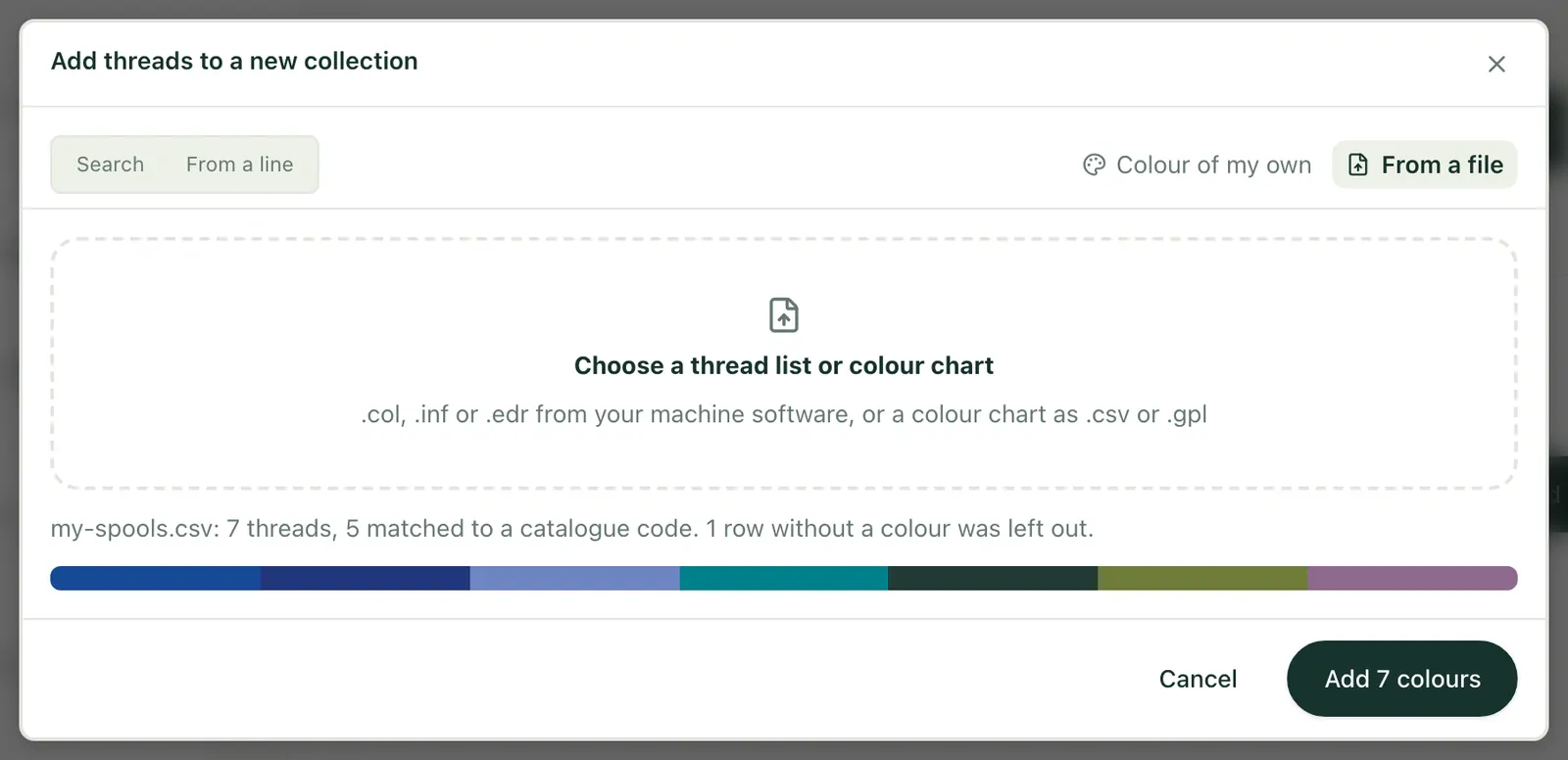
From a file — a machine's thread list (.col, .inf or .edr), each thread matched to its catalogue number where the file allows, or a colour chart as CSV or GPL.
After the Pro trial, the makers' lines and kits come with Pro; your own colours and files stay.
Charts in and out
Export offers two formats:
CSV for a spreadsheet keeps everything: each thread's number, brand, name and colour (as a hex code), and its thread line and weight where it has one. It is written the way your spreadsheet reads it — a semicolon between the columns where the decimal mark is a comma — and opens in Excel, Numbers or LibreOffice.
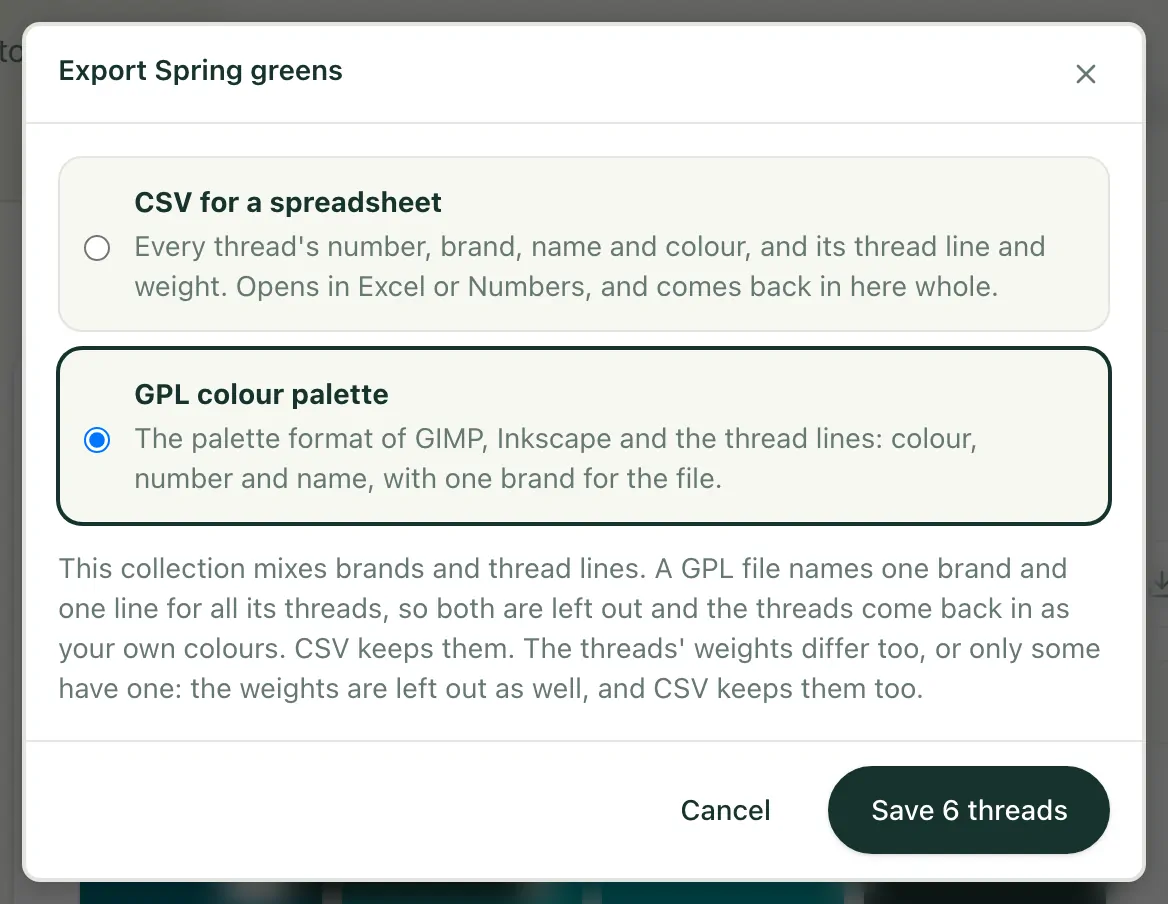
GPL colour palette is the palette format of GIMP, Inkscape and NextStitch's own thread lines: colour, number and name, with one brand, one line and one weight for the whole file. A collection that mixes brands or lines loses them in a GPL file, and its threads come back as colours of your own; one whose threads differ in weight, or where only some have a weight, loses the weights. The dialog says what is left out before you save.
From a file under Add threads reads both back. A CSV may come from anywhere: the first row names the columns, in English or German — Number, Brand, Name, Colour, Line, or the words other programs use, such as Code, Manufacturer or Hersteller — and a colour can be a hex code or three numbers, in one column (128 153 95) or in R, G and B. A row whose line and number NextStitch knows comes in as that line's thread, named and coloured as the maker has it now; any other row comes in as written. Rows without a colour are left out, and the dialog says how many.
A thread's weight
A thread's weight says how thick it is: 40 wt is the usual embroidery thread, 60 wt a fine one for small lettering, 30 wt or 12 wt a heavy one that covers with fewer stitches. Where a line's maker states the weight, a thread you add from that line comes with it: every line NextStitch lists is 40 wt but Brother's, whose charts state none. The pen on a thread sets or changes it under Weight (wt); a weight changed alone keeps a line's thread in its line. A thread without one counts as 40 wt.
In a design, the weight goes with the thread: Threads in this design shows it beside each thread, the Simulator draws each thread at its own weight, in the flat preview and in 3D, as a picture from File ▸ Export ▸ Image and the 3D model do, and the minimum gap follows it (Match your threads). A CSV chart has a Weight column — Garnstärke in German, or wt — and a GPL file one # Weight: line for all its threads, written when they all have the same; otherwise the Export dialog says the weights are left out.
Thread lines for your workshop
Most workshops stock two or three makers' lines, not all thirteen. On My threads' Thread lines tab, Thread lines for my workshop has a switch for each maker's line: switch off the ones you don't stock, and the lists that offer thread lines leave them out — Thread line in the right rail, the thread colour picker, File ▸ New, Settings ▸ Preferences, the chart a machine file is matched to on opening, and the threads Stitch now matches to in the Catalogue. Basic colours and your own collections have no switch: they are always there.
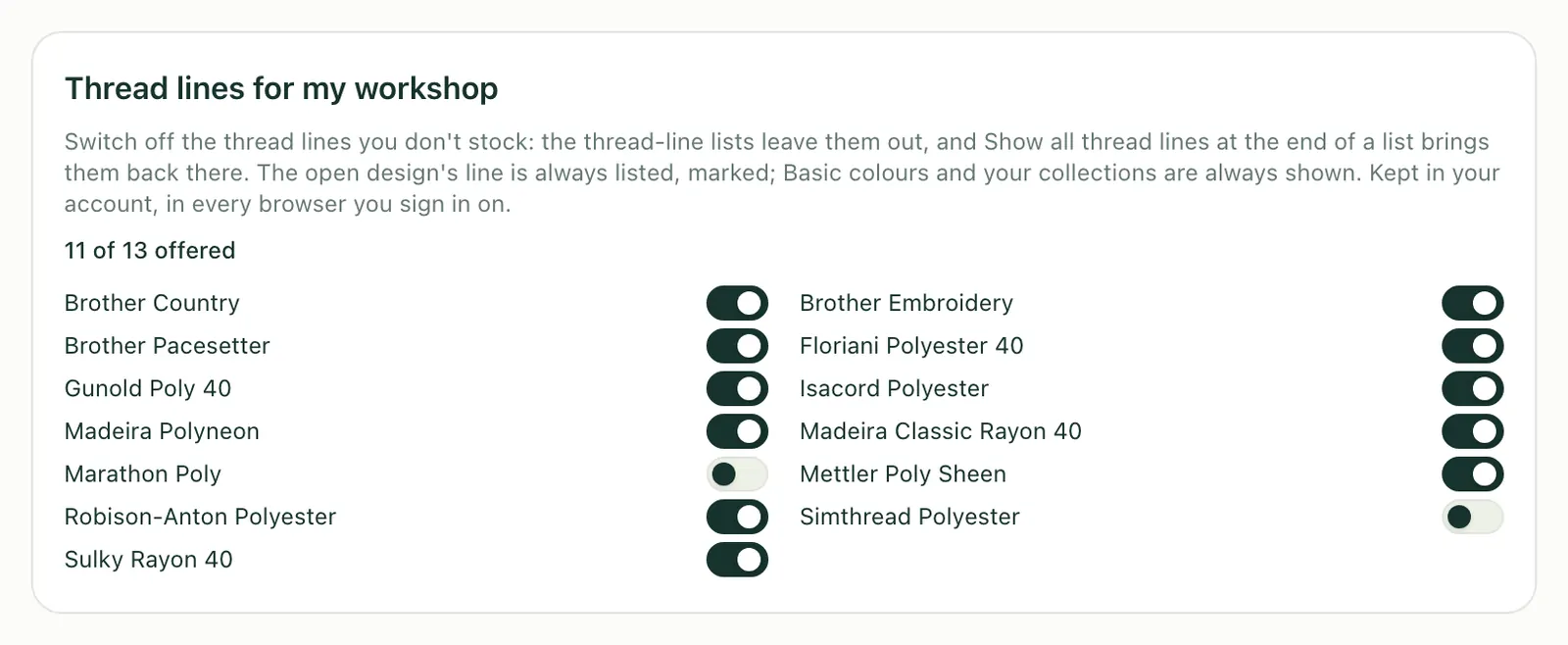
A line you switched off is never far: Show all thread lines at the end of each list shows the rest, marked not in my workshop, and Only my workshop's thread lines puts them away again. A design is never changed by it. The line the open design is in is always listed, marked in the open design, so a design someone sent you in a line you don't stock still shows where its colours come from; so is the line a list has chosen.
The switches are kept in your account and follow you to every browser you sign in on. Signed out, the same switches are in Settings ▸ Preferences ▸ Thread lines and are kept in this browser; signed in, that section opens My threads on its Thread lines tab.