My machines
Save your machines and hoops, so designs fit, export in the right format and show the sewing time.
Updated November 13, 2026
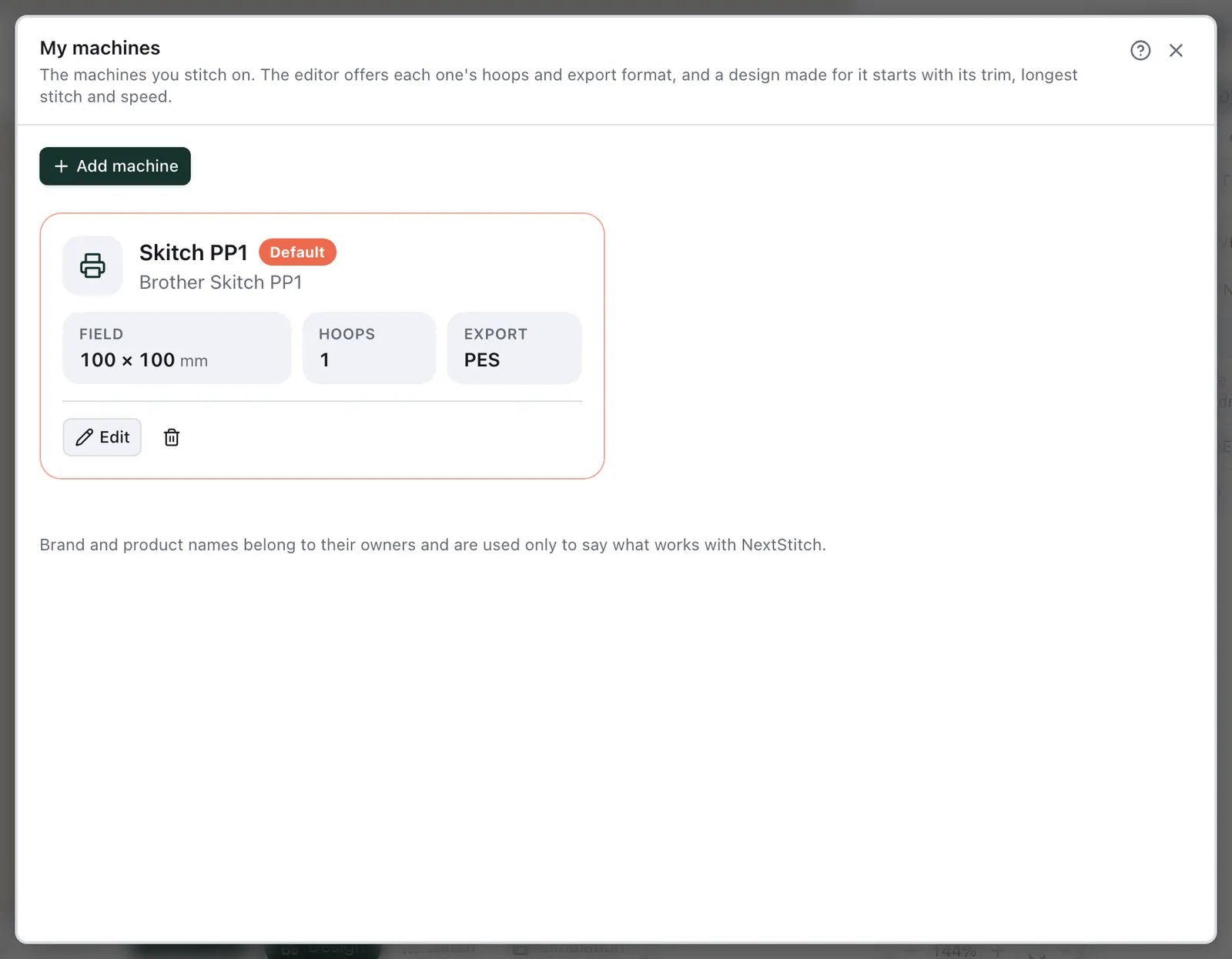
My machines, in your account, keeps the machines you stitch on. A design made for one of them offers only the hoops you own, exports in its format, starts with its trim, longest stitch and speed, and reckons its sewing time with the time it takes to trim, change colour and stop. My machines needs an account; without one, the editor works with the machines and hoops of its catalogue.
In the editor, My machines in the menu under your initials at the top right opens it over your design, which stays open; signed out, it asks you to sign in first and then opens My machines, as Sign in under the demo machine in File ▸ New does, there with Add machine open — after creating an account too, in the tab the confirmation mail's link opens, which goes back to the editor for it; on the website it is a page of your account, My machines. A machine you add in another tab or on another computer is there the next time you open My machines, or as soon as you come back to the window.
Add a machine
In My machines, choose Add machine. Pick the brand — Popular machines and the search find the common ones quickly — and then your model: the catalogue knows more than 60 home and multi-needle machines, each with its hoops, the formats it reads and typical values. A machine the catalogue does not list is Other machine, for which you enter what it can do yourself.
The details come in four tabs: Machine, Hoops, Defaults and Files. Add machine at the bottom saves it, and Edit on its card opens the same tabs later. The first machine you add is your default: File ▸ New starts on it until you pick another of yours, and Make default on another card moves it.
Machine
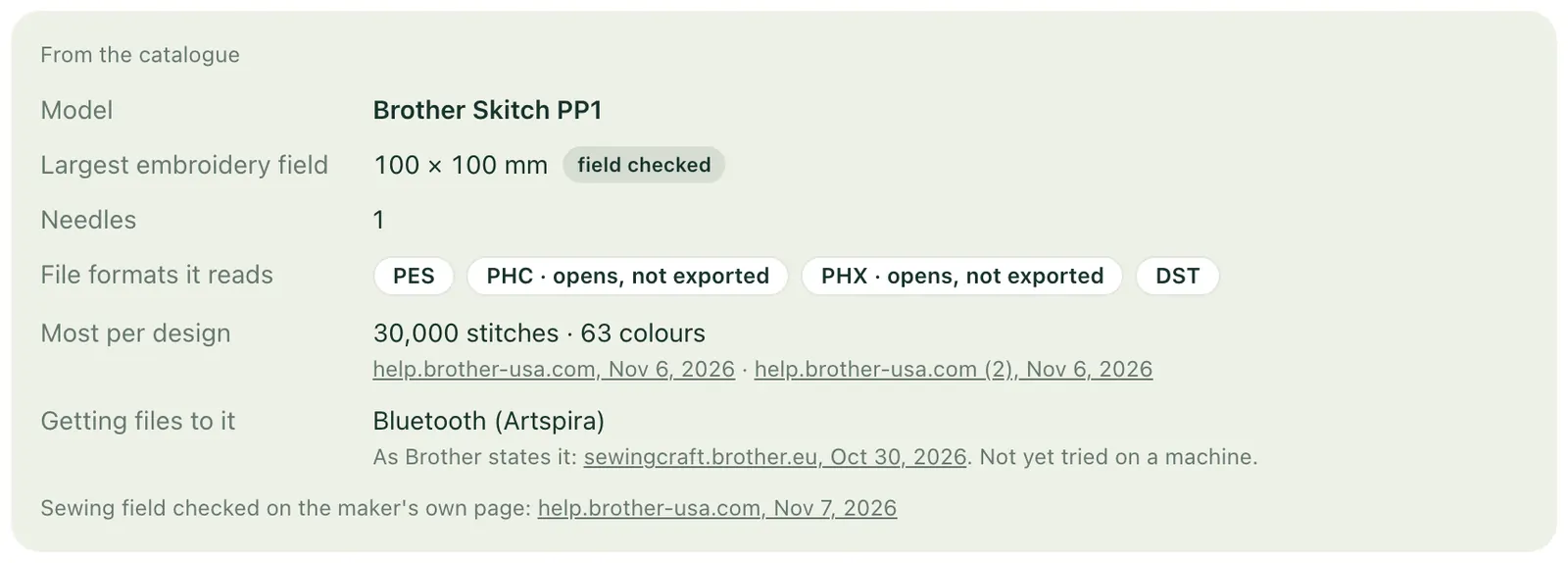
Name is what the editor calls the machine; left empty, it is the model's name, and no two of your machines share one. For a model from the catalogue, the tab shows what the catalogue knows: the model, its Largest embroidery field, its Needles and the File formats it reads — a format NextStitch opens but does not write is marked "opens, not exported". A value the maker does not state is marked typical. When the catalogue corrects a model after you added it — its field, its needles, its formats or the size of one of its hoops — the machine's card says The catalogue entry for this model was corrected., and Review beside it opens the machine. The dialog says The catalogue has corrected this model since you added it.; Use the catalogue's details takes the corrections, and Save changes keeps them. The hoops you ticked stay ticked, at the catalogue's sizes, and your own hoops stay as they are.

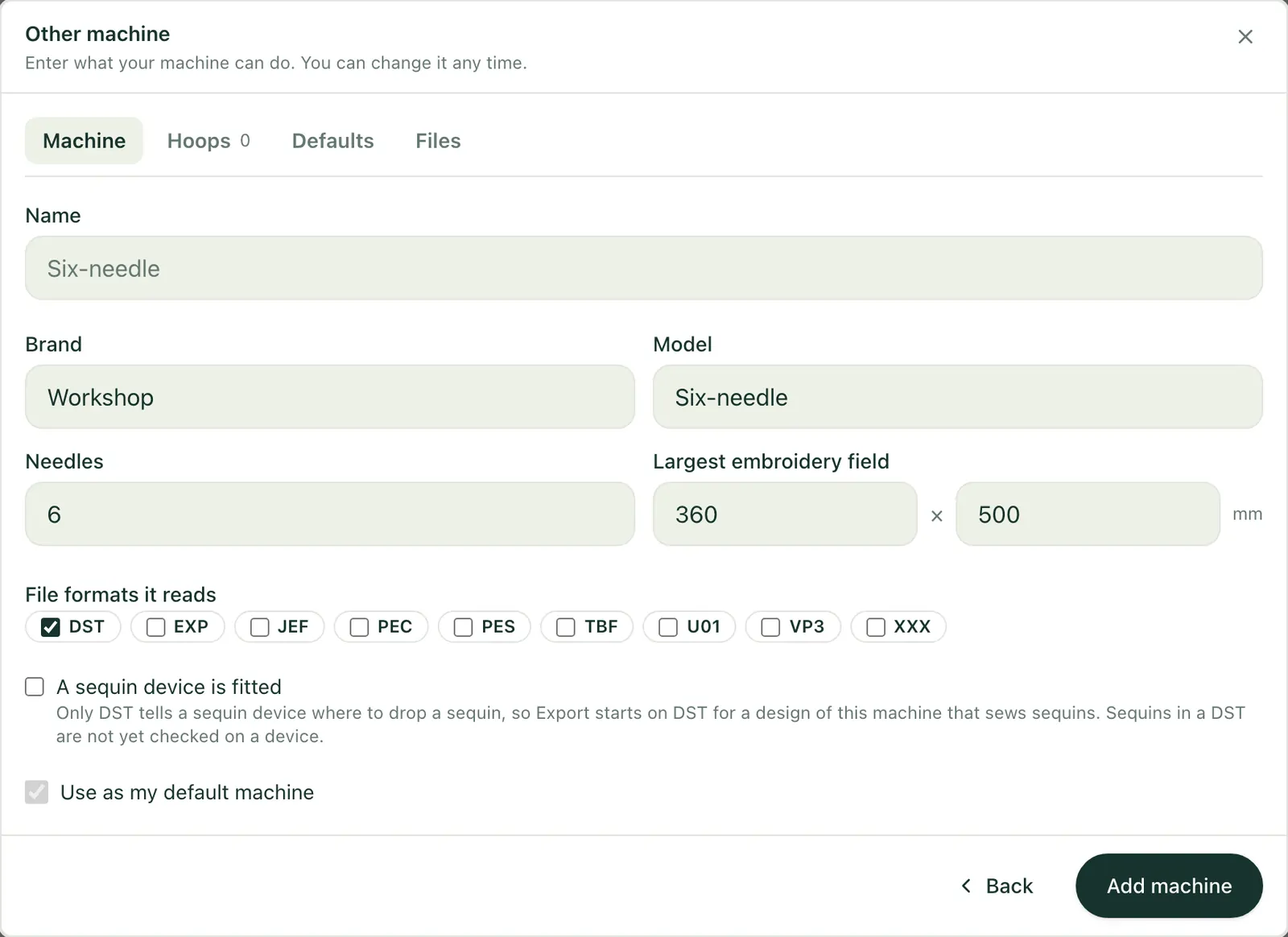
For Other machine, the tab is a form: the brand and model, the needles — more than one makes it a multi-needle machine — the largest field it sews and the formats it reads.
A machine that reads DST asks whether A sequin device is fitted. Tick it to sew sequins: the Sequin at every needle position switches of running, bean and manual lines and of running and bean outlines show only in a design made for a machine with the device, or where a line already drops sequins, so you can turn them off (Sequins). Only a DST tells a sequin device where to drop a sequin, so for a design of this machine that sews sequins, Export starts on DST instead of the machine's own format; you can still pick another. Sequins in a DST are not yet checked on a device.
Limits and sources
For a model from the catalogue, the Machine tab also says where its facts come from. Beside Largest embroidery field, field checked means the maker's own page or manual was read again and states the same field; the line under the facts names that page and the day it was read. field from catalogue means the figure is the catalogue's own and not confirmed there yet — the maker's page could not be read, gives no field, or words it another way —, and the line names the page it was first read on. When you pick a model, its row shows the same mark.
Most per design is what the maker states a design may hold, with the page it was read on: stitches, colours or colour changes, sometimes by hoop size — Brother lists 30,000 stitches and 63 colours for a design in a 100 × 100 mm hoop on its 4 × 4 in machines —, or what the machine's memory holds. Where the maker states nothing, it says Unknown: not zero, and not a guess. These are hints from the maker's pages. Export compares them with your design, and Problems warns when a design has more stitches than its machine's maker lists for that hoop, but neither ever refuses a file.
Getting files to it lists the ways the machine takes a design file, as its maker states them: a USB stick, a USB cable from a computer, wireless LAN or Bluetooth with the apps the maker names, an SD card, a network cable, and an accessory a way needs, such as Bernina's WiFi Device. Each way is the maker's word, with the page and the day it was read. Not yet tried on a machine stays beside it until that way has been tried on a real machine of that model and written down; only such a try marks it checked, with its date. That is rare, and meant to be: the catalogue's facts are read on the makers' pages, not sewn. The Hoops tab says where its hoop list was read.
Hoops
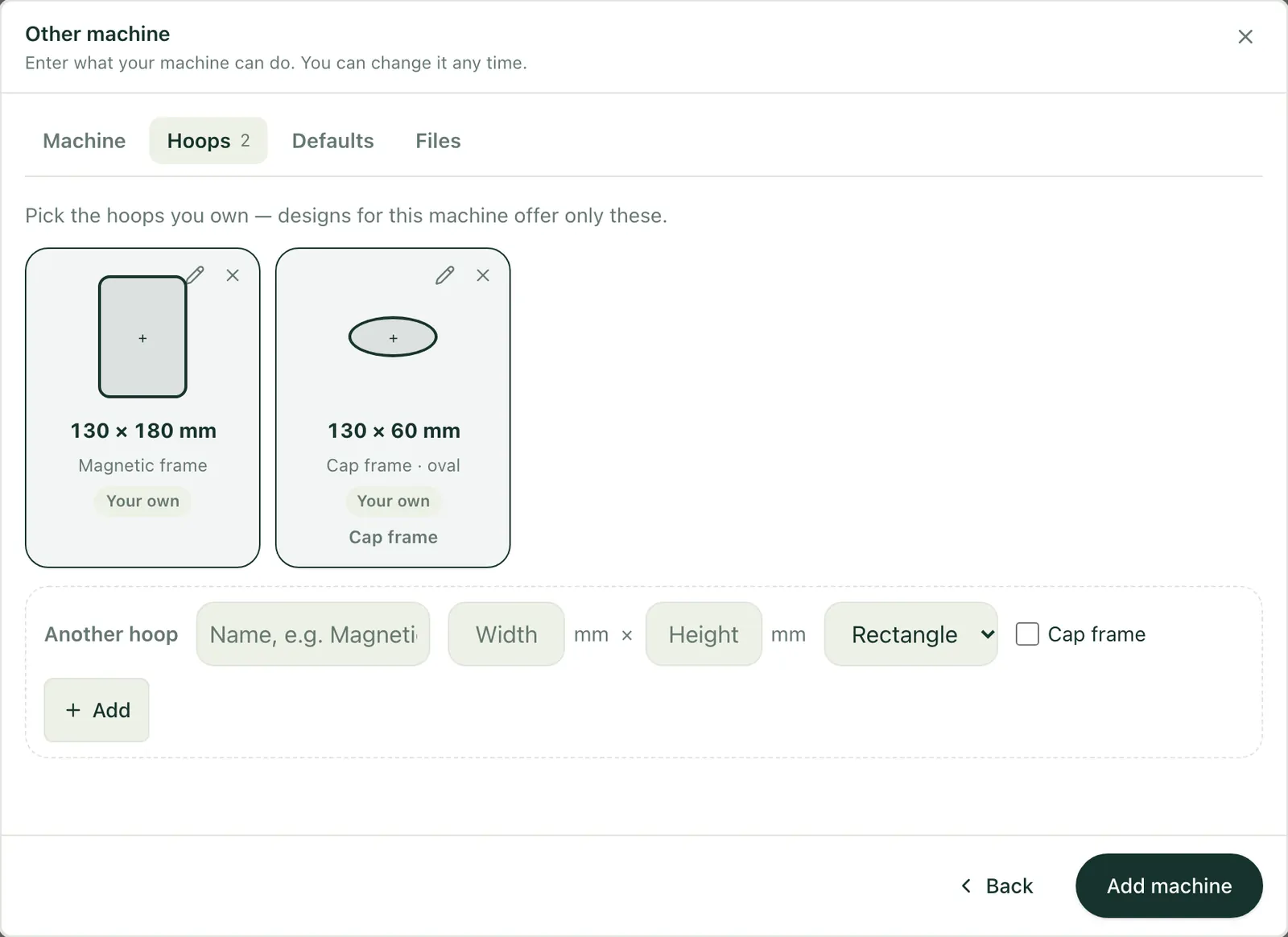
Tick the hoops you own: designs for this machine offer only these. A hoop the catalogue does not list — a magnetic hoop, a cap frame — is your own: under Another hoop, type its name, its width and height in your unit, choose Rectangle or Oval, and Add it. The pencil beside it changes it later. Tick Cap frame for a cap frame, and Export offers to turn its files (A cap frame); the catalogue's cap frames are marked Cap frame already. A design keeps your hoop's name, so the worksheet prints it. Brother and Baby Lock hoops are named as the makers' own hoop lists name them, with their part numbers — Clamp frame S (PRCLP45B, PRCLP45LR), say.
Defaults
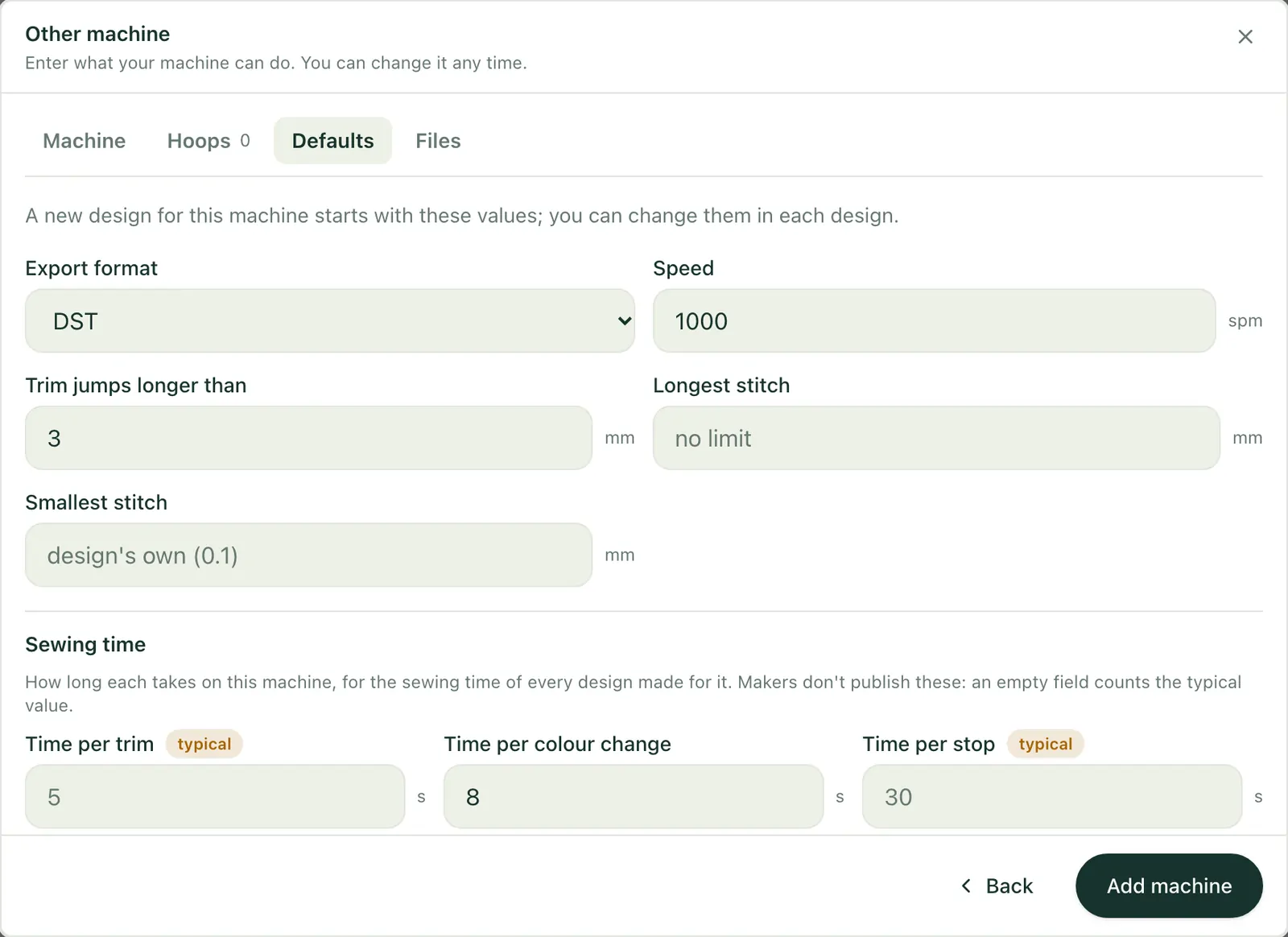
A new design for this machine starts with these values, and each design can change them in File ▸ Design settings:
Export format: the format Export picks for it.
Speed: stitches per minute, for the sewing time.
Trim jumps longer than: a jump longer than this is cut.
Longest stitch: a longer stitch is split; empty, no limit.
Smallest stitch: shorter stitches are left out; empty, the design's own 0.1 mm.
With Cost per piece switched on in Settings ▸ Preferences ▸ Cost and approval sheet, Cost per minute prices the machine's time (Cost per piece).
Sewing time
Under Sewing time, the Defaults tab takes how long the machine takes for each pause: Time per trim, Time per colour change and Time per stop, in seconds. Makers don't publish these, so an empty field counts the typical value, which it shows and marks typical: 5 s for a trim, 30 s for a stop, and for a colour change 30 s on a single-needle machine — the time to rethread it — or 5 s on a multi-needle one. Time your own machine once and enter what it takes.
Unlike the defaults above, the times are not copied into a design: every design made for this machine reckons with them as they are now — the status bar, Design info, Export, the worksheet and the figure a save to your account keeps. My files shows a design's sewing time as of its last save.
A design that takes longer than usual — a cap frame, an appliqué that waits for its fabric — can have its own times: File ▸ Design settings, under the machine's speed. Each time set there wins over the machine's, for that design only, and is saved with it; an empty field shows the machine's time, or the typical one, and uses it.
Files
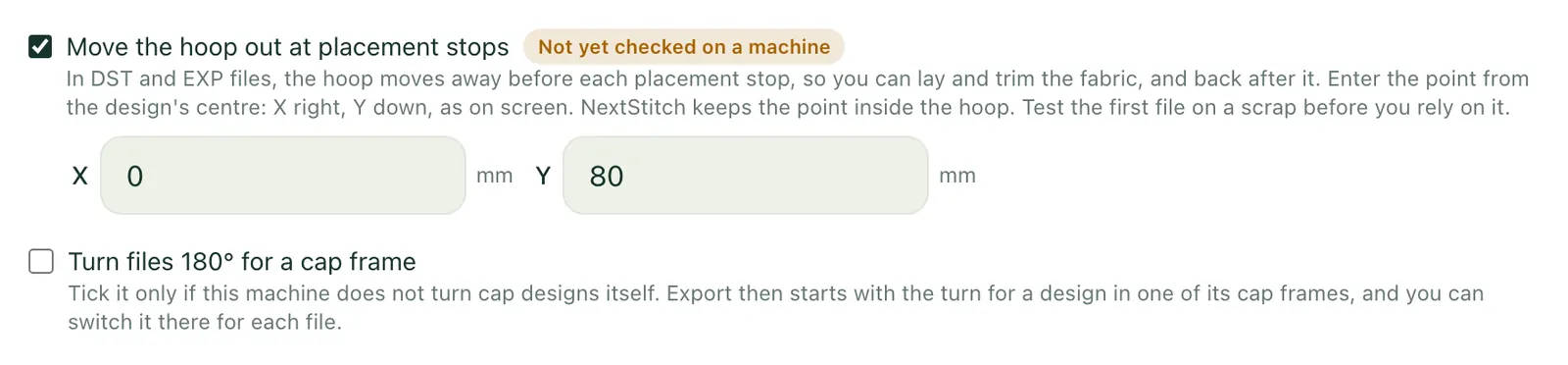
Files sets how the machine's files are written, for the formats it reads: how many jumps a trim is written as in DST and JEF, which have no trim command; whether a DST lists its threads in its header, for design software; and, for a Brother where it is offered, PES version 6 with the threads' names. For a machine with a cap frame, Turn files 180° for a cap frame makes Export start with that turn — tick it only if the machine does not turn cap designs itself. For a machine that reads DST or EXP, Move the hoop out at placement stops moves the hoop away at each stop where you lay and trim an appliqué's fabric, to where you type, and back — not yet checked on a machine (Move the hoop out at placement stops). Export shows them for a design made for this machine: As your machine wants it.
A design for your machine
File ▸ New and File ▸ Design settings choose the machine in one field, Machine: type a part of its name — pp1, bernina 790 — and pick it from the list, which holds the demo machine, yours, and every model of the catalogue. One of yours offers only your hoops, and Smallest that fits; Manage my machines under the field opens this page over the editor. In File ▸ Design settings it stands beside the hoop list: hoops are added here, and the design picks one there — or Custom size, the list's last choice, for a hoop of the design's own size. Deleting a machine leaves the designs made for it as they are, with their hoop and settings. A design made for a machine that is not one of yours — deleted, or another account's — keeps that machine in File ▸ Design settings, its hoop first in the hoop list and Custom size after it, for a size of its own.
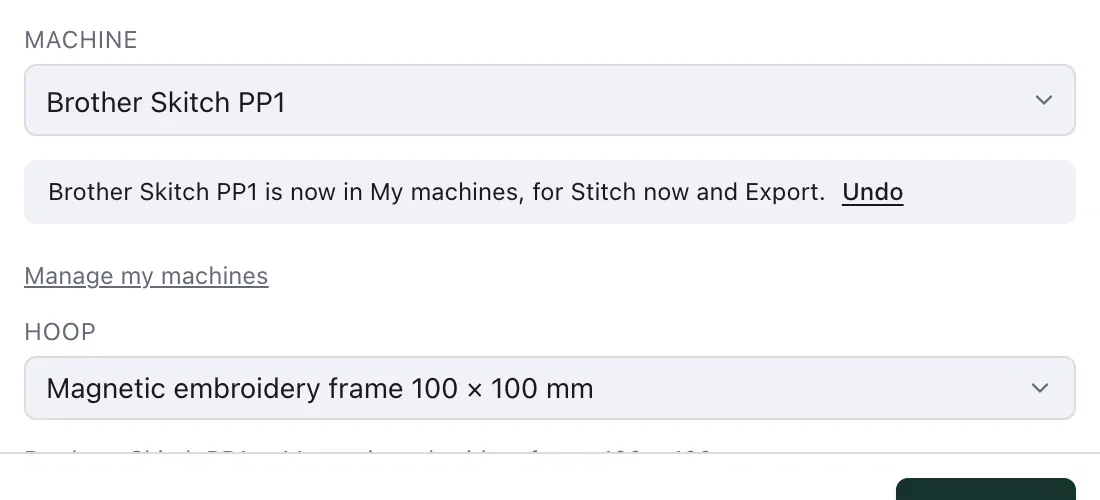
Signed in, a model you pick from the catalogue there is kept in My machines at once, so Stitch now and Export know it: a line under the field says so, and Undo takes it out again. A model you have already is not added twice.
Some machines sew less than their largest hoop holds: a hoop of 215 mm on a machine whose field is 210 mm, say. A design for such a machine is checked against the machine's field as well as the hoop, the field centred on the hoop as the machine centres it — the machine's own field for one of yours, its model's for a catalogue machine. Where the design reaches past the field, Problems warns — "The design reaches 3 mm past the machine's sewing field (210 × 210 mm), which is smaller than the hoop: the machine will refuse it or stop at the edge." — and marks the part on the canvas. Designs larger than your hoop has the ways out.
Such a hoop says so as you pick it, too: in File ▸ New, File ▸ Design settings and the status bar's hoop list, a note under it reads "Larger than the MB-7's sewing field (238 × 200 mm): the machine sews only that much." You can still choose it: a design that stays inside the field sews in it as it is, and Problems says when one does not.
The sewing field as a hoop
Where a machine's maker states its sewing field, the hoop lists end with Sewing field of the and the model, at exactly that size — in File ▸ New, in File ▸ Design settings and in the status bar's hoop list, for one of your machines as for a catalogue machine. Choose it to plan a design for all the machine can sew rather than for one of its hoops: the full 238 × 200 mm of a multi-needle machine whose largest hoop is 240 × 200, say. It is a rectangle, and the design keeps it like any hoop; the worksheet names it Sewing field.
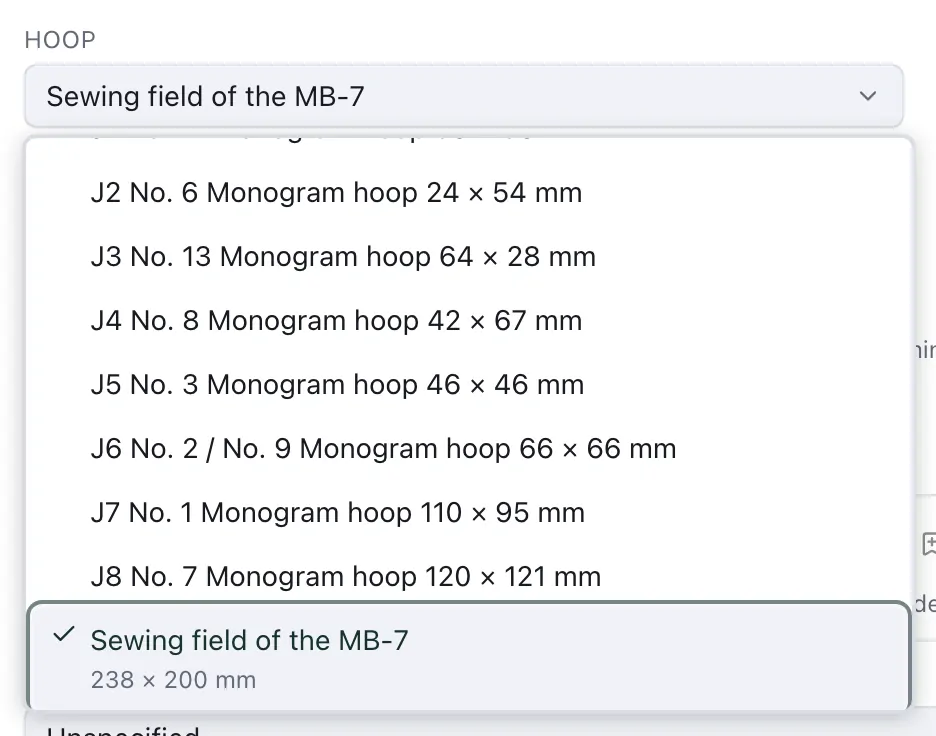
It is not a hoop: the hoop you sew in decides how much of the field you can use, and Smallest that fits never chooses it. The check above takes the smaller of hoop and field, which are now the same, so it warns only where the design reaches past the field. The sewing field follows the field checked mark above: a field confirmed on the maker's own page has one, and so does a field the catalogue states that no check has questioned. A model whose field is only a typical value, or whose maker's pages state two different fields, has none.
A multi-needle machine
A machine with more than one needle changes thread by itself, and three things change with it:
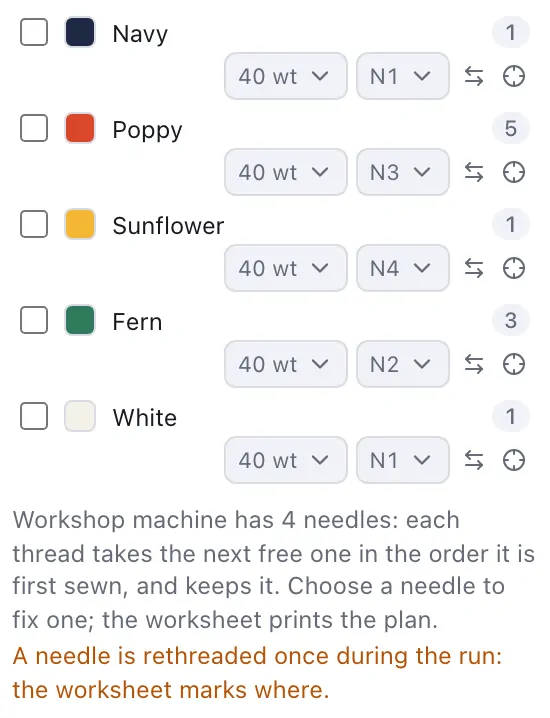
Needles. In Threads in this design, each thread in use shows its needle: "N1", "N2" — the next free needle in the order the thread is first sewn, and the same one whenever it comes back, however many blocks lie between, as long as the machine has a needle for every thread. With more colours than needles, the needle used longest ago is rethreaded, and a line under the list says how often. Choose another needle in a thread's list to keep it there; Automatic gives it back to the plan. Design info's colour sequence and the worksheet's operator page give every colour block its needle, and the worksheet marks each rethread (The needle plan). The needles are not written into the file: key the sequence in on the machine.
Quick colour changes. The sewing time counts 5 s for each, until you set Time per colour change.
Appliqué. At an appliqué's pause the machine changes needles and sews on unless it is told to stop. Problems says at which changes, and what to do in the machine's format (Pauses and multi-needle machines).