
Bend text into an arc
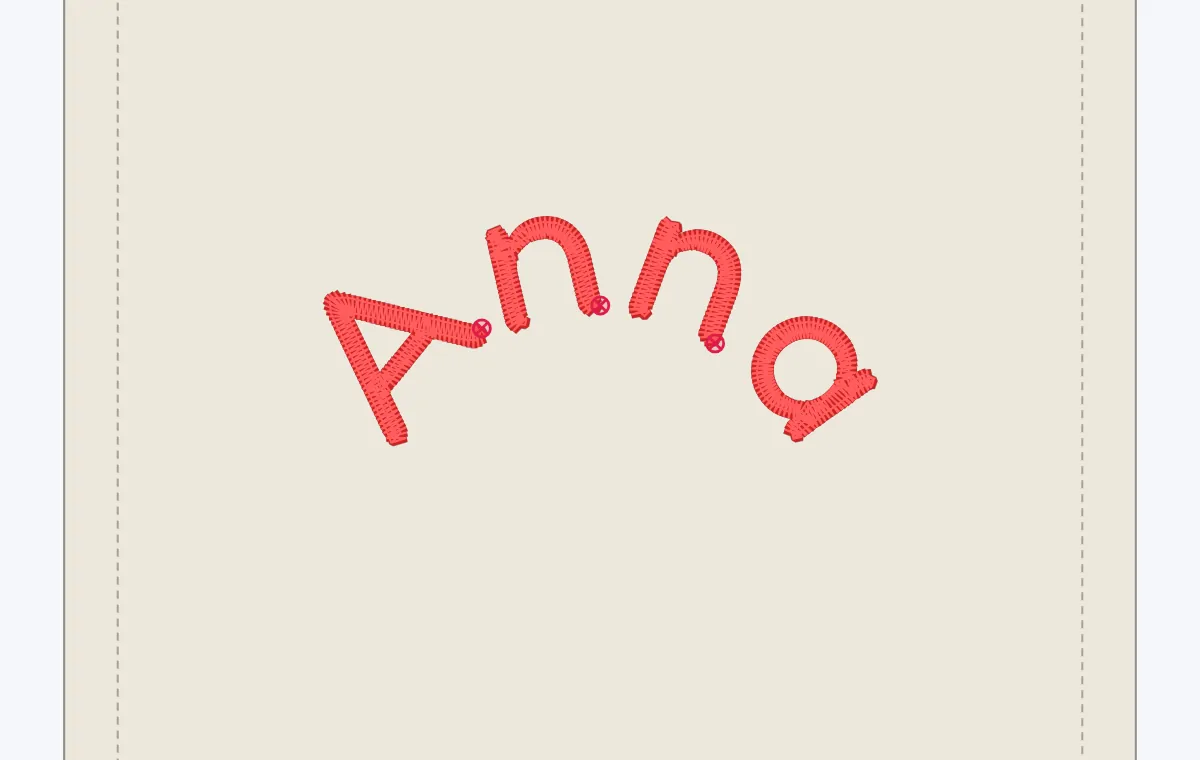
Curve a name over a design: choose Arc under Shape and set how far it bends — or turn it the other way.
Updated October 31, 2026
Select the text — Shape is in the bar above it.
- 1
Choose Arc. The line bends at 40 % to start with.
- 2
Set how far. The percentage beside Shape runs from −100 to 100. Higher bends more; a negative value turns the arc the other way, for text that runs under a design.
- 3
Check the stitches. Look at the curve in Simulation before you sew.
Other shapes
Text in a TrueType font can also take Arch, Bulge, Bridge, Slant, Wave, Fan and Flag, which reshape the letters themselves: Slant lifts the line from left to right, Wave runs one wave along it, Fan spreads its top and arches it, and Flag waves it more the further it gets from its start. The percentage works as for Arc, and a negative value turns each the other way. Embroidery fonts offer Straight and Arc only: their stitches are already set, so the letters stay rigid and only move along the curve.
The same shapes bend drawn shapes and groups too: Object ▸ Envelope… (Bend shapes in an envelope).
Text on a path
To run text along a line you draw or round a circle, select the text together with it and choose On path in the bar. The bar then sets where the text stands: Above the line, On it or Below it — round a circle, outside it, centred on it or inside it, upright at the bottom — and Flip letters turns the letters to run the other way along it.
Fit ▸ Fill the path spreads the text over the whole path by changing its size — or, under By changing, its spacing. When you change the path or the words, it is fitted again; Fit ▸ A width runs it a length you type instead.