
Bend text into an arc
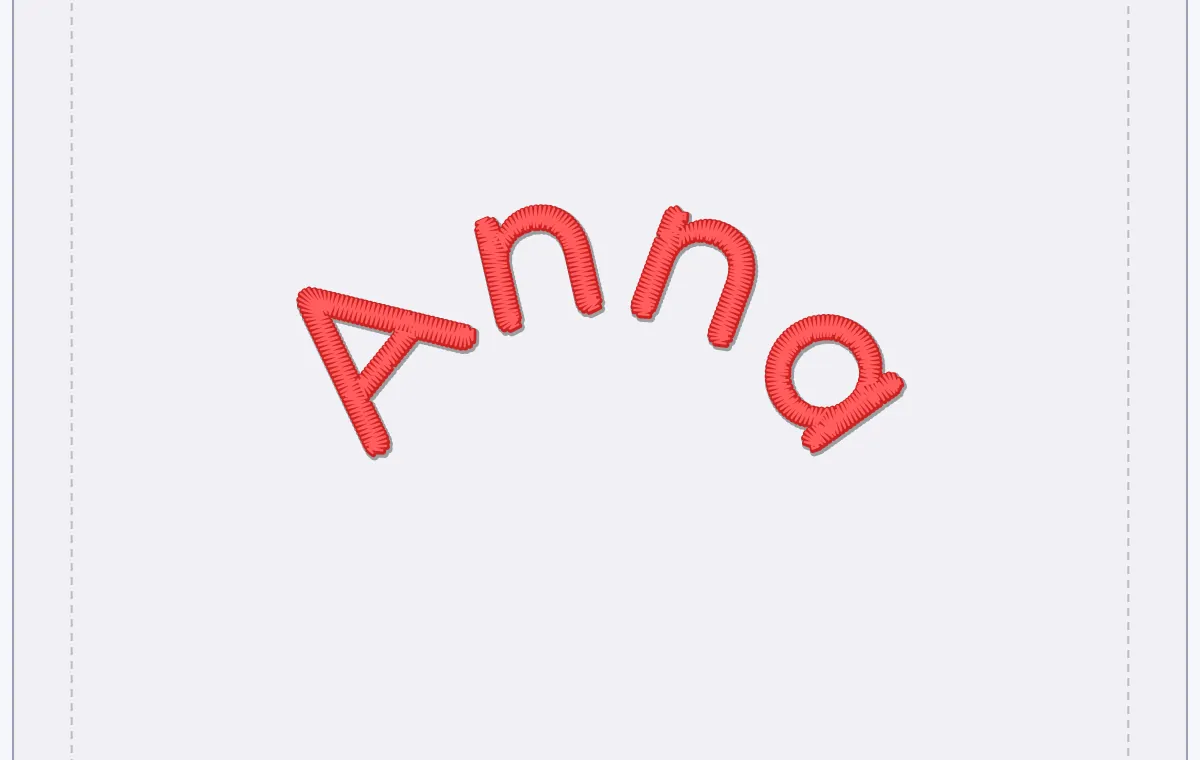
Curve a name over a design: choose Arc under Shape and set how far it bends — or turn it the other way.
Updated October 12, 2026
Select the text — Shape is in the bar above it.
- 1
Choose Arc. The line bends at 40 % to start with.
- 2
Set how far. The percentage beside Shape runs from −100 to 100. Higher bends more; a negative value turns the arc the other way, for text that runs under a design.
- 3
Check the stitches. Look at the curve in Simulation before you sew.
Other shapes
Text in a TrueType font can also take Arch, Bulge and Bridge, which reshape the letters themselves. Embroidery fonts offer Straight and Arc only: their stitches are already set, so the letters stay rigid and only move along the curve. To run text along a line you draw, use On path in the lettering dialog.