
Arrange, cut out and combine
The commands that merge, cut out, split, combine, copy, line up and bend shapes, side by side: what each does to your shapes and where to find it.
Updated October 31, 2026
Two menus change shapes. Path changes outlines: it merges shapes, cuts one out of another, splits them into regions and turns lines into satin. Object arranges what is there: it combines shapes and breaks them apart, copies, aligns, flips, turns and bends them. Every command here is one step to undo, and none of them touches a catalogue design or a locked shape.
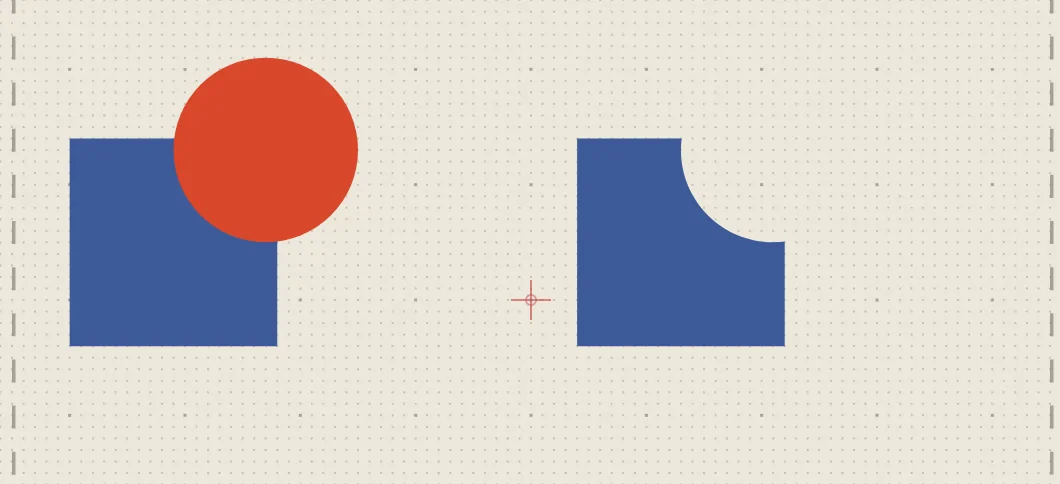
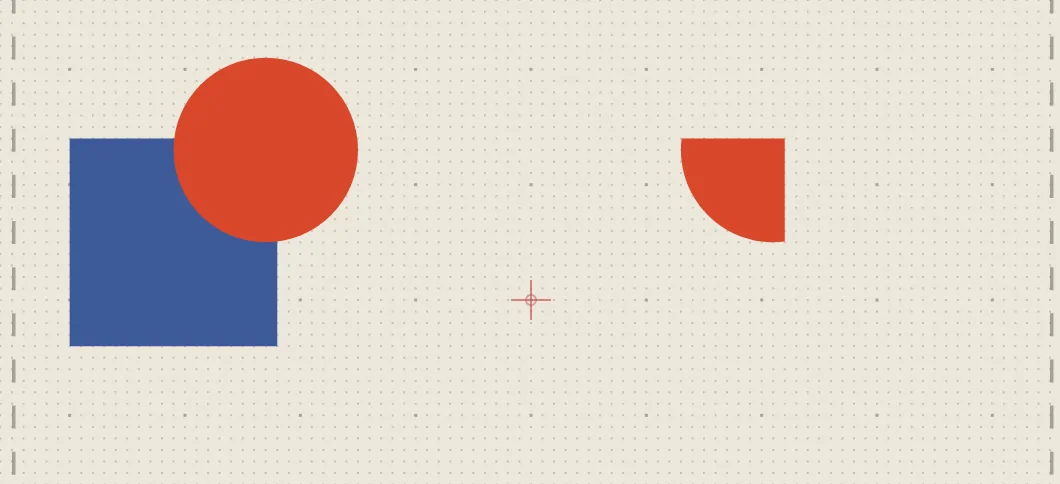
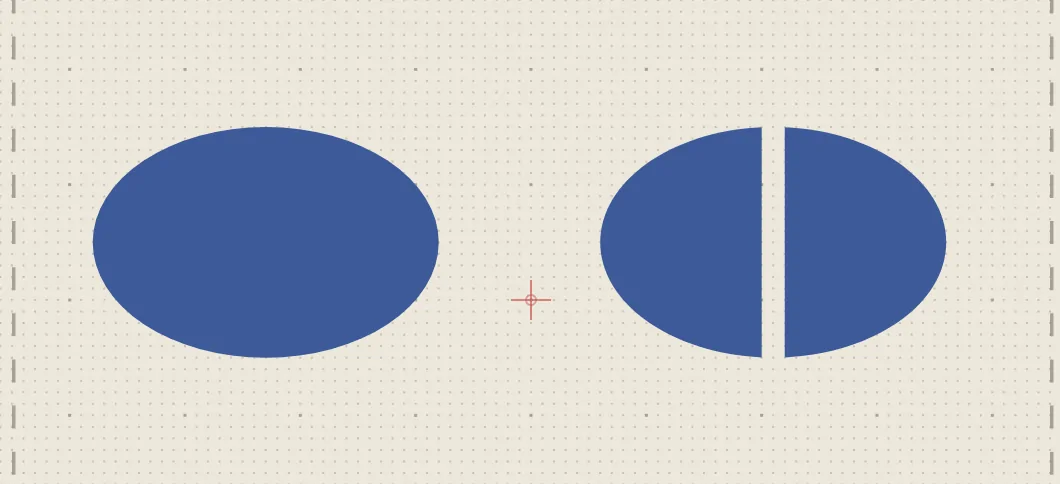
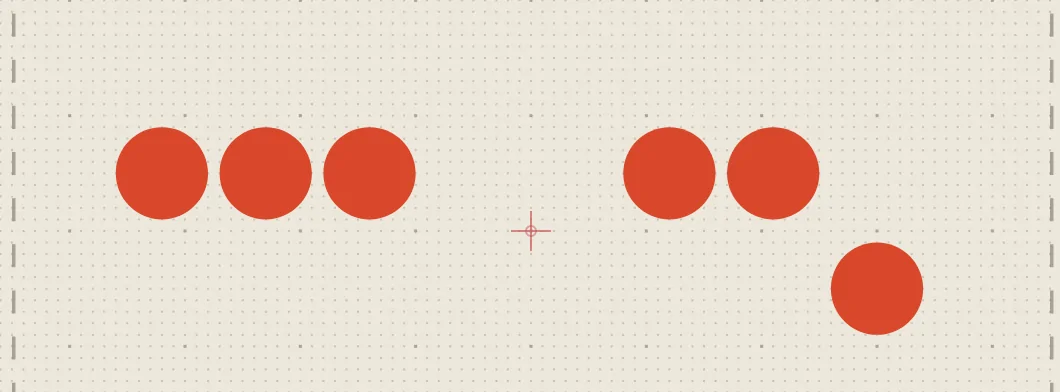
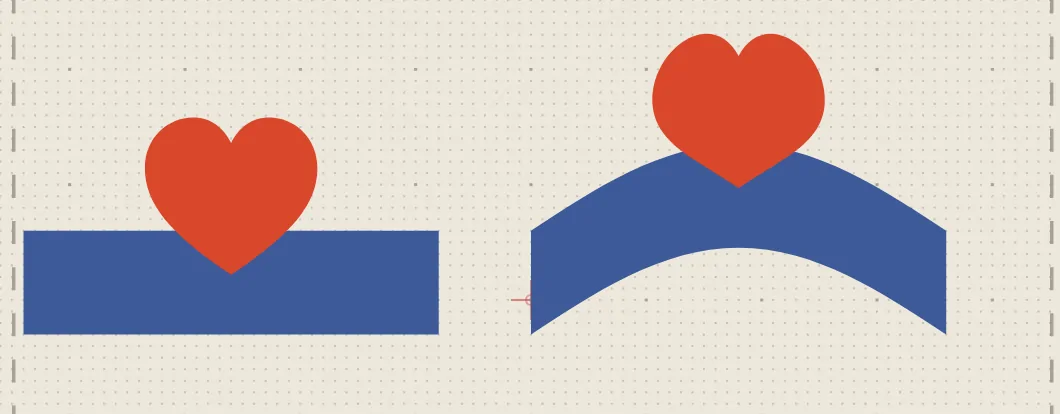
In the pictures below, the left pair is as it was drawn and the right pair shows the same shapes after the command.
Merge and cut out
Select two or more shapes; these commands are in the Path menu and on the right-click menu. Their result is one shape, and curves stay curves.
Union makes one shape of them all, with the stitch settings of the shape on top — a badge and its tab as one fill, for instance.
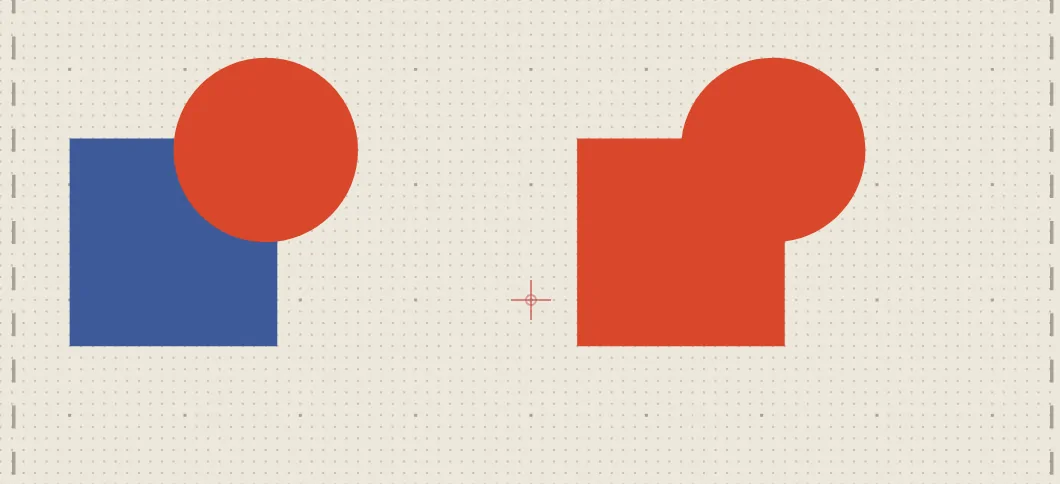
Subtract from bottom shape cuts the shapes above out of the lowest one, which keeps its own settings; Subtract from top shape cuts the shapes below out of the topmost one. Use them to punch a hole or a notch into a shape.
Intersect keeps only where all of them overlap, with the settings of the shape on top.
Exclude keeps only where an odd number of them overlap: two overlapping shapes become one with the shared part left open.
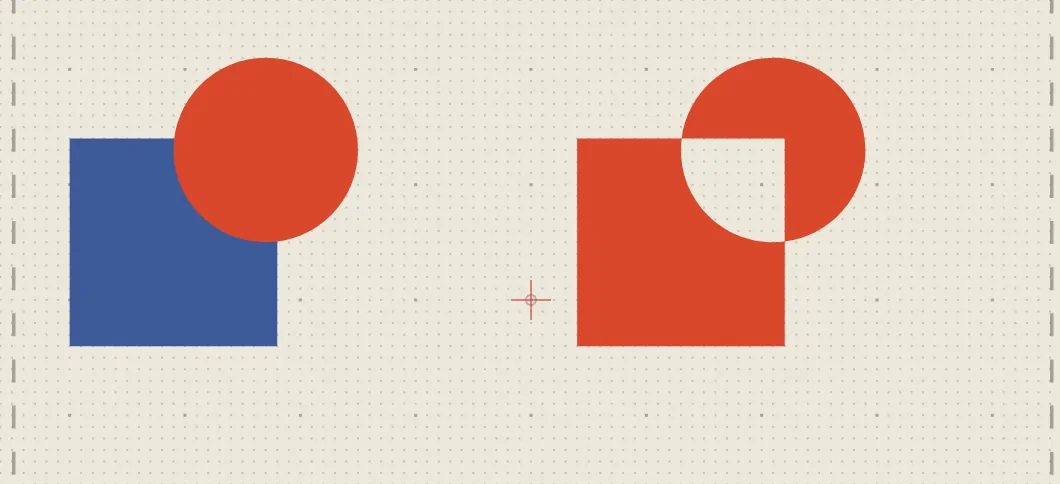
With Keep originals ticked in the Path menu, these commands add their result and leave your shapes where they are. Remove overlaps says more about each of them.
Split into regions
Path ▸ Divide makes every region the outlines enclose a shape of its own, with the settings of the shape on top there; Path ▸ Remove overlaps keeps of each shape only what is visible of it, so nothing is sewn twice. Both work on the selection, or on every shape when nothing is selected, and where they cut through a shape, the piece sewn first reaches the Kept overlap (0.3 mm unless you change it in the Path menu) under the one sewn after it, so no fabric shows at the seam (Remove overlaps).
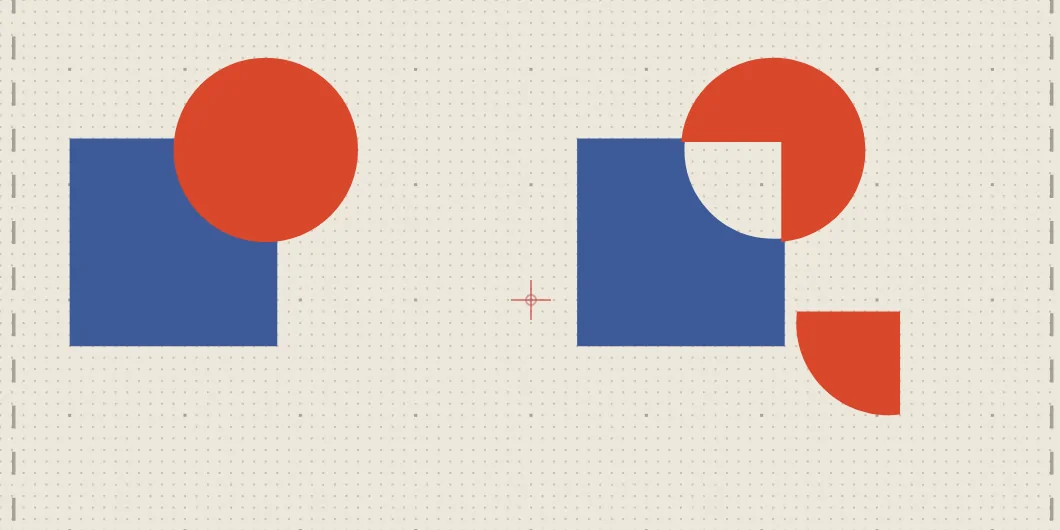
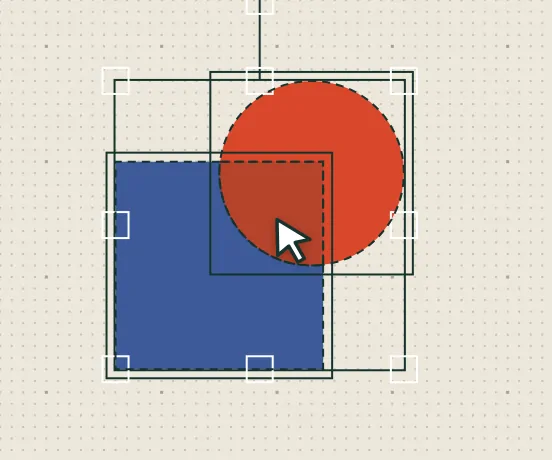
The Shape Builder (X, also Path ▸ Shape Builder) lets you decide region by region: click a region to keep it as a shape of its own, drag across regions to merge them, hold Alt to remove them, then press Enter (Building shapes from overlapping ones).
Cut with the knife
The Knife (K, also Path ▸ Knife) cuts shapes and lines along a line you draw: click points, or drag a freehand line, then press Enter. Each piece keeps the original's settings and its place in the sewing order. Cut width in the tool bar leaves a gap that wide between the pieces — clearance between two parts sewn in different directions — and below 0 makes the pieces overlap instead (Cutting shapes with the knife).
Combine and break apart
Object ▸ Combine (Ctrl+K, ⌘K on a Mac) makes one shape of two or more shapes in one thread, with the stitch settings and the place in the sewing order of the lowest of them. Where they overlap, the overlap becomes a hole: a small disc combined with a larger one around it makes a ring. Pieces apart from each other stay apart, but are one object now — selected, set and sewn as one. Shapes in different threads are not combined; the notice line says so.
Object ▸ Break apart (Ctrl+Shift+K, ⌘⇧K) does the opposite for a shape made of several separate outlines, such as an imported logo: each outline becomes a shape of its own, with the same settings. A hole stays with the outline it lies in, so an "O" stays one shape while an "i" becomes its stem and its dot. Break apart also turns an outline made with Object ▸ Add outline into a fixed shape, and takes a machine file's stitches apart by run: each stretch of stitches between two jumps becomes an object of its own, its trim or stop with it. Combine joins such stitch objects of one thread into one again, as runs in the order they are sewn (Touch up a machine file).
Lines have a command of their own: Object ▸ Join running stitches… makes one line of several running or bean lines in one thread, at their ends or as redwork (Join running stitches and Redwork). To keep shapes together without merging them, group them instead: Ctrl+G or Group on the right-click menu, and Ctrl+Shift+G to ungroup.
Copy and repeat
Object ▸ Duplicate (Ctrl+D) copies the selection; move or turn the copy and Ctrl+D again makes the next copy with the same step. Edit ▸ Paste in place (Ctrl+Alt+V) pastes where you copied, in another design too, and an Alt-drag drags a copy (Selecting, copying and locking).
Object ▸ Step and repeat… makes several copies at once and shows them on the canvas while you set them up:
Row: Copies each a Step across and Step down further, each turned by Turn each if you like.
Ring: Copies round a point — the hoop's centre unless you type another — spread evenly, or an Angle between of your own.
Grid: Rows and Columns, a Gap across and Gap down apart; a gap of 0 lays a border edge to edge.
Mirror: a mirrored copy across the selection's edge, through its middle or along a line of your own, Horizontally, Vertically or Both ways.
Kaleidoscope: Segments round a point, Mirror every other segment if you like.
Make copies adds them, in one step to undo.
Line up
The Object menu also aligns, distributes, flips and turns the selection, centres it in the hoop (Shift+C) and gives several objects the same size; the align buttons in the bar above the canvas do the same. Align lines the selection up with its own box, with the object you selected last, or with the hoop (Arranging and stitch order).
Turn lines and outlines into satin and shapes
Three commands at the end of the Path menu change what a shape is, so that it is sewn another way.
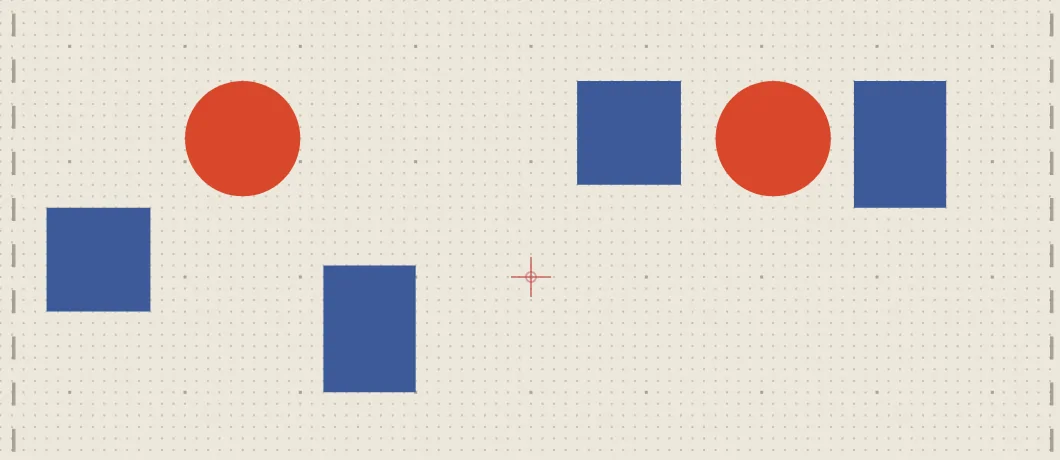
Convert to satin column turns the selection into satin: a line becomes a satin column along it, as wide as it was if it was a zig-zag; a closed shape without an Outline becomes a satin border round its edge, its fill switched off; and a shape with an Outline keeps its fill and has its outline sewn as satin. Satins drawn with two rails already stay as they are.
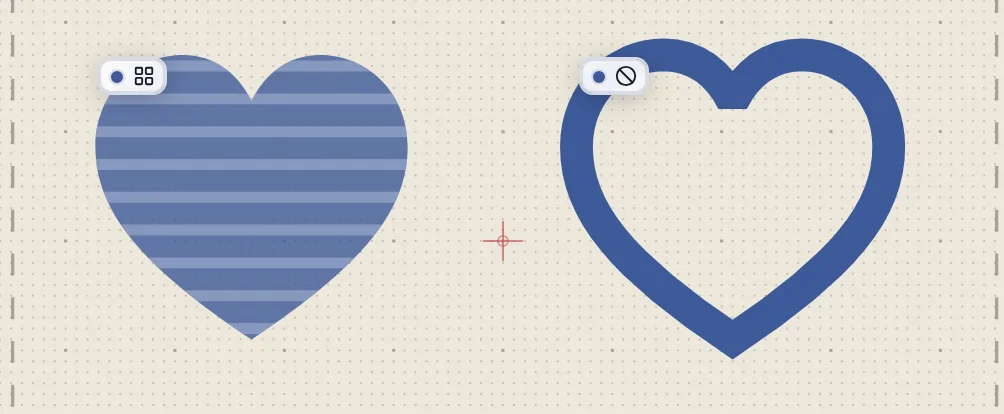
Bake satin to rails replaces a satin column drawn as one centre line with the two rails and the rungs across them, so you can edit one edge without the other — a column that tapers on one side only, say. A line that doubles back becomes one column per stretch. It is greyed out until a satin drawn as a centre line is selected.
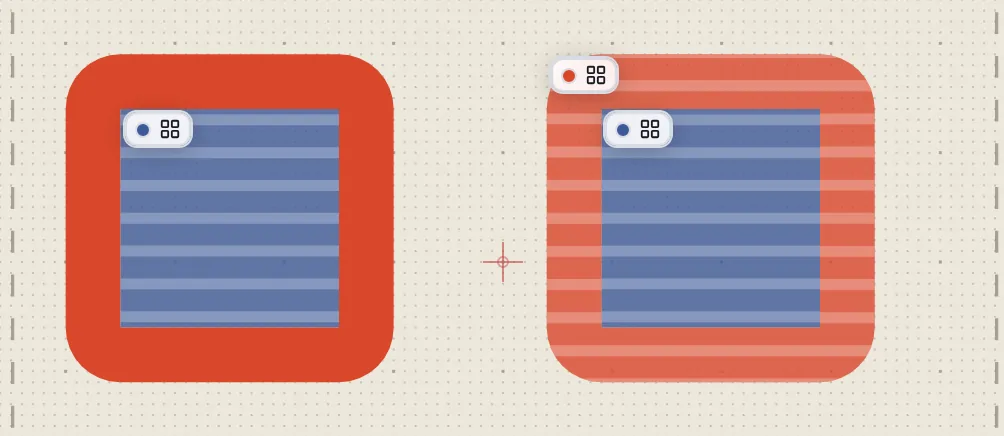
Contour to shape makes a shape's Outline a shape of its own: the ring between the outline's two edges, sewn as a fill in the outline's thread, right after the shape. The shape keeps its fill and loses its outline. That is how a wide border gets a satin edge of its own: convert it, then give the ring an Outline set to Satin.
Object ▸ Convert to path turns a rectangle, an ellipse, a polygon or a built-in shape into a path, so its nodes can be edited (Editing nodes).
Bend shapes in an envelope
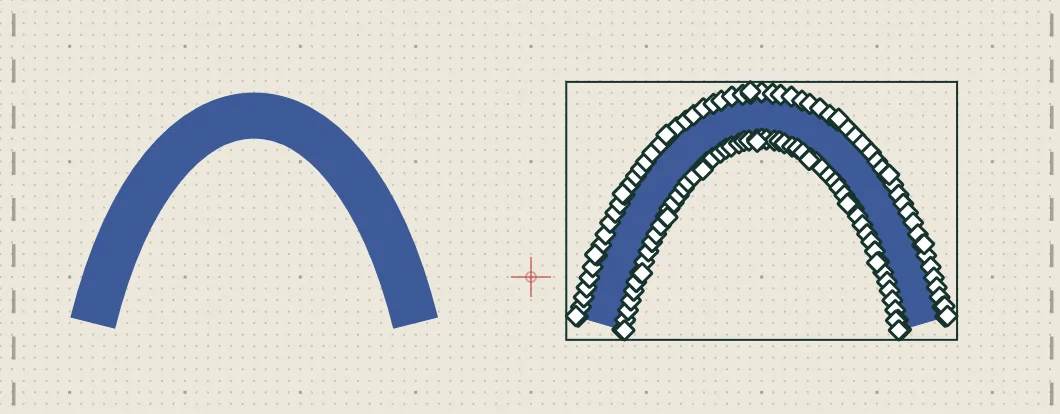
Object ▸ Envelope… bends the selected shapes and lines into a shape: Arch, Bulge, Bridge, Slant, Wave, Fan or Flag, the shapes a text takes under Shape (Bend text into an arc). Several shapes, or a group, bend as one: the envelope spans them all. Amount is a share of the selection's height, and a negative one turns the shape the other way; the preview shows the selection before, dashed, and bent.
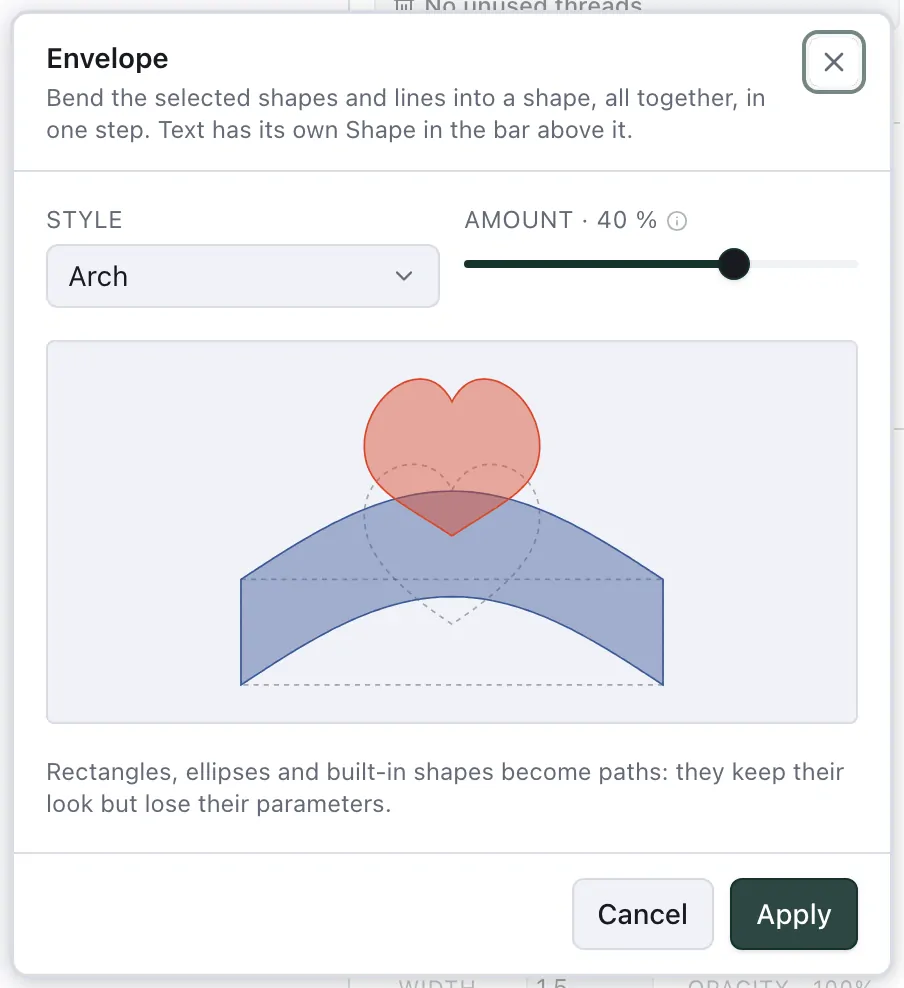
The outlines are bent and then drawn again as curves, so a circle stays a handful of nodes and a corner stays a corner. A rectangle, an ellipse or a shape from the Shapes tool becomes a path, as Object ▸ Convert to path makes it, and loses its settings — a bent star is no longer a star. Text keeps its own Shape, which you can change again at any time; catalogue designs, stitches from a machine file and satins drawn with two rails are left as they are.
Convert text and stitches
Object ▸ Convert ▸ Text to shapes makes a text, a lettering or a monogram ordinary shapes, each letter, frame or separator a shape of its own where it stood, with its colour and stitch settings. Every command on this page then works on them: cut a letter with the knife, combine two, subtract one from a badge. The text stays a group with its name, so a towel under-layer or an outline round it stays where it is. The words are final: they can no longer be edited, and the line below the canvas names what else went with them — a fit to a length, letters adjusted by hand, a names list. A text in one of your own letter fonts is stitches already and stays as it is.
Object ▸ Convert ▸ To stitches freezes shapes or a text as the stitches the design sews for them now, and Object ▸ Convert ▸ Stitches to shapes… turns stitches back into shapes: Converting text, shapes and stitches and Change a machine file.