
New designs, Preferences and presets
Start every design in your thread line, grid and gaps, make new shapes come out the way you sew, and keep your favourite settings as presets.
Updated October 31, 2026
Most of what a design is made with you set once: the machine and hoop, the thread line you buy, how you trim, the gaps your fabric needs. NextStitch remembers those choices in this browser, so the next design starts where the last one left off. New shapes and text can start the way you sew too, and settings you use often can be kept under a name.
File ▸ New
File ▸ New opens a dialog with everything a design starts with: a Project name, the Thread line, the machine and hoop, and the fabric with its stabiliser. Each field starts on the last choice you made, so usually you only check them and press Create.
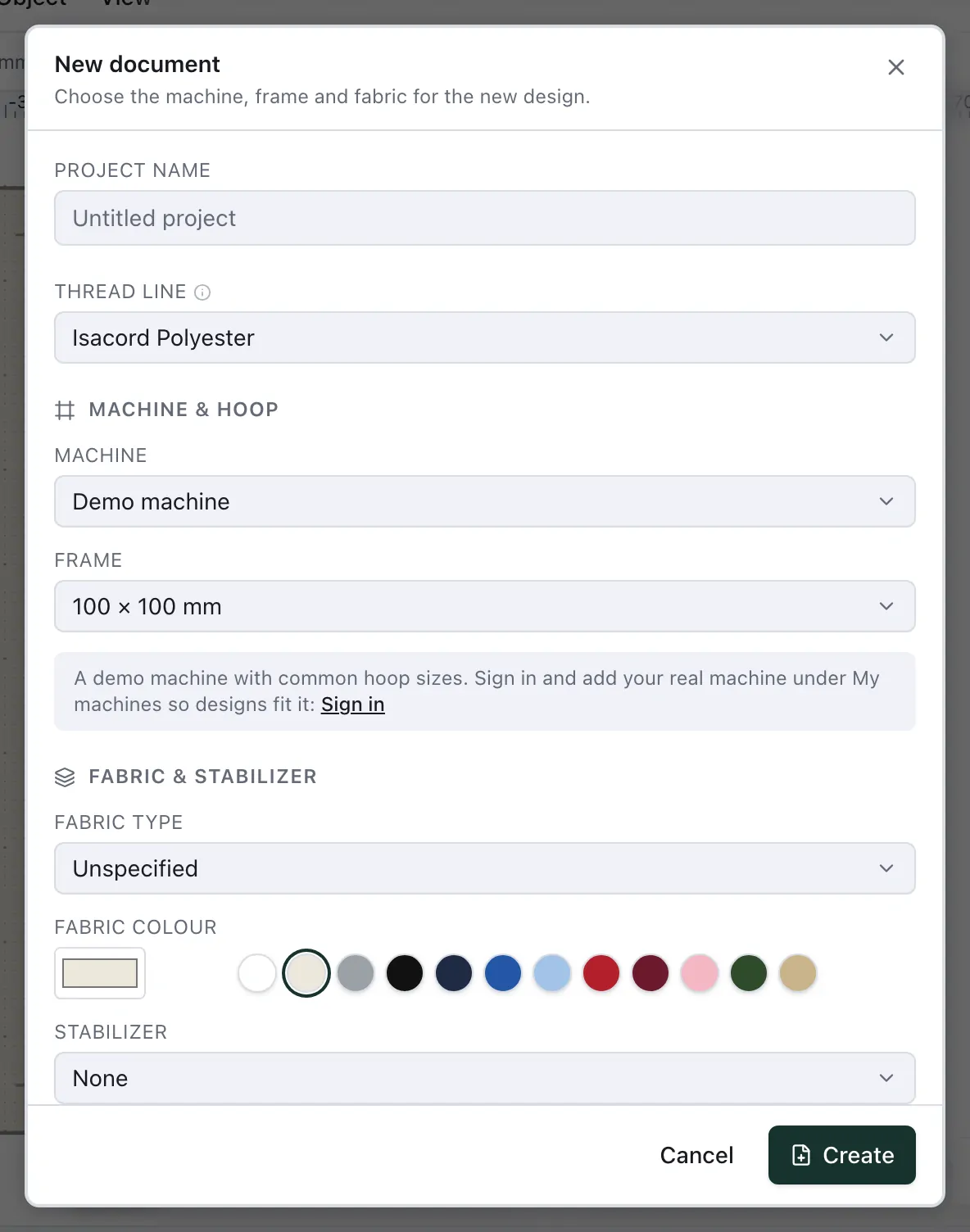
The Thread line is the line you chose last, in the palette or here. Until you choose one, a design starts in your own collection from My threads, then in the line your machine's maker sells (a Brother machine starts in Brother Embroidery), then in Basic colours. Change it here for this design only by picking another; the one you pick is remembered for the next.
Properties
File ▸ Properties… holds the same machine, hoop and fabric for the design that is open, and below them how it is sewn: Production with the trim, the stitch-over gap, ties, the minimum gap and the smallest stitch, and Stitching with automatic underlay. Its fabric can also change what that automatic underlay chooses: Fabric and stabiliser. A change applies to the open design at once and becomes where the next new design starts, as a choice in File ▸ New does.
What new designs remember
A new design takes these from the last one you set up:
the machine, hoop and fabric, and whether the fabric's settings are applied, from File ▸ New or Properties;
the thread line, from the palette or File ▸ New;
Trim jumps longer than, Stitch-over gap, Tie size, Minimum gap and Smallest stitch, from Properties ▸ Production;
the grid's spacing from View ▸ Grid settings, and whether View ▸ Grid is on.
They are kept in this browser, not in your account: another browser or another computer starts from the defaults. A design you open keeps its own settings; only new ones start from yours.
Preferences
Settings ▸ Preferences… shows all of this in one place, and more of how the editor works for you:
New designs: the thread line (or Automatic, the order described under File ▸ New), the grid and the production values a new design starts with. Change them here without opening a design to do it.
New objects: Trim after a new object sets Finish ▸ Trim after for every shape and text you make from then on. Always suits a machine that trims by itself and work where each object is cut off cleanly. The open design's current settings are listed below it (see the next section).
Warnings: the same switches as View ▸ Warnings.
Simulator: jumps, travel, machine commands, needle points, the density heatmap and the fabric colour, the stitches not sewn yet, where playing pauses — at colour changes, stops, trims — and whether the preview follows the needle, and its view settings — thread width, contrast and brightness — with their Reset. The Simulator remembers these in this browser, so it opens the way you last left it.
Units and screen: millimetres or inches, the same choice as Settings ▸ Units, and Calibrate screen….
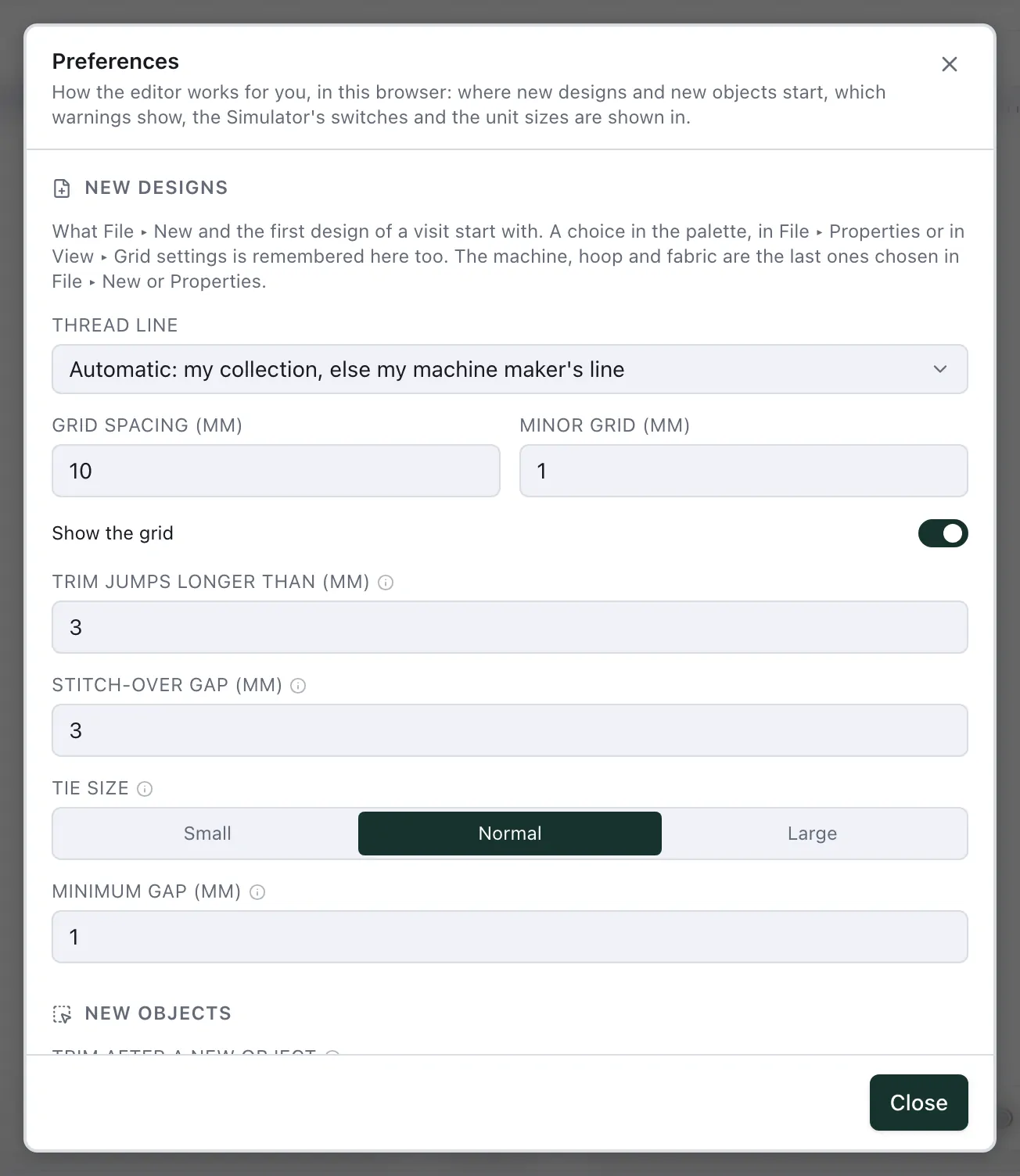
The menu items they come from stay where they are, as shortcuts.
Current settings
A new shape is sewn as the canvas shows it: a closed shape as an Auto-fill, a line as a running stitch, text as satin along its strokes. When you sew a run of shapes the same way, set that up once:
Select a shape sewn the way you want, for example a satin border with its outline.
Choose Edit ▸ Make these settings current.
From then on, every new shape of that kind starts with its stitch type and settings: its underlay and pull compensation, its outline (in the new shape's own thread) and everything under Advanced. There are three kinds, each with settings of its own, so a satin line never turns the next area into a satin: areas (closed shapes), lines (open paths) and text. The text dialog starts on the current text's stitch type; pick another there and that text starts from the other type's defaults.
Current settings belong to the design and are saved with it. Edit ▸ Reset current settings puts every kind back to the factory settings, and Settings ▸ Preferences resets one kind at a time. Shapes you already made keep what they have.
Copy and paste stitch settings
To sew shapes you already have like another one, select that one and choose Edit ▸ Copy stitch settings (Ctrl+Shift+C, or the canvas menu). Select the others and choose Edit ▸ Paste stitch settings (Ctrl+Shift+V): they take its stitch type and every setting, in one step to undo. Each keeps its own thread colours, its fill on or off and what is drawn on its shape, such as fill start and end points or a guide line. A shape that cannot be sewn as the copied type, and a machine file's stitches, stay as they are, and the line below the canvas says so.
Stitch presets
A preset keeps settings under a name, in this browser, to apply in one click. Select one or more objects and open Presets at the top of Stitch settings in the right rail.
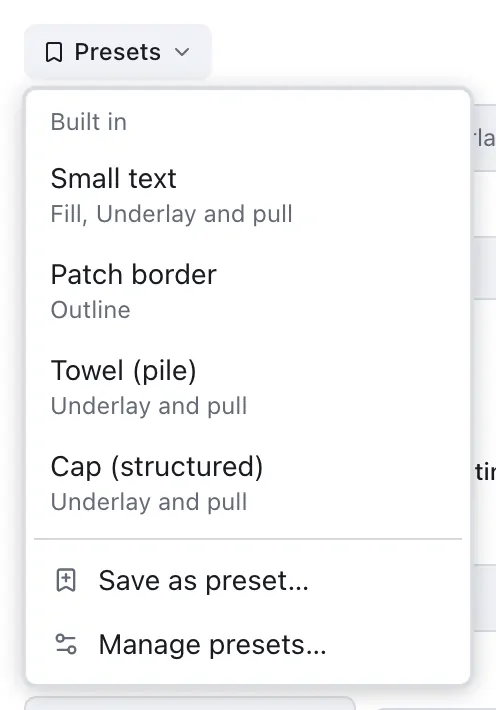
Four come with NextStitch, each a starting point to test on your fabric:
Small text sews letters a few millimetres tall as satin, a little more open than the width alone would, with only a centre run under them.
Patch border gives the shape a 4 mm satin outline centred on its edge. Its fill stays as it is.
Towel (pile) lays a firm underlay first, an edge walk and zigzag under satins and two crossing passes under fills, with more pull compensation.
Cap (structured) lays a centre run and an edge walk under satins and one pass under fills, with pull compensation for the curved front.
Save as preset… keeps the selection's settings under a name. Tick what the preset holds: Fill (the stitch type and its settings), Outline, Underlay and pull and Finish. Applying it changes only those parts, so an outline preset never changes a shape's fill. Manage presets… renames and deletes your presets, and exports them to a file or imports one, to keep a copy or take them to another browser.
Reset markers
Beside a stitch setting you changed, a small arrow appears. It means the value differs from what a new object of that stitch type starts with; click it to put that value back. A preset's values and current settings count as changed too, so the arrows show what they set.
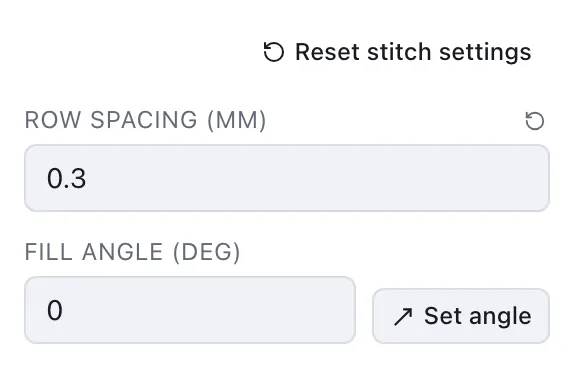
Reset stitch settings, at the top of the settings, puts every setting of the section back at once, in one step to undo. The stitch type, the threads, the outline, the underlay and the finish stay as they are.